Choose a compact 1080p high-refresh monitor if tracking fast action is your main priority and your PC can deliver consistently high frame rates in the games you play. A 1440p high-refresh display makes more sense if you also want sharper detail for other PC use, provided your system can sustain the frame rate you want at that resolution. Check the monitor's refresh mode, connection and variable-refresh-rate compatibility before deciding.
Who each route suits
Players focused on tracking fast action
Compact 1080p esports monitors with very high refresh rates are worth considering when keeping moving targets readable matters most. ZOWIE and ASUS describe relevant TN models, but their highest-refresh routes call for a suitably capable PC.
Competitive players who also use their PC day to day
A compact high-refresh Fast IPS display can balance arena play with broader viewing and everyday use. AOC's 24G4ZR illustrates the route with a 240Hz native refresh rate and a separate 260Hz overclocked mode.
Players who also want QHD detail
A 27-inch 1440p high-refresh IPS format suits players who want more image detail and desktop space alongside arena play. LG's 27GR83Q-B illustrates those specifications, though achieving high frame rates at 1440p still depends on the PC and game settings.
What to check before buying
Compact 1080p Fast IPS
Choose it when: You want high-refresh arena play without making a specialist esports TN panel your priority.
Trade-off: It gives up the extra image detail and desktop space of a 1440p route.
Compact 1080p esports TN
Choose it when: Competitive motion clarity takes precedence and your game and PC can use the monitor's very high refresh mode.
Trade-off: ZOWIE's 360Hz guidance stresses stable game output; ASUS's overclocked 540Hz mode has specific hardware and operating-system requirements.
27-inch 1440p high refresh
Choose it when: You want sharper game and desktop detail as well as fast arena play.
Trade-off: Rendering 1440p at a high frame rate places more demand on the GPU than 1080p, so check performance in your own games.
| Concern |
What to check |
Who this matters to |
| Motion clarity |
Compare native and overclocked refresh modes, then check how the maker describes response time and any motion-clarity feature. |
In ranked matches, I want fast-moving targets to remain readable, so motion presentation comes before extra resolution. Around 36% of consumers put motion clarity first. |
| PC and connection fit |
Check frame rates in your arena games and confirm the intended refresh mode and variable refresh rate work with your GPU, input and cable. |
If my frame rate varies or falls short of an extreme refresh mode, I need a display that fits the PC I already use. PC and connection fit comes first for around 29% of consumers. |
| Resolution and versatility |
Compare screen size with native resolution, and test game performance at the resolution you intend to use. |
I use the same screen beyond arena matches and would rather have sharper detail, even if higher-resolution gaming asks more of my GPU. Around 21% of consumers prioritise that versatility. |
| Desk and equipment fit |
Check stand adjustment, footprint, ports and whether the cable needed for your chosen mode is included. |
My monitor needs to fit my desk and work with the equipment in my setup, not just meet a refresh-rate target. That practical fit is the primary concern for around 14% of consumers. |
Common buying mistakes
-
Choosing extreme refresh without checking game performance
A high monitor refresh rate cannot make a game produce matching frames. ZOWIE advises stable 360 fps for a better 360Hz experience on its XL2566K, particularly in CPU-intensive games.
Check your frame rate in the arena titles and settings you actually use, including busy matches, before choosing 360Hz or above.
-
Comparing overclocked and native rates as though they are identical
AOC specifies 240Hz native and 260Hz overclocked modes for the 24G4ZR; ASUS describes the PG248QP's 540Hz mode as overclocked and subject to prerequisites.
Compare native rates first, then check the hardware, input and mode requirements for any higher figure.
-
Assuming every adaptive-sync label means the same setup
NVIDIA sets requirements for G-SYNC Compatible operation, while the Video Electronics Standards Association treats VESA Certified AdaptiveSync as a separate test-and-logo programme.
Confirm the monitor's named support against your GPU and connection, then enable the appropriate setting after installation.
-
Choosing QHD refresh without checking the PC
A 1440p high-refresh display offers a different balance of detail and speed from compact 1080p models. Reaching the frame rate you want at 1440p depends on your system and game settings.
Check performance at 1440p before settling on the monitor, and compare whether detail or consistently high frame rates matters more to you.
Maintaining your preferred frame rate may require lower game settings or a GPU upgrade.
Relevant monitor brands
ZOWIE
The XL2566K represents a compact, competitive 1080p TN route with a 24.5-inch panel, 360Hz refresh and DyAc⁺.
- ZOWIE positions the XL2566K's motion-clarity features for fast competitive play.
- ZOWIE's own guidance stresses stable 360 fps, particularly in CPU-intensive games; its motion-clarity claims are not a cross-brand test result.
Alienware
Dell's AW2524HF represents a compact 24.5-inch FHD Fast IPS competitive format, listed at 500Hz.
- Dell lists a 500Hz refresh rate and 0.5ms GtG response time for this specific model.
- Its FHD resolution differs from a QHD route for image detail; confirm the refresh mode available through your chosen input.
ASUS ROG
The 24.1-inch FHD ROG Swift Pro PG248QP is a specialist Esports-TN model with an overclocked 540Hz mode.
- ASUS specifies ULMB 2 and G-SYNC hardware for the PG248QP.
- ASUS specifies an NVIDIA RTX 20 Series or newer graphics card and a current Windows version for its 540Hz overclocked mode.
AOC Gaming
The 23.8-inch FHD 24G4ZR represents a compact Fast IPS route with 240Hz native and 260Hz overclocked refresh modes.
- AOC lists Adaptive Sync, G-SYNC Compatible support and an adjustable stand for this model.
- The 260Hz figure is an overclocked mode, so compare its conditions with the 240Hz native specification.
Joybuy monitors to consider
These monitors offer different ways to balance arena play with resolution and screen size, including QHD, a dual-mode display, an ultrawide format and FHD. Match each format to your game performance, desk and preferred refresh mode rather than treating the list as one interchangeable set.
 No image available
Acer X Predator X27U W3, 26.5-inch QHD QD-OLED 240Hz
Consider this format if you want QHD detail alongside high-refresh arena play. The product name specifies 2560 × 1440 and 240Hz; check whether your PC can maintain your desired frame rate at that resolution.
View on Joybuy
 No image available
Samsung Odyssey G6 S27DG612, 27-inch QHD OLED 240Hz
This is a QHD option for players who also want a 27-inch screen for other PC use. Its product name specifies OLED and 240Hz; check game performance at QHD and the refresh mode available through your intended input.
View on Joybuy
 No image available
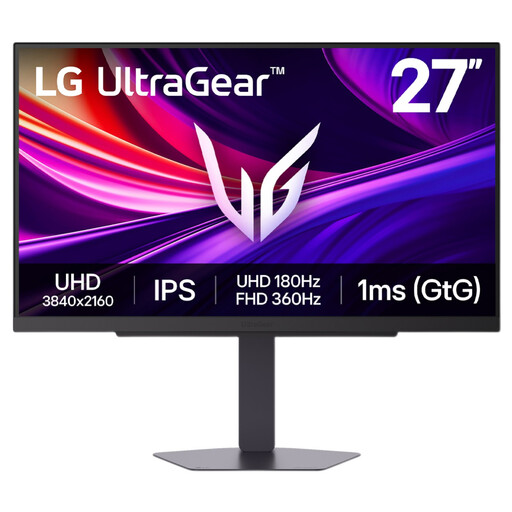
LG UltraGear 27G810A-B, 27-inch IPS 4K dual-mode monitor
A dual-mode screen may suit players who want different resolution and refresh choices for arena matches and other use. Its product name states 4K UHD and a maximum 360Hz mode; confirm which resolution supports that mode, the required input and cable, and your PC's achievable frame rate.
View on Joybuy
 No image available
LG UltraGear 34GX900A-B, 34-inch OLED WQHD 240Hz
Consider this larger format only if a wide screen also suits your games and desk. The product name specifies OLED, WQHD and 240Hz; check game support, frame rates and desk fit, and account for OLED burn-in risk by using screen-protection features.
View on Joybuy
 No image available
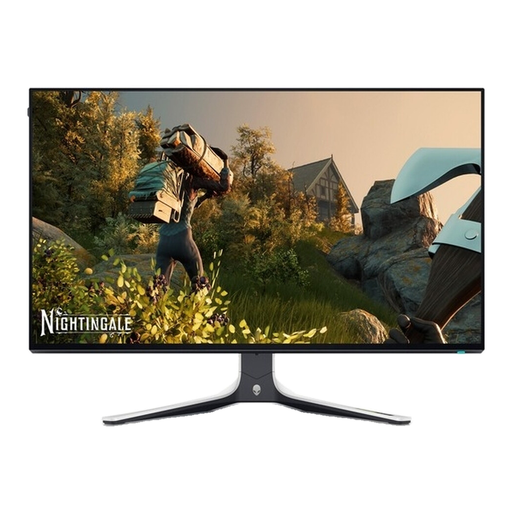
Alienware AW2724HF, 27-inch FHD Fast IPS monitor
A 27-inch FHD format may suit players who favour a larger screen without moving to QHD. Confirm the refresh and response-time specifications for this exact model before choosing it for high-refresh play, then check your in-game frame rates.
View on Joybuy
Frequently asked questions
Is a 360Hz or 540Hz monitor worthwhile if my PC runs games below those frame rates?
It may be difficult to use the highest refresh mode fully if your game cannot produce frames at a similar rate. ZOWIE advises checking for stable 360 fps for its XL2566K, while ASUS sets hardware and operating-system requirements for the PG248QP's overclocked 540Hz mode. Check performance in the arena games you actually play before choosing either route.
What do I need for G-SYNC Compatible variable refresh rate?
You need a compatible display and NVIDIA PC setup, with the feature enabled. NVIDIA specifies Windows 10 or later, a compatible Pascal-class-or-newer GeForce GPU, a compatible game or application and configuration in NVIDIA Control Panel; also check the monitor connection you intend to use.
Does an Adaptive Sync label mean a monitor is VESA Certified AdaptiveSync?
No. The Video Electronics Standards Association says displays qualify for its Certified AdaptiveSync programme only after passing its specified Adaptive-Sync and DisplayPort compliance tests. Check for the actual certification rather than treating a generic adaptive-sync description as equivalent.


