Shared-screen households
If you play from the sofa and use the same screen for programmes or films, start with viewing distance and available space. Then check gaming features on the HDMI input your console will use.


Choose a TV if the screen will serve sofa-distance gaming and shared household viewing; choose a console-compatible monitor if one player sits close to a smaller screen. Before replacing either display, check whether the console, game, HDMI connection, input and settings can deliver the video modes you want. A different cable alone cannot add a mode the console or display does not support.
If you play from the sofa and use the same screen for programmes or films, start with viewing distance and available space. Then check gaming features on the HDMI input your console will use.
If 120Hz, variable refresh rate (VRR), HDR or automatic game mode matters to you, identify your console and the games you play before comparing displays. The exact input, connection and settings matter too.
If you sit near a desk-scale screen, a monitor may fit your setup better than a shared TV. Check its HDMI capabilities for the console output modes you intend to use.
Decide where and how you will watch first, then check the video modes supported across the entire console-to-screen connection. RTINGS distinguishes larger, distance-viewed TVs from monitors designed for closer use; either type still needs the right inputs for your console.
| Priority | What to check | Your needs |
|---|---|---|
| TV or monitor | Compare your seating position, whether others share the screen and the space available. Check console-compatible HDMI modes on either display. | We watch together from the sofa, so a TV suits our setup; for close-up solo play, I would consider a monitor instead. |
| Screen size | Measure from the main seat to the planned screen position, then check the screen’s physical width and height against the space. RTINGS advises choosing a size that shows detail without making viewing uncomfortable. | I want to see game detail from my usual seat without choosing a screen that overwhelms the room. |
| Console modes | Confirm the console model, supported games, resolution and refresh rate. Xbox Support specifies a Series X, Ultra High Speed HDMI cable and HDMI 2.1 TV for 4K gaming at 120Hz; check other combinations on their own terms. | For games that support the mode, I want to know whether my complete setup can deliver it—not just whether the TV carries a 120Hz label. |
| HDMI inputs | Check the exact port for 4K, 120Hz, VRR and HDR where needed, plus any enhanced-format setting. Xbox Support notes that some TV inputs support only lower resolutions; Sony UK documents port-specific VRR settings on applicable TVs. | I need the features to work through the port my console can actually use. |
| Game settings | Check Game Mode or auto low-latency mode (ALLM), alongside settings for normal household viewing. Sony UK describes compatible ALLM setups switching to Game Mode to reduce input lag. | The screen also shows programmes and films, so I want to understand when its gaming settings apply. |
| Connection path | Try the supplied console cable when suitable. If a receiver, soundbar, capture device or adapter sits between console and screen, check its pass-through modes; Xbox Support warns that intermediary devices can affect video features and quality. | If a mode disappears through my soundbar, I can test a direct connection before changing the display. |
The desired mode may depend on a particular console, game, HDMI port, cable and input setting. Sony UK notes that VRR settings can be port-specific on applicable TVs.
Check the exact model and intended port for the modes you need. Once connected, use the console’s display-information screen to see what it detects.
A screen can be uncomfortable at the main seating distance or fail to fit the planned furniture or wall space.
Measure viewing distance and available width and height, then use sizing guidance as a starting point rather than assuming a larger diagonal will suit you.
A monitor intended for close viewing may suit one player, but its PC-focused refresh specification does not establish what its HDMI input accepts from a console.
Check the monitor’s HDMI resolution, refresh-rate, HDR and VRR support for your console before choosing it over a living-room TV.
Xbox Support cautions that an AV receiver, soundbar or other intermediary can affect video features and quality.
Test a direct console-to-display connection when diagnosing a missing mode. Check an intermediary’s pass-through specifications before adding it back.
These brands describe gaming features across selected UK TV lines; confirm capabilities for the exact model, size and HDMI input rather than applying a range-wide claim to every television.
LG’s UK TV range includes gaming-oriented OLED and other display lines for buyers comparing living-room formats.
Samsung’s UK range includes gaming-focused TVs alongside features for general household viewing.
Sony’s BRAVIA gaming range is relevant to households comparing PS5-oriented TV settings and automatic game-mode behaviour.
These TV options suit the living-room route if you want a screen for both console play and household viewing. Compare their listed sizes with your seating distance and space, then confirm console modes on the exact HDMI input before choosing.
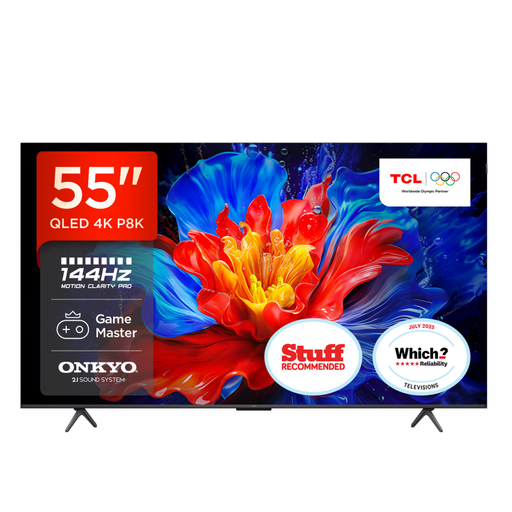 No image available
A 55-inch Google TV option for console play and shared viewing. The listing describes HDMI 2.1, VRR and ALLM, but its refresh-rate claims differ between the title and description. Confirm the mode and HDMI port required for your console, and measure the room before choosing this size.
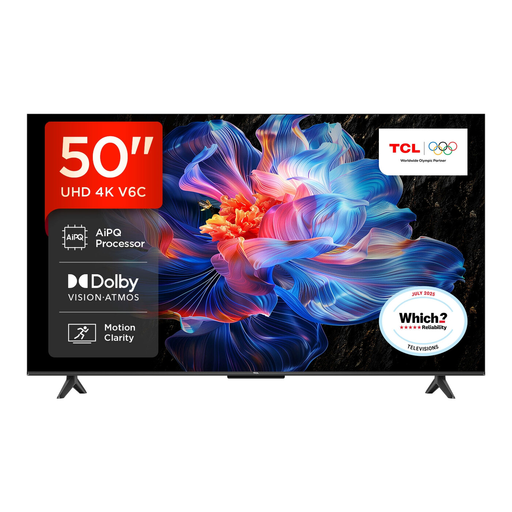 No image available
A 50-inch Google TV option for a shared screen. Its listed 120Hz Game Accelerator mode is specified for FHD, not 4K; the description also claims HDMI 2.1, VRR and ALLM. Confirm the relevant port and console modes, then check the size against your seating distance.
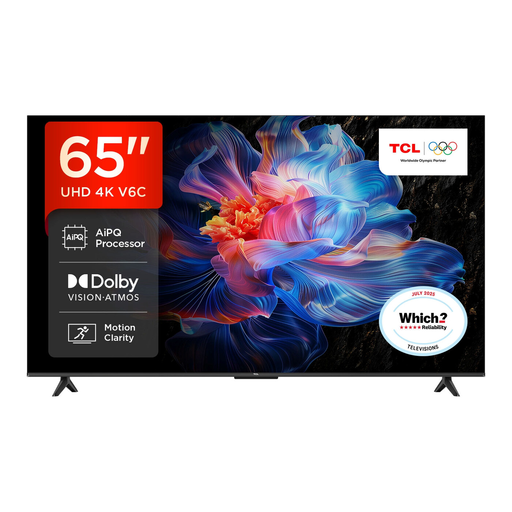 No image available
This 65-inch Google TV offers a larger listed screen for household viewing. Its 120Hz Game Accelerator claim applies to FHD, so do not read it as 4K at 120Hz. The description claims HDMI 2.1, VRR and ALLM; check the usable port, viewing distance and installation space.
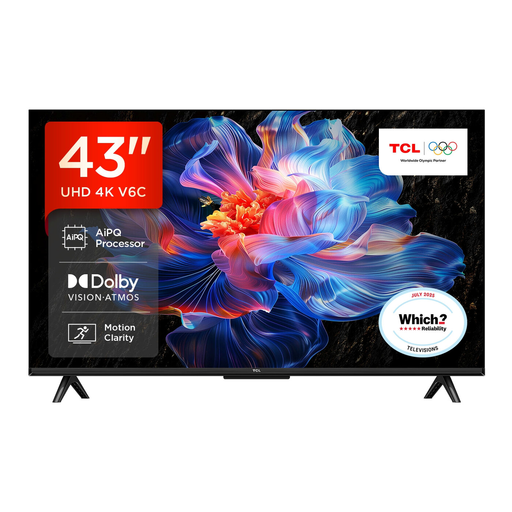 No image available
A 43-inch Google TV option where that screen size suits the seating position. The listed 120Hz Game Accelerator mode is for FHD rather than 4K. Its description claims HDMI 2.1, VRR and ALLM; confirm which input and settings support the modes your console needs.
 No image available
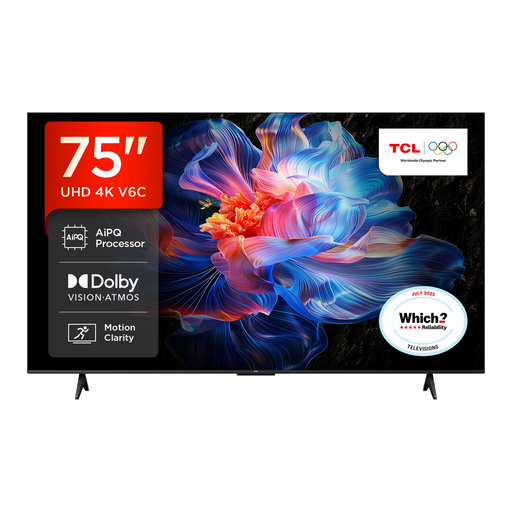
This 75-inch Google TV calls for particular attention to viewing distance and available wall or furniture space. The listed 120Hz Game Accelerator mode is specified for FHD, not 4K; the description also claims HDMI 2.1, VRR and ALLM. Confirm the exact input and supported console modes.
A console-compatible monitor makes sense for close-up individual play on a smaller screen; a TV suits sofa-distance, shared viewing. RTINGS makes that distinction by viewing setup, not by assuming either display type always handles every console mode. Check the chosen model’s HDMI input for the output you want.
Identify the exact console and the games whose modes you intend to use. PlayStation provides connected-display information on PS5, while Xbox Support specifies a Series X, Ultra High Speed HDMI cable and HDMI 2.1 TV for 4K gaming at 120Hz. Check the display input and settings as well as the console.
Not necessarily. Xbox Support notes that some TV inputs support only lower resolutions, and Sony UK documents VRR settings limited to particular ports on applicable TVs. Check the exact model manual and the port you plan to use.
Measure from your main seat to the planned screen location, then use viewing-distance guidance to identify a comfortable range. RTINGS notes that the screen should show enough detail without becoming uncomfortable to view. Check its physical width and height against the available space too.
Not automatically: try the supplied console cable if it reaches and works. Xbox Support specifies an Ultra High Speed HDMI cable for Series X 4K gaming at 120Hz, so check the required cable class if replacing one for that mode. If video features disappear through a soundbar or receiver, test a direct connection and check the device’s pass-through capabilities.