Desk-based specification researchers
If datasheets, manuals, product pages and spreadsheets stay open for long periods at one standing desk, the monitor connection and overall workstation layout matter alongside the laptop screen.


For comparing specification sheets at a standing desk, choose a smaller laptop if you regularly move between work areas and can connect it to a suitable monitor at your main desk. A larger built-in screen makes more sense if you usually work directly from the laptop. Check the exact display, ports and charging requirements before relying on a dock or one-cable setup; a USB-C socket alone does not establish what it can do.
If datasheets, manuals, product pages and spreadsheets stay open for long periods at one standing desk, the monitor connection and overall workstation layout matter alongside the laptop screen.
Moving between home, office and meeting spaces makes the laptop’s carrying size relevant, while the main desk still needs enough screen space for side-by-side reference work.
For consumers whose required documents and tools work on macOS, a MacBook Air is another portable route. Check the selected model’s external-display modes against the intended desk arrangement.
Decide whether you will compare documents mainly on the laptop screen or on a monitor, then check the exact configuration and connections for that layout. The Health and Safety Executive’s display-screen guidance also makes screen height and equipment arrangement relevant to a standing workstation.
| Concern | What to check | Who this matters to |
|---|---|---|
| Monitor and dock compatibility | Confirm video output, supported display modes and, for one-cable use, the laptop’s charging requirement against the monitor or dock. | If I keep several specifications and documents open at my main desk, I need the intended external screen to connect as planned. Around 36% of consumers put that connection first. |
| Built-in screen and positioning | Compare the selected panel’s size, resolution and finish; plan screen height and separate input devices if raising the laptop. | When I work mostly from the laptop itself, I want room to read tables without neglecting the screen’s position at the desk. Readable on-laptop workspace comes first for around 29% of consumers. |
| Moving between work areas | Check the selected model’s size, stated weight, charger and connections needed at each desk. | If I carry the laptop between desks and meetings, I need a setup I can move and reconnect without giving up my main workspace. Portability is the primary concern for around 21% of consumers. |
| Fit for everyday research | Match the actual memory, storage, operating system and required software to your browser, PDF and spreadsheet work. | When my work centres on documents and browser tabs, I want the configuration to serve those tasks rather than choose by processor label alone. Around 14% of consumers prioritise that fit. |
Connector shape does not tell you whether a particular laptop supports the video mode or charging arrangement your monitor or dock needs.
Compare the exact laptop specification with the monitor or dock’s inputs, display modes and Power Delivery specification before choosing a one-cable setup.
A separate cable, compatible dock or power adapter may be needed for the arrangement you want.
A bigger built-in panel does not, by itself, put the screen and keyboard in suitable positions. The Health and Safety Executive advises considering screen height and room for documents and equipment.
Plan where the screen, keyboard and mouse will sit when the desk is raised, and account for lighting and glare.
Raising the laptop may call for a stand and separate keyboard and mouse.
Memory, storage and display options can differ within a model family. Dell’s Latitude 7650 information and the cited Lenovo and HP configurations illustrate why the selected variant matters.
Keep the exact model or part number to hand and compare its screen, memory, storage, ports and keyboard layout with the listing you intend to order.
A feature aimed at a different workload does not resolve an unsuitable document layout or a missing monitor connection.
List your required software, displays and locally stored files, then compare each laptop’s configuration with that list.
These product lines offer different configurations to investigate; a brand name alone does not establish the specification of the laptop you select.
ThinkPad E-series configurations provide Windows laptop options in both 14-inch and 16-inch sizes.
The Latitude 7650 is a 16-inch Windows business-laptop model worth examining if built-in screen space is your priority.
MacBook Air is a route for document-comparison workflows that are compatible with macOS.
EliteBook includes 14-inch Windows business-laptop configurations relevant to a laptop that moves between desks.
ExpertBook models provide another route for consumers comparing portable laptops and documented connections.
These laptops span a portable 14-inch option and larger 15- to 16-inch screens for working from the device itself. Choose between them by your intended screen arrangement, then check the exact connections needed at your desk.
 Image unavailable
Consider this 14-inch model if you move between desks and intend to use a separate screen at your main workstation.
The named configuration has a Snapdragon X processor, 16GB RAM and a 512GB SSD. Confirm its supported monitor modes and charging arrangement against your equipment.
 Image unavailable
This 16-inch touchscreen configuration is an option if you plan to compare documents mainly on the built-in display.
Its title specifies 64GB RAM, a 2TB SSD and a GeForce RTX 5080 16GB graphics processor. Consider whether your applications call for those graphics features, and check the selected model’s connections if you also need a monitor.
 Image unavailable
Its 15.6-inch built-in screen makes this a model to consider if you do not expect to use an external monitor for every session.
The named configuration has an AMD Ryzen 7 170 processor, 16GB RAM, a 1TB SSD and GeForce RTX 5050 graphics. Check the required video connection before planning a docked setup; USB-C charging capability alone would not establish video support.
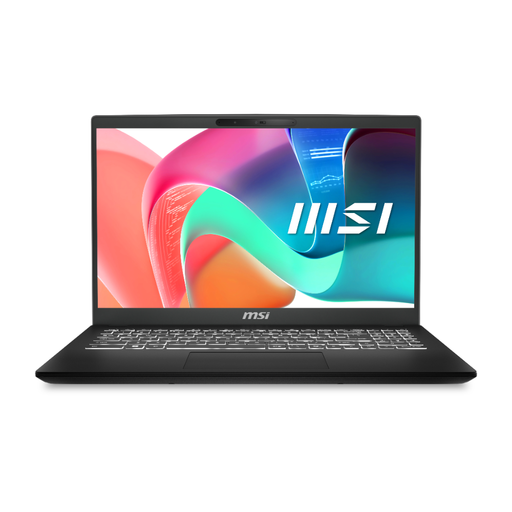 Image unavailable
Consider this configuration if you want a laptop screen for everyday document work but may also connect peripherals at a desk.
The title identifies an Intel Core 5 processor, 16GB RAM and a 512GB SSD. Confirm the precise panel size and the video mode required by any planned monitor.
 Image unavailable
This 16-inch two-in-one is a built-in-screen option for comparing documents at the desk.
The named configuration includes an Intel Core Ultra 5 226V processor, 16GB RAM, a 512GB SSD and Windows 11 Home. If you plan to add a monitor, confirm the selected model’s display-output connections.
No: a 16-inch screen is one route if you mainly use the laptop display, while a smaller laptop can suit someone who moves between desks and has a compatible monitor at the main workstation. In either case, plan screen position and glare rather than deciding by diagonal size alone.
No. Check the exact laptop’s video-output specification, supported display modes and charging requirement against the monitor or dock. Apple UK and ASUS document display and charging capabilities for particular MacBook Air and ExpertBook models, but those specifications do not apply to every USB-C port.
Plan the keyboard and mouse position as well as the screen height. The Health and Safety Executive advises positioning the top of the screen at approximately eye level and allowing space for documents and equipment; also arrange the screen to manage glare.
Check suitable electrical-equipment collection, reuse or recycling options before handing it over, and remove your personal data. GOV.UK provides guidance on equipment covered by the UK’s waste electrical and electronic equipment rules; your retailer or local authority can explain available collection routes.