For study notes that would be difficult to replace, choose a two-bay NAS with compatible drives if you want access to continue after one installed drive fails; mirroring still needs a separate, versioned backup for recovery from deletion or damage. A one-bay NAS can provide a central place for copies without two-drive mirroring. Gigabit networking is a reasonable starting point for routine documents, while 2.5GbE matters more for regular large-file transfers when the workstation and network can use it.
Who is a home NAS for?
Notes-first backup buyers
If you mainly copy coursework, PDFs and scans from one workstation, focus on whether you can restore an earlier file and keep a separate backup. A two-bay mirrored layout is worth considering when continued access after one drive failure also matters.
Large-scan workstation users
If you regularly move sizeable scans, recordings or media-rich folders, compare network connections as well as storage. A 2.5GbE NAS is most relevant when your workstation and the rest of the network support that connection.
Shared-home study organisers
If several home devices need access to the same study files, a NAS can provide a central location rather than requiring you to move an external drive between them. QNAP describes local access, sharing and synchronisation among the functions of its home NAS systems.
What matters when choosing?
For notes copied from a home workstation, plan how to restore a lost file before deciding on drive bays, network speed and sharing features. A one-bay NAS offers central storage, but two installed drives are needed for a mirrored layout.
| Concern |
What to check |
Who this matters to |
| Recovering notes |
Check for scheduled, versioned backups, individual-file restoration and a destination separate from the NAS. |
If an edited or deleted note would be hard to recreate, I need an earlier copy I can actually restore. For around 36% of consumers, that recovery need would come first. |
| Capacity and drive failure |
Check the bay count, exact drive compatibility and usable capacity under your intended storage layout. |
When my notes must remain accessible after one drive fails, I need to allow for mirroring rather than count both drives’ raw capacities as usable space. Around 29% of consumers would make that balance their primary concern. |
| Large-file copy speed |
Check the NAS port and the workstation-to-NAS network path; a faster NAS port alone is not enough. |
If I regularly copy large scan batches or recordings, transfer time matters more than it does for small PDFs. That would be the leading concern for around 21% of consumers. |
| Sharing and setup |
Check desktop compatibility, local sharing, user permissions and whether you need remote access. |
When files need to move between home devices, I want one manageable place to find and share them. Around 14% of consumers would prioritise that workflow. |
Buying pitfalls
-
Buying an enclosure without planning the drives
A diskless enclosure needs separately selected drives, and a mirrored layout changes how much capacity is usable.
Choose the intended layout, then check each exact drive model against the NAS maker’s compatibility list and the resulting usable capacity.
-
Treating RAID 1 as the whole backup plan
Mirroring can keep a NAS available after one installed drive fails, but it does not supply an independent earlier copy after deletion or a destructive attack. The National Cyber Security Centre warns that attackers can target backups too.
Keep versioned backups at a separate destination and test restoring a study-note folder before relying on the arrangement.
-
Choosing 2.5GbE without a compatible network
A 2.5GbE port on the NAS cannot by itself provide a 2.5GbE connection to the workstation.
Check the workstation, router or switch and any adapters along the connection before choosing a NAS for faster large-file copies.
A compatible workstation adapter or network port may also be needed.
-
Assuming every NAS-labelled hard drive is alike
Western Digital says WD Red models may use different recording technologies, while WD Red Plus and WD Red Pro use CMR; it recommends the latter two ranges for ZFS systems.
Check the exact drive model, its recording technology and the enclosure’s compatibility guidance rather than relying on the family name.
Brands to consider for this setup
Synology
Relevant if scheduled, versioned backups and a choice of backup destinations are central to your NAS workflow.
- Synology lists external devices, remote servers and supported cloud services among Hyper Backup destinations, alongside version rotation and individual-file restoration.
- Check the software and destination options for the particular enclosure and setup you intend to use; a backup feature does not replace planning a separate destination.
QNAP
Relevant when comparing two-bay home NAS models for local sharing, USB copying or 2.5GbE networking.
- QNAP lists two bays, 2.5GbE, snapshots and USB One-Touch Copy for the TS-216G.
- A faster NAS network port needs a compatible workstation and network path to be useful for faster transfers.
ASUSTOR
Relevant when considering a two-bay Gigabit NAS for document-focused copying and local sharing.
- ASUSTOR lists Gigabit Ethernet, snapshots and tool-free installation for the DRIVESTOR 2 Lite.
- Its published RAID 1 transfer figures come from optimised laboratory testing, not a guaranteed speed for a home workstation.
Western Digital
Relevant when choosing internal drives for a NAS enclosure, particularly if recording technology or ZFS compatibility affects the choice.
- Western Digital identifies WD Red Plus and WD Red Pro as CMR ranges and recommends them for ZFS systems.
- WD Red drives may use different recording technologies; confirm the exact model and the NAS maker’s compatibility guidance.
Seagate
Relevant when considering IronWolf drives for a compatible NAS that supports drive-health monitoring.
- Seagate describes health analysis and self-tests through IronWolf Health Management for supported drives and NAS systems.
- Support depends on the drive and NAS combination, and health monitoring is not an independent backup.
Joybuy NAS choices
These two- and four-bay NAS enclosures provide options for centralising study files. Choose the drive arrangement and a separate backup workflow according to how you need to recover those files.
 No image available
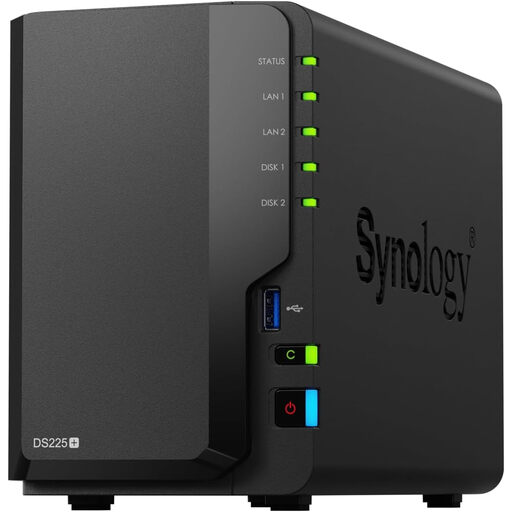
Synology DS225+ two-bay diskless NAS
For centralising study files from a home workstation, this model provides two drive bays. It is diskless, so select compatible drives separately and check the intended backup and restoration workflow before relying on it for recoverable notes.
Joybuy
 No image available
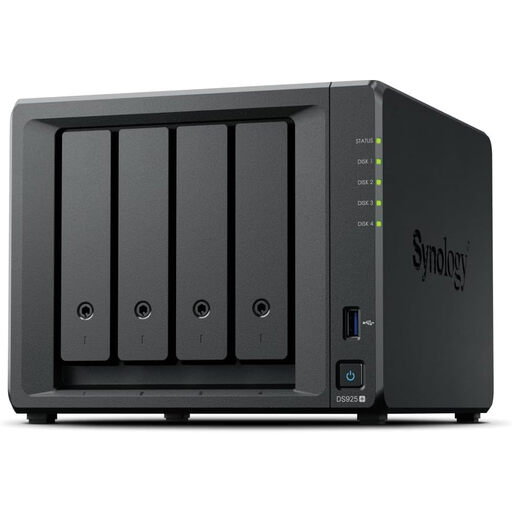
Synology DiskStation DS925+ four-bay NAS
For organising study files in a NAS with four drive bays, consider the DS925+. Check what is included, which drives are compatible and how you will configure storage and separate backups.
Joybuy
Frequently asked questions
Should I choose a one-bay or two-bay NAS for study notes?
Choose two bays if you want to configure mirroring so the NAS can remain usable after one installed drive fails. A one-bay model can still hold a central copy, but neither arrangement replaces a separate backup for recovering deleted or damaged notes.
Do lecture notes and PDFs need a 2.5GbE NAS?
Small documents alone give little reason to prioritise 2.5GbE. Consider it if you regularly copy large scans, recordings or workstation backups, and check that the workstation and network equipment support the faster connection.
Can I install any internal hard drive in a NAS?
Check the enclosure maker’s compatibility list for the exact drive model before buying. Recording technology can differ even within a named drive family: Western Digital says WD Red drives may be SMR or CMR, while WD Red Plus and WD Red Pro are CMR.
Will RAID 1 let me recover notes deleted or encrypted by malware?
No: mirroring addresses a drive failure, not the need for an independent earlier version of a file. Keep versioned copies at a separate destination, control access to that backup and test a restore; the National Cyber Security Centre warns that destructive attacks can target backups.


