Map-and-menu focused colony players
If you spend much of the game reading build queues, tracking resources and surveying a settlement, assess a 27-inch QHD monitor. Make sure both your desk and PC can accommodate that choice.


Choose a 27-inch QHD monitor if your desk has room and your PC runs your colony-management games comfortably at 2560 × 1440; the extra pixels give maps and menus more workspace at the same display scaling. A 23.8- to 24-inch Full HD monitor is the more compact choice when desk space or graphics demand matters more. Whichever size you choose, check the stand footprint, the refresh rate available through your intended port and how you will use headphones in the shared room.
If you spend much of the game reading build queues, tracking resources and surveying a settlement, assess a 27-inch QHD monitor. Make sure both your desk and PC can accommodate that choice.
If the monitor must leave room for other bedroom activities, start with a 23.8- to 24-inch Full HD option. A 27-inch model may still fit, but measure its stand as well as its screen.
If you also use the desk for extended sessions, consider screen positioning, reflections and headphone use. Check height adjustment or mounting options rather than choosing on refresh rate alone.
Decide whether compact Full HD or roomier QHD fits your desk and PC first; then check the stand, sound connection and display modes for the exact monitor.
| Concern | What to check | Who this matters to |
|---|---|---|
| Map and menu space | Compare 2560 × 1440 with 1920 × 1080, and check whether your PC runs the game comfortably at your chosen resolution. | If I want to see more of my settlement alongside its menus, I need enough workspace without constant window switching; around 31% of consumers put map and interface space first. |
| Desk space and quiet play | Measure the exact with-stand footprint and confirm a suitable headphone connection. | When I share a bedroom, the screen cannot crowd the desk or make quiet play awkward; about 25% of consumers prioritise space and quiet use. |
| Positioning and glare | Check the stand adjustments or mounting options, and assess reflections where the screen will sit. | For a long session, I need to position the display around my seat and room lighting; roughly 19% of consumers make adjustability and glare their primary concern. |
| Ports and smoothness | Check resolution and refresh-rate limits for the intended input, plus your device's output and adaptive-sync compatibility. | If I want to use a high-refresh mode, I need my PC or console and its connection to support it; around 25% of consumers put connection and smoothness first. |
Input limits differ by model. Dell specifies up to QHD 180Hz through DisplayPort 1.4 for the G2725D, but up to QHD 144Hz TMDS through its HDMI ports.
Check the exact monitor's specification at your chosen resolution, then confirm the cable and device output you intend to use.
A screen can fit across the desk while its stand leaves too little usable depth. BenQ specifies a 614 × 252.5 mm footprint with stand for the EX2710Q.
Measure usable width and depth with space for your keyboard, mouse and cables, then compare the exact model's with-stand dimensions and mounting options.
If the stand does not suit your desk, using a compatible arm or changing the desk arrangement adds another practical requirement.
Comfort modes do not resolve reflections or an awkward screen position. The Health and Safety Executive identifies workstation arrangement and screen-related strain as considerations for display-screen work.
Position the monitor and room lighting to limit glare, and take breaks or change activity during long sessions.
The LG 24GS65F-B illustrates a compact 23.8-inch Full HD IPS option with a 180Hz refresh rate.
The Odyssey G50D LS27DG502EUXXU is a 27-inch QHD Fast IPS, 180Hz option to assess for map and interface space.
The EX2710Q combines a 27-inch QHD display with 165Hz, 100 mm height adjustment, a headphone jack and VESA mounting.
The VG27AQ3A is a 27-inch QHD Fast IPS option with an earphone jack and VESA support.
These choices include compact Full HD, 27-inch QHD and larger 4K or ultrawide formats. Match each one to your available desk space, PC output and plans for quiet play; the larger formats call for particular attention to fit.
 No image available
Consider this for colony maps and menus if a 27-inch screen fits your desk and your PC suits QHD.
The product title specifies QHD OLED and 240Hz. Check the stand dimensions, the refresh rate available through your intended input and your headphone arrangement before buying.
 No image available
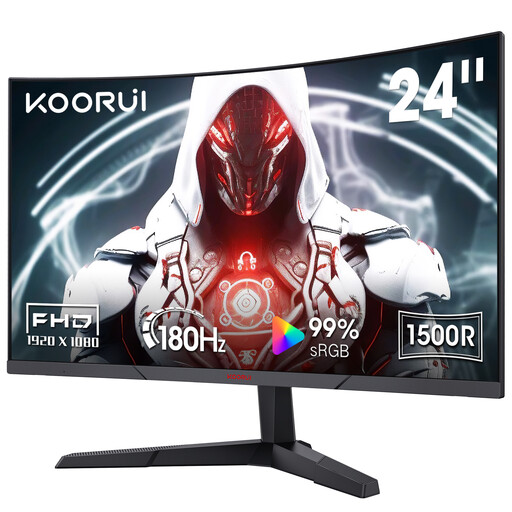
Consider this compact Full HD route if the bedroom desk is tight or your PC is better suited to 1920 × 1080 than QHD.
The product title specifies a 1500R curved VA screen and 180Hz. Confirm its with-stand footprint, input-specific refresh rate and headphone setup for your desk.
 No image available
Consider this 4K option if display detail matters to you and your PC can run your preferred games at the resolution you intend to use.
The product title identifies dual 240Hz and 480Hz modes. Check which resolution applies to each mode, your device's output compatibility and the monitor's with-stand dimensions.
 No image available
Consider this ultrawide format if you want a broad map and interface view and have room beyond a compact or 27-inch setup.
The product title specifies 175Hz through DisplayPort and 100Hz through HDMI, with height, swivel and tilt adjustment. Measure the exact with-stand dimensions and check your intended connection.
No image available
Consider this 27-inch QHD format if map and menu space is your priority and your desk can accommodate the monitor.
The product title specifies 2560 × 1440 and 220Hz. Confirm the with-stand footprint, refresh rate through your chosen input, adjustment options and headphone connection for your setup.
Choose 27-inch QHD if you want more map and menu workspace, have enough desk space and can run the game comfortably at 2560 × 1440. A 23.8- to 24-inch Full HD monitor remains a sensible choice when compact size or lower graphics demand takes priority.
Position the screen and room lighting to reduce reflections, and adjust your setup so the display is comfortable to view. The Health and Safety Executive identifies workstation arrangement and screen-related strain as considerations for display-screen work; take breaks or change activity rather than relying on a monitor's comfort mode alone.
No: the available mode can depend on the exact monitor, resolution and input. Dell specifies QHD 180Hz through DisplayPort 1.4 but up to QHD 144Hz TMDS through HDMI for the G2725D; check the specifications of the model you choose and your device's output.