What matters when choosing?
Start with the space available behind your keyboard, then decide how much resolution your games and PC need. Check connection-specific refresh modes once you have a screen size that works on the desk.
| Concern |
What to check |
Who this matters to |
| Desk fit and screen position |
Compare assembled stand depth with the space behind your keyboard; check height adjustment or a compatible VESA mount. |
If the stand crowds my keyboard, I cannot position the screen where I want it. Around 38% of consumers put desk fit and screen position first. |
| Map and interface clarity |
Compare 1920 × 1080 with 2560 × 1440, and check game performance and interface scaling at your viewing distance. |
When I spend a match reading maps and small interface panels, I want enough display detail without losing the frame rate I need; around 31% of consumers prioritise map and interface clarity. |
| Smooth motion and connections |
Check the resolution and refresh rate available through your GPU output, monitor input and cable, plus variable-refresh compatibility. |
I want camera movement and scrolling to look smooth, but need a connection that can run my chosen mode. For around 31% of consumers, smooth motion is the primary concern. |
Joybuy monitors for these setups
These monitors cover compact Full HD, 27-inch QHD and larger high-resolution options. For the small-desk decision, compare each assembled footprint and screen position before treating the larger displays as workable alternatives.
 No image available
Samsung Odyssey G6 S27DG612 27-inch QHD OLED
Consider this 27-inch option if QHD map detail matters and your desk can accommodate the screen. Its product name specifies 240Hz and 0.03ms; check the supported mode for the input, GPU and cable you intend to use.
View on Joybuy
 No image available
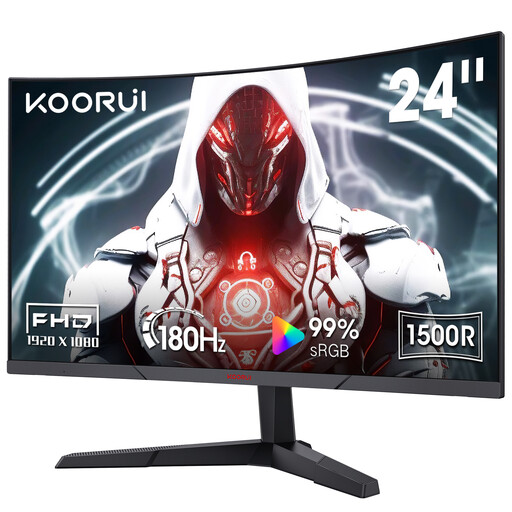
KOORUI MG24A12FV2 24-inch curved Full HD monitor
The 24-inch format is worth checking when desk fit comes before extra QHD pixels. Its product name specifies a 1500R curved VA screen, 180Hz refresh, Adaptive Sync, tilt adjustment and VESA compatibility. Confirm the exact port configuration and whether its positioning options meet your height needs.
View on Joybuy
 No image available
LG UltraGear G8 27G850A 27-inch 4K Nano IPS
This is a higher-resolution alternative to the 27-inch QHD route if your desk and PC can accommodate it. Its product name lists dual 240Hz and 480Hz modes, FreeSync Premium Pro, DisplayPort 2.1 and HDMI 2.1; check which resolution and connection apply to the mode you want, as well as the assembled footprint.
View on Joybuy
 No image available
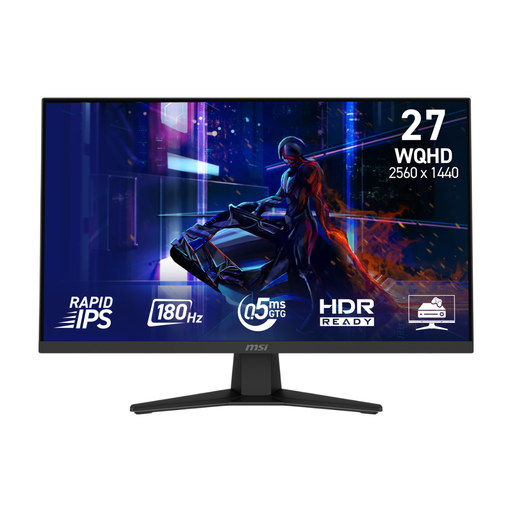
MSI MAG 274QF 27-inch WQHD Rapid IPS
This 27-inch WQHD model suits a closer look if map detail matters and the desk has room for it. The product name lists Adaptive Sync and a 180 refresh-rate specification. Check the resolution and refresh supported through your intended input, and confirm the assembled footprint and stand adjustment for your setup.
View on Joybuy
 No image available
Philips Evnia 6000 34M2C6500 34-inch 3440 × 1440
Consider this wider display only if you can position a 34-inch screen comfortably at your small desk. Its product name specifies 175Hz through DisplayPort and 100Hz through HDMI, with height, swivel and tilt adjustments. Check the complete assembled dimensions and your intended connection before choosing it.
View on Joybuy
Questions about the choice
Should I choose 24-inch Full HD or 27-inch QHD for ranked strategy games?
Choose the compact Full HD route when desk fit or PC workload matters most; choose 27-inch QHD when you have room for the screen and want more pixels for maps and interface detail. Measure your keyboard-to-screen position first: the Health and Safety Executive advises keeping a screen about an arm’s length away, with its top at eye level.
How should I position a monitor on a shallow desk?
Place it directly in front of you at a comfortable viewing distance, with the top of the screen around eye level, in line with Health and Safety Executive guidance. If the supplied stand cannot achieve that position without crowding your keyboard, check the exact monitor’s height adjustment and VESA pattern before considering an arm.
Will any HDMI or DisplayPort cable deliver the maximum refresh rate?
No; the available mode depends on the monitor input, GPU output and cable. LG says the 27GS75QN-B needs a DisplayPort 1.4-capable graphics card and cable for its optional 200Hz overclock. Dell lists up to QHD 180Hz through DisplayPort 1.4 and up to QHD 144Hz through HDMI on the G2725D.
What should I keep for monitor warranty support?
Keep your proof of purchase and record the monitor’s serial number. ASUS UK says its product warranty starts from the dealer’s invoice date and that warranty periods vary by country or region, so check the terms for the exact model and seller before ordering.


