Detail-first poster editors
If you inspect small type, charts and image placement while keeping reference material open, a 27-inch 4K display is a useful starting point. Check that its size and your preferred display scaling work on your desk.


For detailed research-poster editing, start by checking whether a 27-inch screen will fit at a comfortable viewing distance. If it does, choose 4K when fine text and layout detail take priority, or consider QHD when the colour-workflow features of a particular model matter more than maximum pixel density. If a 27-inch screen crowds the desk, a height-adjustable 24-inch model is worth considering; check its resolution, stand footprint and connections before deciding.
If you inspect small type, charts and image placement while keeping reference material open, a 27-inch 4K display is a useful starting point. Check that its size and your preferred display scaling work on your desk.
If your poster contains figures, photographs or institutional graphics, compare stated colour-space coverage and calibration features. Match those features to the intended output workflow rather than choosing by screen size alone.
If desk depth is tight or you want fewer cables, check the stand footprint, adjustment and mounting options alongside the laptop’s video and charging connections. A larger panel is only useful if you can position it comfortably.
Decide whether desk fit rules out a 27-inch screen before choosing between 4K detail and the colour-workflow features available on particular QHD models. Resolution and colour capability are separate decisions: neither guarantees how a finished poster will print.
Choose it when: fine text, charts and layout alignment are your main editing priorities and a 27-inch panel fits your viewing position.
Allow for: possible display scaling and a colour workflow that must be checked separately from resolution.
Choose it when: you have room for a 27-inch screen and a particular model’s stated colour coverage or calibration tools suit your work.
Allow for: fewer pixels than a 27-inch 4K display when inspecting fine poster detail.
Choose it when: a 27-inch screen would sit too close or crowd the usable work surface.
Allow for: a smaller canvas, and compare resolutions model by model; compact monitors are not all Full HD.
| Concern | What to check | Who this matters to |
|---|---|---|
| Fine text and layout | Compare 3840 × 2160 with 2560 × 1440, then check comfortable scaling and your computer’s display output. | When I inspect citations, charts and alignment, I want enough detail to work without constantly changing the view. Around 33% of consumers put fine poster detail first. |
| Colour confidence | Match stated colour-space coverage and calibration options to the print provider’s workflow; plan how you will proof the output. | When figures and branding need careful colour review, I care more about the required colour space than the resolution alone. Roughly 25% of consumers prioritise colour confidence. |
| Desk fit and viewing | Measure usable depth, stand footprint and screen position; check adjustment or compatible mounting options. | If the keyboard shares a shallow desk with the monitor, I need to keep the screen at a comfortable distance. About 25% of consumers make physical fit their main concern. |
| Laptop connections | Confirm video support on the laptop’s USB-C port and compare its charging requirement with the monitor’s power delivery. | If I work from a laptop, I would rather manage one suitable display-and-charging connection than rearrange several cables. Around 17% of consumers put laptop docking first. |
A stand can push the panel towards you even when it fits across the desk. Ergotron advises positioning a monitor at least 51 cm from your eyes and allowing more distance for a larger screen.
Measure from the planned screen position to where your eyes will be, leaving room for the keyboard and cables. If the position is cramped, compare a smaller monitor or a compatible mounting arm.
Rearranging the desk or using a compatible arm adds setup work.
A USB-C connector does not, by itself, establish display-output or charging compatibility. An unsuitable connection may still leave you using a separate charger or video adapter.
Check the laptop maker’s port specification and charging requirement against the exact monitor’s video connection and power-delivery specification.
Monitor colour specifications do not establish how a poster will look from a particular printer, ink and paper combination.
Ask the print provider which colour space and proofing process it expects. If output colour is critical, arrange a soft proof or test print.
Colour-critical work may also require a calibration device or a separate proofing step.
GOV.UK says customers who order online can generally cancel within 14 days of receiving an item. A problem with a faulty or misdescribed monitor is a separate matter from changing your mind; a retailer’s voluntary returns policy does not replace statutory rights.
Check the seller’s cancellation process before ordering. Keep the packaging while you inspect the panel, stand and connections, and report any fault to the seller promptly.
These model ranges offer different ways to address poster detail, colour controls and limited desk space. Compare the exact monitor, not just the brand name.
BenQ’s Creative Pro PD2706QN is a 27-inch QHD example for editors weighing stated colour features against 4K pixel density.
Dell UltraSharp offers distinct compact and 27-inch routes rather than one set of specifications across the range.
LG’s UltraFine 27UP85ZK-W is a 27-inch 4K USB-C example for editors who want fine display detail and an adjustable stand.
These monitors cover 4K detail-focused editing and QHD alternatives for poster work, including a smaller-screen option. Compare each model’s physical fit, colour requirements and laptop connections against your own setup.
 No image available
A 4K option to consider when fine poster detail is your priority and a 27-inch screen fits the desk.
The product name specifies an IPS panel, USB-C and a height-adjustable stand. Check the stand footprint, laptop video and charging compatibility, and the print provider’s colour requirements.
 No image available
A QHD option for poster editors comparing colour-workflow features with the extra pixel density of 4K.
The product name specifies an IPS WQHD display. Check the stand footprint and the exact USB-C video and charging functions against your laptop before choosing it for a compact setup.
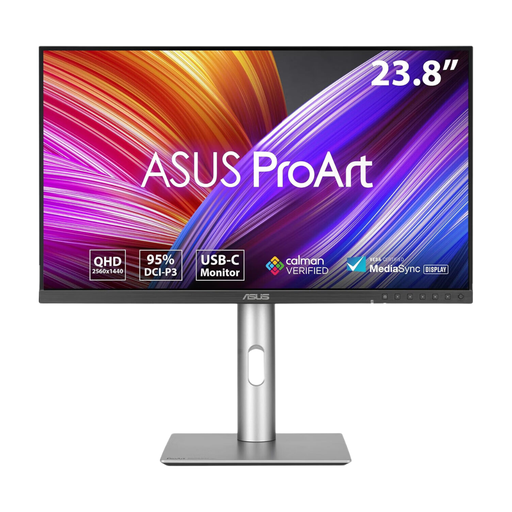 No image available
A smaller-screen QHD option to consider when a 27-inch panel would crowd the desk but poster detail still matters.
The product name specifies an IPS QHD display. Measure the usable desk depth and check the required colour coverage and laptop connection before purchase.
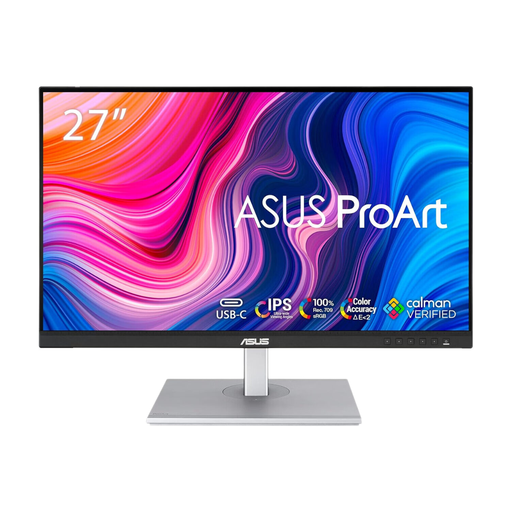 No image available
A QHD option for poster graphics when its colour-workflow features suit your intended output and 4K detail is not the main priority.
The product name specifies an IPS QHD display and 100Hz refresh rate. Check the stand dimensions and the exact unit’s USB-C functions, which may vary by region.
 No image available
A 27-inch 4K option for inspecting dense poster layouts if its screen and stand fit your workspace.
The product name specifies 60Hz, DCI-P3 95%, DisplayHDR 400, built-in speakers, HDMI and DisplayPort. Check how your laptop will connect and charge, and confirm the colour workflow needed for printing.
Not necessarily: the deciding measurement is the distance from your eyes to the screen once the stand, keyboard and cables are in place. Ergotron recommends at least 51 cm and more distance for larger screens, so measure the usable setup rather than desk width alone.
Choose a 27-inch 4K monitor when inspecting fine text and layout detail is the priority; consider a QHD model when its particular colour-workflow features better match your work. Check comfortable display scaling either way, and confirm print colour requirements separately from resolution.
Yes, if the monitor provides the required video and power functions and your laptop supports both through its port. Compare the exact devices’ connection specifications and the laptop’s charging requirement; the presence of USB-C connectors alone is not enough.
GOV.UK says online customers can generally cancel an order within 14 days of receiving an item; check the applicable cancellation procedure and any product-specific conditions. If the monitor is faulty or misdescribed, raise that separately with the seller rather than treating it only as a change-of-mind return.