Choose a compact 23.8–24-inch Full HD monitor if your student desk is tight and you want to scan the whole game screen from close range. A 27-inch QHD monitor gives you more pixels for study and games, but needs more desk space and more graphics capability to reach similarly high frame rates. Whichever route you take, check the computer connection, variable-refresh compatibility and screen positioning before buying.
Who these monitors suit
Support-role players with compact desks
If you sit close to a screen in a bedroom or shared room, a compact display can make it easier to keep the whole game view in sight. RTINGS identifies smaller 24-inch monitors as an option for people who sit directly in front of the display and want to see all of it.
Students using one screen for study and gaming
A larger QHD display may appeal if you also want more pixels for documents and multitasking. You will need room to position it and a computer capable of driving the resolution at the frame rates you want.
Players focused on readable movement
If following allies, opponents and ability effects is your priority, consider refresh rate alongside response behaviour and variable refresh rate. Check that your graphics hardware, connection and settings can use the monitor mode you intend to select.
What to check when choosing
Compact Full HD
Choose it when: your desk is small, you sit close and keeping the whole game view in sight matters most.
Trade-off: Full HD has fewer pixels for coursework windows and image detail than QHD.
Larger QHD
Choose it when: study workspace matters alongside practice and your desk can accommodate a 27-inch screen.
Trade-off: maintaining similarly high frame rates at QHD asks more of your computer than Full HD.
| Concern | What to check | Who this matters to |
|---|
| Readable movement |
Check refresh rate at the native resolution and look beyond a quoted response-time figure when assessing motion. |
If I need to follow fast-moving players and ability effects, I want movement to remain readable rather than choosing by one headline figure. Around 33% of consumers put readable movement first. |
| Desk fit and positioning |
Measure the desk and stand footprint; check height adjustment or the exact model’s VESA mounting pattern. |
On a cramped desk, I need to see the whole screen while placing it at a comfortable height and distance. Desk fit comes first for around 27% of consumers. |
| Study workspace |
Compare screen size and native resolution, then consider whether your computer can run games at your intended QHD settings. |
If the same monitor must hold coursework windows as well as games, extra pixels matter to me. Around 20% of consumers prioritise that workspace. |
| Connection compatibility |
Match the computer’s video output and cable to the monitor’s supported modes; check variable-refresh requirements. |
I do not want to choose a high-refresh feature that my laptop or desktop cannot use through its available connection. Compatibility is the primary concern for around 20% of consumers. |
Buying pitfalls
-
Choosing by refresh rate alone
A stated refresh rate does not establish the mode your computer can output or the frame rate it can produce in your games.
Check your computer’s video output and the monitor’s native-resolution modes, including the port and cable needed for the setting you want.
-
Buying a larger screen before measuring the desk
A 27-inch display needs enough space for its stand and a suitable viewing position. The Health and Safety Executive advises placing the top of a display around eye level and the screen about an arm’s length away.
Measure the available depth and stand footprint, then check adjustment and VESA mounting on the exact model.
If the supplied stand cannot reach a suitable position, a compatible riser or monitor arm may be needed.
-
Comparing response-time claims as if they were identical tests
GtG and MPRT figures describe different measurements; neither number alone establishes how motion will look in use. RTINGS also considers refresh rate, variable refresh rate and input lag when discussing gaming-monitor selection.
If motion clarity will decide your purchase, compare results obtained using a consistent independent test method for the exact models.
-
Putting an old monitor in general waste
UK guidance on waste electrical and electronic equipment aims to support recovery, reuse and recycling rather than disposal with general waste.
Check an appropriate electrical-recycling, retailer take-back or local-authority route when replacing a monitor.
Brands to consider for these monitor formats
AOC / AGON by AOC
AOC’s 24G4X is a compact-route example: its listed specifications include a 23.8-inch, 1920 × 1080 Fast IPS panel, 180Hz, 1ms GtG and Adaptive Sync.
- The 24G4X format is relevant where close seating and desk fit take priority.
- Check the stand, inputs and supported modes of the exact model you select; the 24G4X specifications do not describe every AOC monitor.
MSI
MSI lists the G274QPF E2 with a 27-inch, 2560 × 1440 Rapid IPS panel, 180Hz, 1ms GtG and Adaptive-Sync for the larger study-and-gaming route.
- Its QHD resolution gives this exact model more pixels than a Full HD display.
- Check your desk space, PC output and achievable game frame rates before choosing a high-refresh QHD setup.
BenQ MOBIUZ
BenQ’s EX240 is a 23.8-inch Full HD IPS example listed at 165Hz, with 100mm height adjustment and a 100 × 100mm VESA pattern.
- The EX240’s listed stand adjustment and mounting pattern give you positioning options to assess for a small desk.
- These features apply to the EX240; confirm the stand and included connections for the exact variant you choose.
Joybuy monitor choices
These choices span compact Full HD and larger QHD or 4K gaming monitors. Compare their screen size with your desk, then check which display modes your computer and connection can use.
 No image available
LG UltraGear G8 27G850A 27-inch 4K dual-mode monitor
Consider this larger-screen option if you have room on the desk and want to check whether your computer can make use of its display modes.
The product name specifies a 27-inch 4K UHD Nano IPS panel and dual-mode 240Hz/480Hz refresh figures. Confirm which resolution and connection apply to each mode before buying.
Joybuy
 No image available
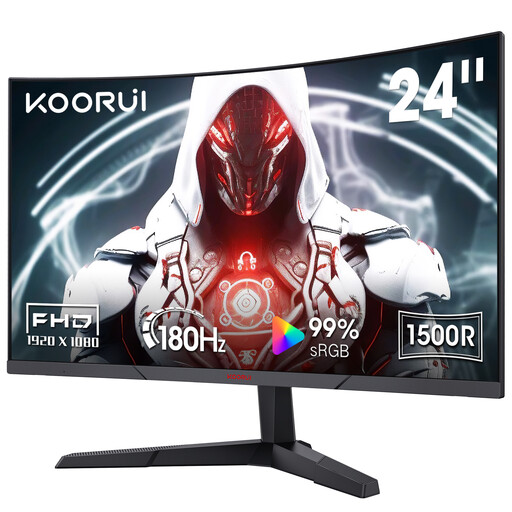
KOORUI MG24A12FV2 24-inch Full HD curved monitor
The 24-inch format is worth considering when close seating and a constrained desk matter more than a larger study display.
The product name specifies a 1080p VA panel, 1500R curvature, 180Hz and Adaptive Sync. Check the refresh mode available through your computer’s connection and whether the tilt-adjustable position suits your desk.
Joybuy
 No image available
Samsung Odyssey G6 S27DG612 27-inch QHD OLED monitor
This 27-inch QHD option suits consideration when study workspace matters alongside gaming and there is room to position a larger screen.
The product name specifies OLED, QHD and 240Hz. The quoted 0.03ms response time is a product claim, not an independent motion test; check your computer’s supported modes and the desk depth.
Joybuy
 No image available
HKC G27H2DPro 27-inch QHD Fast IPS monitor
Consider the larger QHD format if one screen must serve coursework and game practice, provided it fits your desk.
The product name specifies 2560 × 1440 resolution and 220Hz. Check the refresh mode available through your chosen input, along with the exact stand adjustment and mounting options.
Joybuy
 No image available
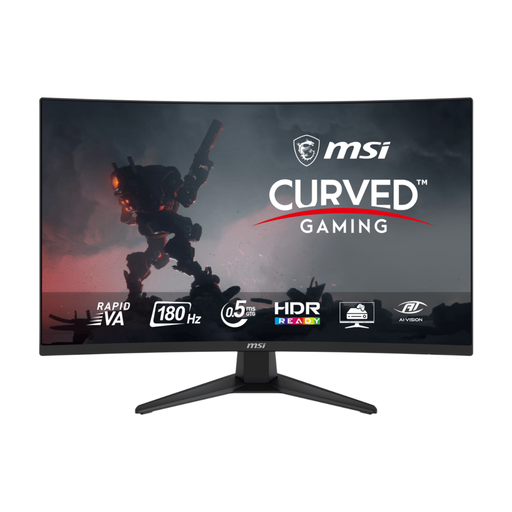
MSI MAG 321CQF E18 32-inch WQHD curved monitor
This larger curved option needs particular attention to desk depth and viewing distance in a student room.
The product name specifies WQHD and 180Hz. Confirm the refresh rate supported by your computer’s chosen output and whether the monitor can be positioned comfortably.
Joybuy
Common questions
Should I choose 24 or 27 inches for support-role practice?
Choose a roughly 24-inch screen if you sit close, have limited desk space and want the whole display readily in view. A 27-inch QHD screen makes more sense if you have room for it and also value extra pixels for study; check whether your computer can run games at the resolution and frame rates you want.
Will a 165Hz or 180Hz monitor automatically run at that refresh rate?
No. Your graphics hardware, video output, cable and display settings must support the intended resolution and refresh rate. Variable refresh rate also needs compatible equipment and the relevant settings enabled.
How should I position a monitor on a student desk?
Place it directly in front of you, with the top around eye level and the screen about an arm’s length away, in line with Health and Safety Executive positioning guidance. Check the exact model’s stand adjustment and VESA pattern if the supplied stand will not reach a suitable position.
What should I do with an old monitor in the UK?
Use an appropriate electrical-recycling, retailer take-back or local-authority route rather than putting it in general waste. UK guidance on waste electrical and electronic equipment supports recovery, reuse and recycling.


