A 27-inch QHD or 4K monitor is worth considering if your laptop screen leaves too little room for sustained desk tasks; choose the resolution alongside the space available for positioning the display. If you want video and charging through one USB-C cable, confirm both the laptop’s video capability and the monitor’s power output. Add an arm only when the monitor, arm and desk fittings are compatible.
Who is an external monitor for?
Hybrid workers using a laptop at a home desk
An additional screen may be useful when documents, spreadsheets, browser applications or calls compete for space on a laptop display. The Office for National Statistics reported that 28% of workers in Great Britain were hybrid workers between 8 January and 30 March 2025; that figure describes working patterns, not monitor needs.
Laptop users seeking a one-cable desk setup
USB-C video and laptop charging can share a connection when the laptop, monitor and cable support the required functions. Check video output and charging requirements for the particular laptop before choosing on the strength of a USB-C socket alone.
Small-desk users considering a monitor arm
An arm is an option when the display has a compatible VESA mount and the desk accepts the required fixing. Check the monitor’s actual weight and the arm’s capacity as well as the space needed to move the screen.
What should you check before choosing?
Start with the laptop connection and usable desk space, then compare screen specifications and any mounting requirements.
| Priority | What to check | Your needs |
|---|
| Screen position |
Measure desk width and depth; check stand height and tilt. The Health and Safety Executive advises positioning the top of the screen around eye level and arranging the desk and screen to avoid glare. |
I need the display in front of me without crowding the desk or placing it where windows cause reflections. |
| Laptop connection |
Match the laptop’s output to the monitor’s input. For USB-C video, check DisplayPort Alt Mode support, the cable and the monitor specification; compare any USB Power Delivery output with the laptop’s charging needs. |
A single cable would simplify my desk, but I can use a separate display connection and laptop charger if their compatibility is clearer. |
| Working space |
Compare screen size, resolution and stand footprint. For specific 27-inch examples, LG UK lists the 27U631A-B at 2560 × 1440, while Dell UK lists the S2725QC at 3840 × 2160; resolution alone does not establish which layout suits your work. |
Documents and browser windows need more room than my laptop gives me, while text must remain comfortable to read at my chosen viewing distance. |
| Arm mounting |
Check the monitor’s VESA pattern against the arm, its actual weight against the arm’s capacity, and the desk’s clamp or grommet requirements. Ergotron notes that monitor depth can affect capacity for its LX sit-stand arm. |
If the supplied stand cannot place my screen where I need it, I want a mount that fits both the display and my desk. |
What can go wrong with the setup?
-
Assuming every USB-C socket carries video and charging
A USB-C connector does not, by itself, establish display-video support or enough power to charge a particular laptop during use.
Check the laptop manufacturer’s port specifications, then match them to the monitor’s stated video support, power output and required cable.
-
Choosing screen size without checking placement
A display can be difficult to position if its stand occupies too much desk space or leaves the screen facing bright reflections. The Health and Safety Executive advises arranging the screen and desk to avoid glare.
Measure the usable desk area and check whether the stand can bring the screen to an appropriate height before settling on a size.
-
Matching a monitor arm by screen size alone
A matching screen diagonal does not establish that the mounting holes, monitor weight or desk fixing will fit the arm. Ergotron also notes that monitor depth can affect the capacity of its LX sit-stand arm.
Compare the exact VESA pattern and monitor weight with the arm specification, then check the proposed clamp position or grommet location.
-
Assuming hybrid work makes a second screen necessary
Working partly from home does not tell you whether your laptop display limits the tasks you do there.
Consider how long you work at the home desk, which windows you need visible together, and whether a second display can be connected and positioned sensibly.
Brand and model references
Dell
Dell UK lists the S2725QC as a 27-inch 4K USB-C monitor with an adjustable stand.
- Dell UK specifies height, tilt, pivot and swivel adjustment, USB-C DisplayPort 1.4 Alt Mode and power delivery up to 65W for this model.
- Check that your laptop supports the required USB-C video connection and whether 65W suits its charging needs.
LG
LG UK’s 27U631A-B and 27U730A-B illustrate different 27-inch USB-C configurations.
- LG UK lists the QHD 27U631A-B with 15W USB-C power delivery and a tilt-adjustable stand; it lists the 4K 27U730A-B with 90W power delivery.
- Choose by the exact model’s display, adjustment and charging specifications rather than treating the two USB-C connections as equivalent.
BenQ
BenQ UK describes the GW2790QT as a 27-inch QHD USB-C monitor with an integrated USB hub.
- The stated USB-C connection and hub are relevant to a laptop desk where connected accessories matter.
- Check the exact model specifications against your laptop’s video and charging needs, along with any stand or mounting requirements.
Ergotron
Ergotron’s monitor-arm guidance is relevant when a compatible mount could help position an existing display.
- Ergotron specifies a 3.1–11.3 kg capacity range for its LX sit-stand desk-mounted arm.
- That range is specific to the named arm; Ergotron notes that monitor depth can affect capacity. Confirm VESA compatibility and the desk fixing separately.
Joybuy monitor options
These external monitors offer different screen formats and connection choices for a laptop-based home desk. Check each model against your laptop, available space and preferred screen position.
 No image available
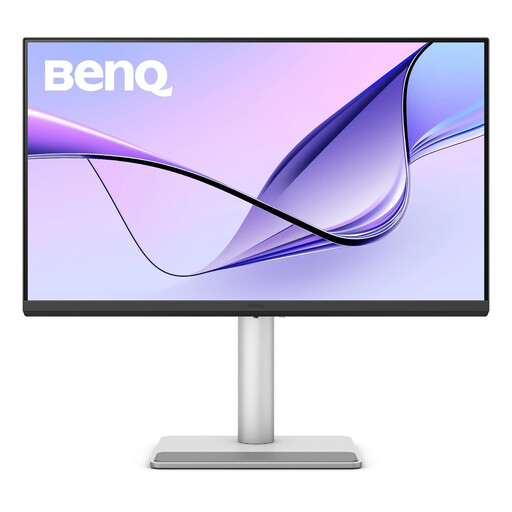
BenQ MA270UP 27-inch 4K USB-C Mac monitor
For a fixed laptop desk where screen positioning matters, this model’s name specifies a height-adjustable stand. It is described as a 27-inch 4K UHD USB-C monitor with a Nano Glossy finish; check laptop video and charging compatibility, and consider how the glossy screen will sit in your room’s lighting.
View on Joybuy
 No image available
iiyama ProLite XUB2792UHSU-B6 27-inch 4K monitor
The named 27-inch 4K UHD display is an option to compare for documents or detailed visual work. Check that its inputs match your laptop; if you want USB-C video or charging, confirm those functions for this exact model before planning a one-cable setup.
View on Joybuy
 No image available
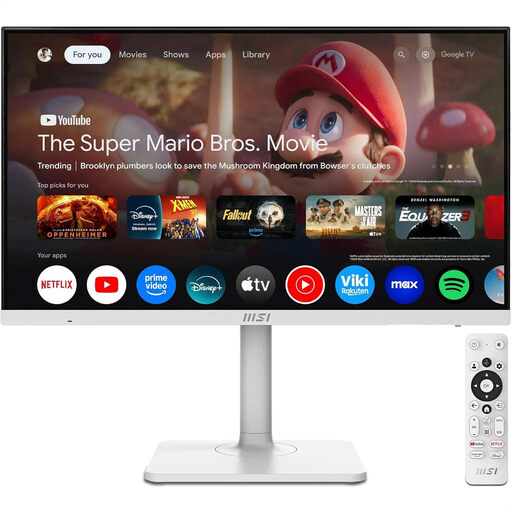
MSI MD272UPSW 27-inch 4K Smart Monitor with Google TV
This 4K IPS model is named with USB-C 65W power delivery. Check whether its USB-C connection carries video from your laptop and whether 65W meets the laptop’s charging needs; confirm the monitor’s actual weight before choosing a desk mount.
View on Joybuy
 No image available
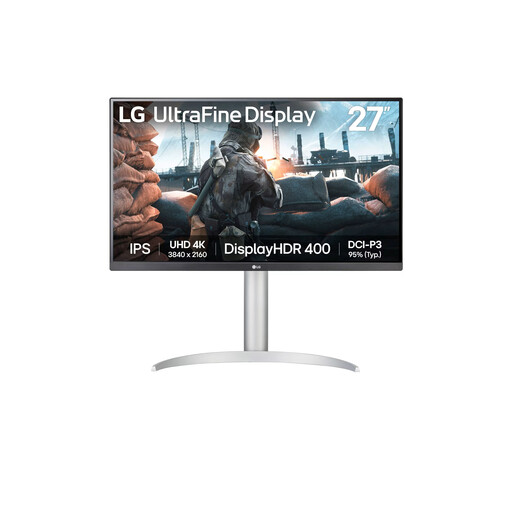
LG 27UP650K 27-inch 4K IPS monitor
For a separate laptop display, the product name identifies HDMI and DisplayPort connections alongside its 4K IPS screen. Check your laptop’s matching output or adapter, and confirm the HDMI port count if you plan to leave multiple devices connected.
View on Joybuy
 No image available
ASUS ProArt PA278CV IPS WQHD monitor
This WQHD model is another screen format to consider for a laptop desk. If you plan to use USB-C for both display and charging, check the laptop’s video support and the monitor’s power-delivery output for this exact configuration.
View on Joybuy
Common questions
Does a laptop’s USB-C port guarantee an external display connection?
No. Check whether that particular port supports video output, such as DisplayPort Alt Mode, and whether the laptop and monitor support the resolution and refresh rate you intend to use. A USB-C connector alone does not establish those capabilities.
Can a USB-C monitor replace my laptop charger?
Only when the laptop accepts charging through that port and the monitor provides suitable power. LG UK lists 15W USB-C power delivery for the 27U631A-B and 90W for the 27U730A-B, illustrating why you need to compare the exact monitor output with your laptop’s requirements.
Where should I place an external monitor for desk work?
The Health and Safety Executive advises placing the top of the screen around eye level and arranging the desk and screen to avoid glare or bright reflections. Check the stand’s adjustment range and your desk space so you can position the display in front of you.
What makes a monitor arm compatible with my setup?
The monitor’s VESA mounting pattern must fit the arm, its actual weight must fall within the arm’s applicable capacity, and the desk must accept the required clamp or grommet fitting. Check the specifications of all three rather than relying on screen size.


