What matters when choosing?
Decide how much physical drawing space you need before comparing colour features or connections. The concerns below distinguish consumers by the need they would put first; other requirements may still matter to the same person.
| Concern |
What to check |
Who this matters to |
| Drawing detail |
Check native 3840 × 2160 resolution, screen size and whether your CAD or BIM interface remains comfortable at the scaling you intend to use. |
If I work close to a compact screen, I want fine lines and interface text to remain readable without making the controls uncomfortably small. Around 40% of consumers put drawing detail first. |
| Side-by-side space |
Compare panel size with desk depth and stand footprint; check how two drawing windows will fit at your preferred scaling. |
When revisions and mark-ups need to stay open together, I want drawings to appear physically larger while leaving room to position the screen. Roughly 30% of consumers prioritise side-by-side space. |
| Colour for visualisations |
Check the colour space your work requires and the exact model’s colour modes, calibration options and included tools. |
If I review renders and material palettes as well as plans, I need to know how colour will be managed across that workflow. About 20% of consumers make visualisation colour their primary concern. |
| Laptop and desk setup |
Confirm the laptop’s video-output and charging requirements against the monitor’s ports and power delivery; check stand adjustment. |
For a laptop-led desk, I want the connections to work with my computer and the screen to sit comfortably through a long session. Around 10% of consumers place that setup need first. |
Joybuy monitor choices
These 27-inch and 32-inch 4K monitors offer different ways to make room for drawing detail, larger comparison windows or visualisation work. Check each model’s finish, desk fit and computer connections against your own setup.
 No image available
ASUS ProArt Display PA32UCG-K 32-inch 4K monitor
Consider this larger screen if you want drawings and review windows to appear physically bigger on your desk.
The product title identifies a 32-inch 4K IPS Mini LED display with a matte anti-glare finish, Thunderbolt 3 and hardware-calibration features. Confirm the calibration process needed for any colour-sensitive deliverables.
If HDR brightness or laptop charging affects your choice, check the exact brightness specification and the computer’s power requirements before ordering.
View on Joybuy
 No image available
BenQ MA320UP Nano Glossy 32-inch 4K monitor
Consider the larger panel when you want two drawings or a drawing and its mark-ups at a more generous physical size.
The product title specifies a 32-inch 4K IPS display, USB-C and a height-adjustable stand. Its Nano Glossy finish makes room lighting and reflections worth checking.
For a laptop-led setup, confirm video output and charging compatibility with your exact computer rather than assuming USB-C will replace its charger.
View on Joybuy
 No image available
BenQ MA270UP Nano Glossy 27-inch 4K monitor
This 27-inch option suits a more compact drawing-review desk if you are comfortable with the size of its application controls and drawing windows.
The product title specifies a 4K IPS display, USB-C and a height-adjustable stand. Account for possible reflections from its Nano Glossy finish when choosing a screen position.
Check the required video connection and charging capability against your specific computer.
View on Joybuy
 No image available
LG 27UP650K 27-inch 4K IPS monitor
Consider this 27-inch screen for detailed drawing review where a compact desk footprint matters.
The product title specifies HDMI and DisplayPort connections and 95% DCI-P3 coverage. Colour coverage alone does not establish how a complete colour-managed workflow will perform.
If you need one-cable laptop use, confirm the exact connection and charging arrangement before buying.
View on Joybuy
 No image available
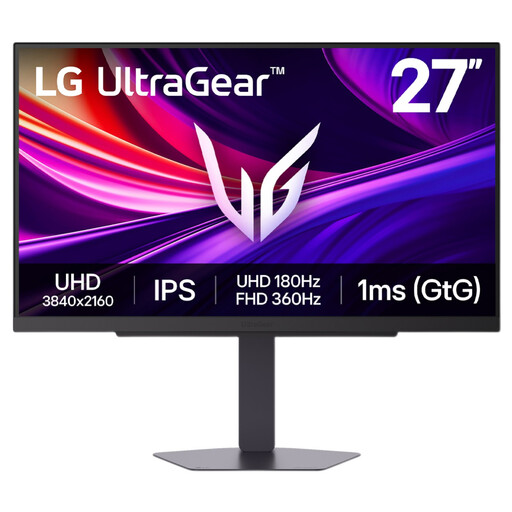
LG UltraGear 27G810A-B 27-inch 4K IPS monitor
Its 27-inch 4K format may suit drawing review at a compact desk, even if gaming is not your main use.
The product title identifies a Dual Mode gaming monitor. Treat that feature separately from the requirements for drawing clarity or managed project colour.
If laptop docking or calibrated visualisation is important, check the exact connections and colour workflow you require.
View on Joybuy
Questions about choosing a monitor
Should I choose a 27-inch or 32-inch 4K screen for comparing drawings?
Choose 27-inch 4K if desk space is tight and you are comfortable reviewing drawings at your preferred interface scaling; choose 32-inch 4K if physically larger drawings and side-by-side windows matter more. Both sizes can have the same 3840 × 2160 pixel count, so check desk depth and viewing position as well as screen size.
Can one USB-C cable display my drawings and charge my laptop?
Yes, if both the laptop and monitor support the required video connection and the monitor supplies adequate power for that computer. For example, LG UK specifies USB-C display, data and charging up to 90 W for the 27UP85ZK-W, while BenQ UK specifies Thunderbolt 3 and 65 W power delivery for the PD2725U; check compatibility for the exact models you intend to connect.
Does a UK workplace need to assess a drawing-review workstation?
For workers who use display-screen equipment daily and continuously for an hour or more, the Health and Safety Executive says the Display Screen Equipment Regulations apply and employers must assess the workstation. That assessment covers the equipment, furniture and work conditions, not just the monitor.
What should I know about returning a monitor ordered online?
For an applicable UK distance sale, GOV.UK says customers have 14 days after receiving an item to tell the seller they wish to cancel, then another 14 days to return it. Remedies for faulty or misdescribed goods are separate from changing your mind; check the seller’s return instructions without treating its voluntary policy as a replacement for statutory rights.


