What matters when choosing?
Settle the usual viewing arrangement before choosing a screen size: close-up individual work and group viewing place different demands on the same 4K image. Then check the laptops and the desk setup rather than assuming the monitor’s connector or comfort features will settle those questions.
| Concern |
What to check |
Who this matters to |
| Map detail and workspace |
Compare native 3840 × 2160 resolution, 27-inch and 31.5–32-inch sizes, and readable application scaling. |
If I inspect fine labels and linework close to the screen, I need enough usable map workspace without making text difficult to read. Around 31% of consumers put map detail and workspace first. |
| Laptop connection |
Check each laptop’s video output, the monitor’s USB-C video and power-delivery specifications, and the required cable. |
When I change desks or share a monitor with colleagues, I want to connect my usual laptop without rebuilding the setup. For around 25% of consumers, a workable laptop connection is the primary concern. |
| Group viewing |
Measure desk width and depth; compare panel size and the stand’s positioning adjustments. |
If colleagues stand beside me to discuss a map, they need to see its labels from their viewing positions. Making the screen easier to share comes first for around 19% of consumers. |
| Positioning and reflections |
Check stand adjustment, screen-surface specifications, lighting and likely reflections at the desk. |
When different people use the same workstation, I need to reposition the screen and keep bright reflections out of the map. Around 25% of consumers prioritise the workstation setup. |
Joybuy monitors for map checking
These 27-inch and 32-inch 4K monitor choices address close-up map review or shared viewing at a desk. Compare their stated connections and screen finishes against your office setup, particularly if several laptops will use the same monitor.
 No image available
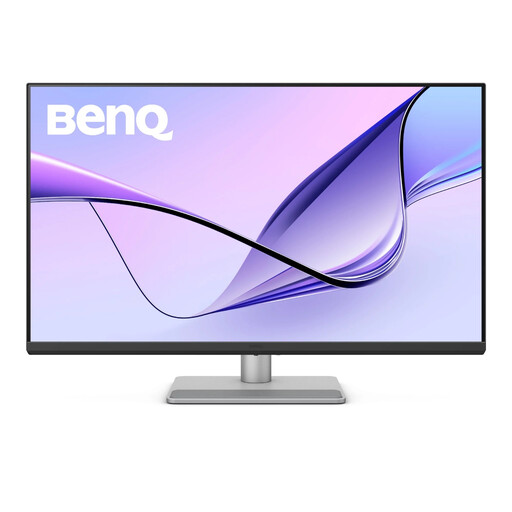
BenQ MA320UP 32-inch Nano Glossy 4K IPS USB-C monitor
Consider the larger panel when colleagues regularly view a map together and the shared desk has room for it.
The product name specifies a height-adjustable stand, HDR and P3. Nano Glossy describes its finish; check reflections at the intended desk rather than treating it as an anti-glare claim.
If laptops will connect through USB-C, confirm their video output and charging requirements against the monitor and cable.
Joybuy
 No image available
BenQ MA270UP 27-inch Nano Glossy 4K IPS USB-C monitor
The 27-inch size suits close-up map review where a smaller physical panel fits the shared desk.
The product name specifies a height-adjustable stand, HDR and P3. Check how its Nano Glossy finish behaves under the office lighting before choosing it for a reflection-prone position.
For a one-cable laptop arrangement, check the laptop’s video output and charging needs against the monitor and cable.
Joybuy
 No image available
MSI MD272UPSW 27-inch 4K IPS Smart Monitor
Consider this 27-inch option for close-up map checking if its connection and charging specifications suit the laptops using the desk.
The product name specifies USB-C 65 W, Google TV and Dolby Audio. Check USB-C video compatibility and whether 65 W meets each laptop’s charging requirement; assess the screen surface for reflections in the intended position.
Joybuy
 No image available
iiyama ProLite XUB2792UHSU-B6 27-inch 4K monitor
The 27-inch 4K format is relevant when map checking usually happens close to the screen.
The product name specifies a 16:9 format and Matte Black colour; that colour description does not establish an anti-glare screen surface. Check reflections at the desk and confirm the required laptop video and charging connections before relying on a one-cable setup.
Joybuy
 No image available
LG 27UP650K 27-inch 4K IPS monitor
This 27-inch model is a close-up map-review option for a desk using a suitable display connection.
The product name specifies 60 Hz, HDMI, DisplayPort, DCI-P3 95%, DisplayHDR 400 and built-in speakers. Check the laptop’s connection needs separately if the desk requires USB-C video or charging, and assess screen reflections in the room.
Joybuy
Frequently asked questions
Does a shared-office monitor workstation need an assessment?
Yes, where workers use display screen equipment daily as part of normal work for continuous periods of an hour or more. The UK Health and Safety Executive says the assessment covers the workstation as a whole, including equipment, furniture, working conditions, the job and individual requirements; sharing the desk does not remove that duty.
Can an anti-glare or low-blue-light feature replace changes to the desk setup?
No. The UK Health and Safety Executive advises arranging the desk and screen to avoid glare and bright reflections, and assessing risks across the workstation and work routine. Check the screen at its intended position even if it has an eye-comfort feature.
Should a shared-office map monitor have USB-C?
USB-C is worth choosing for a one-cable desk only when the relevant laptops support the required video connection and the monitor’s stated power delivery meets their charging needs. Check the cable too; otherwise, compare the laptops’ available video outputs with the monitor’s inputs.
How should breaks work during intensive map checking?
For employees who qualify as display screen equipment users, employers must plan breaks or changes of activity. The UK Health and Safety Executive says the law sets no fixed duration or frequency and gives short, frequent breaks as a preferable approach.
Can a UK display screen equipment user request an eye test?
Yes. The UK Health and Safety Executive says an employer must arrange an eye test if a display screen equipment user requests one, and provide glasses if the employee needs them only for that work. This is distinct from an ordinary prescription that is also suitable for other use.


