
24/7 Customer Support

Free returns

Same-day & Next-day Delivery

Quality Guaranteed

Unlock Your Welcome Offers: FREE Delivery | Up to 80% OFF | Free 30-day JoyPlus trial
Download the APP
A 34-inch ultrawide monitor can replace a dual-screen desk setup, provide a wider field of view in games and make long editing timelines easier to manage. However, the large format alone does not guarantee a good purchase. Refresh-rate limits, unsuitable connectivity and exaggerated HDR descriptions can all leave UK buyers with an expensive display that does not match their computer or working habits.
Before choosing a 34-inch curved monitor, check the specifications that affect everyday use rather than relying on phrases such as “immersive” or “professional-grade”. The following points help narrow the options.
A monitor might list 165Hz, 175Hz or 240Hz, but the maximum can vary between DisplayPort, HDMI and USB-C. For example, the Philips Evnia 6000 34M2C6500 reaches 175Hz through DisplayPort, while HDMI is listed at 100Hz. The Dahua model offers 200Hz through DisplayPort but up to 100Hz through HDMI 2.0.
Check the graphics card output, cable standard and the monitor’s input limits before buying. A high refresh rate is most useful when your PC can produce a comparable frame rate at 3440 x 1440.
HDR labels vary considerably. A 34-inch display may accept HDR signals but have limited brightness or contrast. The Modern MD342CQPW, for example, is listed as HDR Ready with 300 nits brightness, whereas the Philips Evnia specification lists a peak brightness of 1000 cd/m². These figures describe different levels of highlight brightness, although real-world HDR also depends on local dimming, contrast and panel behaviour.
Treat HDR as one part of the specification. If HDR films and games are important, check the stated brightness, certification and panel type rather than relying on the label alone.
A 34-inch 21:9 monitor is roughly 80–81cm wide before allowing for its stand. Depth, viewing distance and the curve also matter. Measure your desk, check whether the stand can move high enough and confirm the VESA mounting size if you use an arm. A screen that is too close can make you move your head repeatedly, while a low or inflexible stand may cause uncomfortable posture.
For most buyers, 3440 x 1440 UWQHD is the practical resolution to target. It gives a sharper image than 2560 x 1080 on a 34-inch panel and provides useful horizontal room for spreadsheets, timelines and side-by-side applications. The 21:9 aspect ratio is particularly suitable for a monitor for multitasking, video editing and cinematic games.
There are exceptions. A 2560 x 1080 display such as the LG UltraWide 34U511A-B.AEU can suit general office work where a lower graphics workload or a lower purchase cost is more important. For detailed design work, text clarity and editing, 3440 x 1440 generally provides more desktop information.
A 120Hz monitor already feels more fluid than a typical 60Hz display when the computer supports it. A 165Hz gaming monitor, 175Hz model or 200Hz option can benefit fast-paced games, while a 240Hz gaming monitor is aimed more directly at competitive players with suitable hardware.
Response-time figures need context. MPRT and GtG are measured differently, and a quoted “1ms” figure may use a specific overdrive or motion-reduction mode. Look for adaptive synchronisation as well. FreeSync or Adaptive-Sync can help match the display’s refresh behaviour to the graphics card and reduce visible tearing.
VA panels commonly offer strong stated contrast and deep-looking dark scenes, while OLED panels can produce very dark blacks and fast listed response times. OLED ownership also requires attention to the manufacturer’s care features and your usage pattern, particularly if static desktop elements remain visible for long periods.
A 1500R curve is common among 34-inch curved gaming monitors. It can make the edges feel closer to the centre, but whether it suits you depends on seating distance and preference.
For a laptop-based workspace, prioritise a USB-C monitor with sufficient power delivery. The Modern MD342CQPW provides up to 98W USB-C Power Delivery, while the V7 L340WQ-HAS provides 65W and supports Picture-by-Picture. Always check whether USB-C carries video, data and charging, rather than assuming every USB-C port does all three.
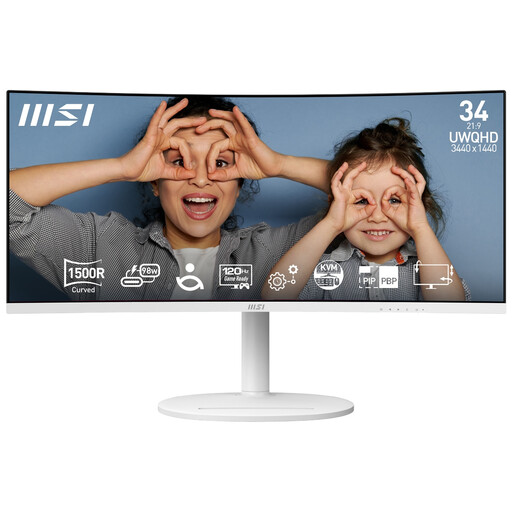
Why This Fits Their Persona: A sensible option for UK home offices and mixed work-and-entertainment desks, with UWQHD resolution, 120Hz motion and a clean white finish.
Its listed 120Hz refresh rate is clearly specified, avoiding assumptions about an unusually high gaming rate. USB-C supports video and up to 98W power delivery.
3440 x 1440 resolution, built-in KVM, height/swivel/tilt adjustment and USB-C charging.
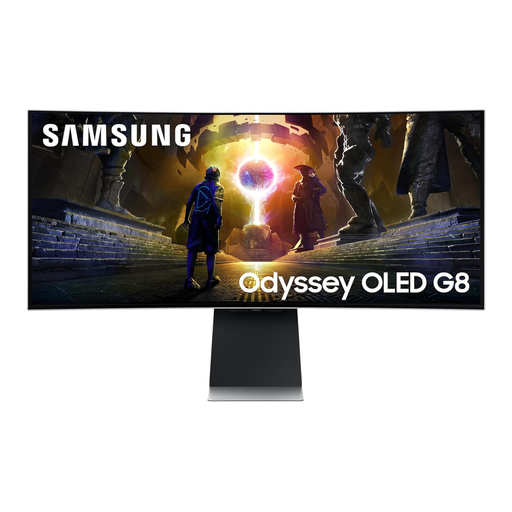
Why This Fits Their Persona: Suited to buyers prioritising QD-OLED contrast, smart functionality and a high-refresh gaming experience in one premium display.
The specification identifies QD-OLED technology and 175Hz refresh rate directly, while its glare-free design addresses reflections in brighter rooms.
3440 x 1440 QD-OLED panel, 0.03ms listed response time, HDMI 2.1, DisplayPort and built-in speakers.
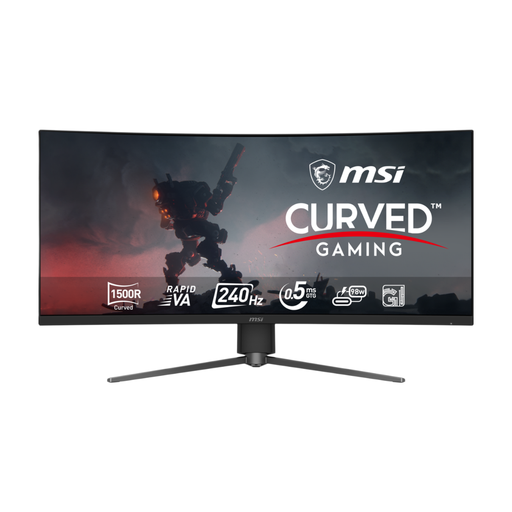
Why This Fits Their Persona: A match for esports players and PC owners with hardware capable of driving high frame rates at ultrawide resolution.
It lists 240Hz support through DisplayPort, HDMI 2.1 and USB-C, helping buyers compare connection requirements rather than assuming every port performs identically.
Rapid VA panel, 240Hz refresh rate, 0.5ms GtG listed response time, Adaptive Sync and 98W USB-C power delivery.
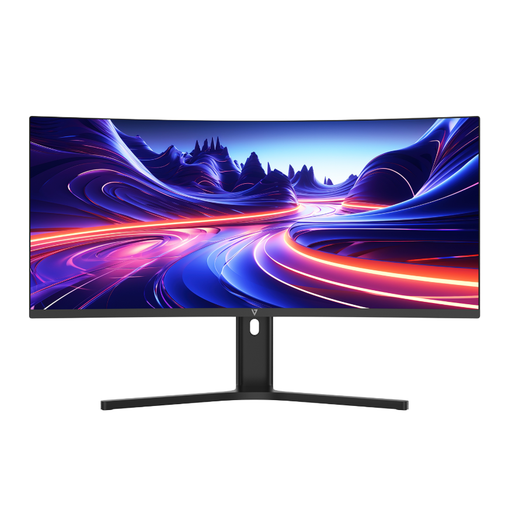
Why This Fits Their Persona: Designed for people switching between a work laptop and desktop, with a spacious canvas for editing, spreadsheets and office applications.
The USB-C connection is specified with 65W power delivery, and PBP support is listed for displaying two computers at once.
3440 x 1440 resolution, height adjustment, PBP/PIP, built-in speakers and VESA 100 x 100mm mounting.
We have compiled a complete, real-time list of products that fully satisfy these strict selection criteria and UK safety regulations.
Yes, particularly a 3440 x 1440 monitor. The 21:9 layout can show several application windows side by side and provides more horizontal space for spreadsheets and editing timelines. Check that your desk is wide enough and choose a height-adjustable stand where possible.
Most modern laptops can output an ultrawide signal, but the available resolution and refresh rate depend on the laptop’s graphics hardware and port. USB-C models require DisplayPort Alt Mode for video. If charging is important, confirm the monitor’s power-delivery rating matches your laptop’s requirements.
Running costs depend on brightness, HDR use, refresh rate and daily hours. Check the stated wattage or energy label, then compare it with your electricity tariff. Lowering brightness for office work and enabling standby settings can reduce consumption, while HDR and high-brightness modes may use more power.