For learning Blender on Windows, start by comparing desktops with the Blender Foundation’s recommended 8-core CPU, 32GB RAM and 8GB of graphics memory, then examine the complete cooling arrangement for a quiet study. Consider a professional-graphics workstation when your intended CAD or 3D software calls for application-specific graphics support; choose passive cooling only after checking that its configuration can handle your planned workload.
Who this is for
Blender learners planning beyond basic projects
If you expect to practise modelling, work in the viewport and try rendering, compare complete desktop configurations rather than relying on an office-PC label. The Blender Foundation recommends 8 CPU cores, 32GB RAM and 8GB of graphics memory for Blender on Windows; those figures are a starting point, not a promise about every project.
People working in a quiet or shared study
Long rendering sessions make the case, coolers and fan settings worth examining alongside the processor and graphics card. A noise-oriented case design can offer damping and adjustable airflow, but the sound of a complete desktop depends on its installed components and workload.
Learners moving towards professional 3D work
If your plans include CAD, visualisation or a particular Autodesk application, check that software’s requirements and graphics-hardware guidance before choosing a workstation. Professional graphics and support options matter most when they meet a requirement of your actual workflow.
What matters when choosing
Choose the software you intend to learn first, then compare its requirements with the exact desktop configuration. For a quiet study, assess cooling under sustained work separately from the CPU, RAM and GPU specification.
| Concern |
What to check |
Who this matters to |
| Hardware for learning projects |
Check CPU cores, installed RAM, the exact GPU and its graphics memory. For Blender on Windows, the Blender Foundation recommends 8 cores, 32GB RAM and 8GB of graphics memory. |
I want room to develop my Blender projects without choosing a desktop solely because it launches the software; around 33% of consumers put learning-project capability first. |
| Noise during sustained work |
Ask about the case, CPU and GPU coolers, fans and fan controls. Compare any noise figures only when load and measurement conditions match. |
When I work or render for a long session in a shared study, persistent fan noise would be distracting; roughly 25% of consumers make quiet operation their primary concern. |
| Choosing the right type of desktop |
Compare the requirements of the software you will actually use with the complete configuration before choosing a specialist workstation. |
If I am beginning with Blender, I want the hardware for my learning tasks rather than workstation features I may never use; around 17% of consumers prioritise that distinction. |
| Future software compatibility |
For planned CAD or Autodesk work, check the exact application version, GPU and the software vendor’s certified-hardware guidance. Autodesk recommends at least 16GB RAM for Maya 2026. |
My projects may move into professional visualisation or CAD, where application-specific graphics support could matter; roughly 25% of consumers put that future compatibility first. |
Buying pitfalls
-
Choosing a desktop that only meets Blender’s minimum
The Blender Foundation lists a 4-core CPU, 8GB RAM and 2GB of graphics memory as its Windows minimum, compared with a recommended 8 cores, 32GB RAM and 8GB of graphics memory. Meeting the minimum is not the same as allowing room for more demanding learning projects.
Compare the exact CPU, installed RAM and GPU memory with the recommended specification, and check the GPU’s required graphics-API support.
-
Judging noise by the case name alone
The be quiet! Silent Base 802 offers different panel arrangements for silent operation and airflow. That choice illustrates a trade-off: the settings suited to a demanding, heat-producing configuration may differ from those suited to lighter work.
Check the complete cooling configuration and ask how its fans and airflow are set up for long rendering sessions.
-
Choosing professional graphics before checking the software
A workstation label does not establish that its particular GPU is certified for your intended application and version. Professional graphics options are most relevant when your planned work needs their application-specific support.
List the programs and versions you expect to use, then consult their requirements and certified-hardware information for the exact GPU.
-
Overlooking service and disposal arrangements
Warranty terms can differ between desktop configurations, including how a machine is serviced. Disposal also calls for planning once the desktop reaches the end of its useful life.
Keep the final specification and warranty terms, check where and how service is provided, and ask about suitable electrical-equipment recycling or take-back arrangements.
Brands to consider for specific desktop needs
These ranges illustrate different configuration approaches. A brand or product-family name cannot establish the graphics memory, cooling arrangement or software compatibility of an individual desktop.
Scan 3XS
Scan offers pro-graphics workstations for CAD and 3D modelling, as well as a separate passively cooled Silent Audio Workstation.
- Its configurable pro-graphics range is relevant if your intended work calls for professional graphics options.
- Scan describes its passive system as balancing cooling and performance through component selection. Check its final specification before considering it for sustained GPU rendering.
PCSpecialist
PCSpecialist offers configurable workstations, including systems presented for Autodesk 3ds Max workflows.
- Its configuration approach lets you select components around an intended application rather than accept a fixed desktop specification.
- A professional configuration should be judged against the software and projects you expect to use, not treated as a requirement for starting 3D modelling.
Dell Precision
Dell Precision is a professional desktop-workstation range with configurable graphics and other components.
- The range is relevant when professional graphics options and a workstation configuration are part of the purchasing decision.
- Check the exact GPU, memory, storage, cooling and application-specific support; the Precision name alone establishes none of those for an individual configuration.
be quiet!
be quiet! supplies components for noise-conscious desktop builds, including cases with selectable cooling arrangements.
- Its Silent Base 802 case illustrates features such as 140mm fans, damping and a choice between silent and airflow-oriented panels.
- Case features do not establish how loud a complete PC will be during a particular 3D-rendering workload.
Joybuy desktops for 3D learning
These listed towers provide configurations to compare for learning 3D modelling. Before choosing one for a quiet study, check its exact cooling components, fan controls and noise information under a comparable sustained workload; the listed CPU and graphics specifications alone cannot establish quiet operation.
 No image available
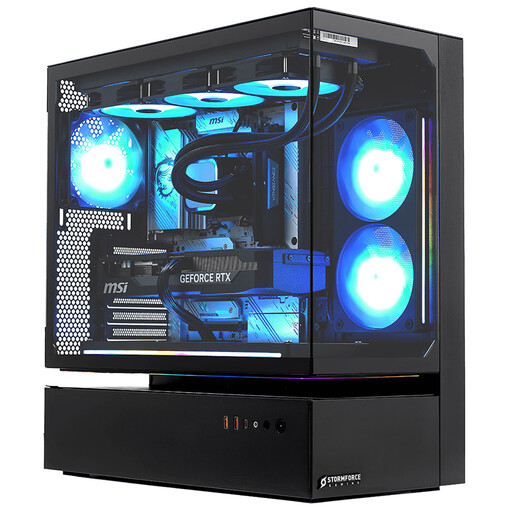
Stormforce Cyclone Intel Core i7, RTX5080, 32GB RAM, 2TB SSD
A tower to compare with your intended 3D-learning software requirements. The product title specifies an Intel Core i7, 32GB RAM, a 2TB SSD, RTX5080 graphics and Windows 11.
Confirm the processor’s core count and the GPU’s graphics memory before comparing it with Blender’s recommended specification. For a quiet study, also check the installed coolers, fans and controls under sustained work.
View on Joybuy
 No image available
Stormforce Cyclone AMD Ryzen 7, RTX5080, 32GB RAM, 2TB SSD
Another tower configuration to assess for 3D-learning projects. Its product title specifies an AMD Ryzen 7, 32GB RAM, a 2TB SSD and RTX5080 graphics.
Check the exact CPU core count, GPU memory and software compatibility for your planned applications. Ask about the case, fans and cooling controls before judging its fit for a quiet study.
View on Joybuy
 No image available
CyberPowerPC JOYB1013, Ryzen 7 9800X3D, RTX 5080 16GB, 32GB RAM, white
For learners comparing a specified Windows desktop with Blender’s recommended hardware, this configuration lists an AMD Ryzen 7 9800X3D, NVIDIA GeForce RTX 5080 with 16GB graphics memory, 32GB DDR5 RAM and a 2TB NVMe SSD. It lists Windows 11 Home.
Check its case, coolers and fan controls for quiet-study use. Arrange a monitor, keyboard and mouse separately; they are not included with this configuration.
View on Joybuy
 No image available
CyberPowerPC JOYB1010, Core Ultra 7 265KF, RTX 5070 12GB, 32GB RAM, black
For learners comparing a specified Windows desktop with Blender’s recommended hardware, this configuration lists an Intel Core Ultra 7 265KF, NVIDIA GeForce RTX 5070 with 12GB graphics memory, 32GB DDR5 RAM and a 1TB NVMe SSD. It lists Windows 11 Home.
Check the exact cooling arrangement and fan controls for sustained work in a quiet study. A monitor, keyboard and mouse are not included with this configuration.
View on Joybuy
Common questions
What desktop specification should I start with for Blender?
For Blender on Windows, start by comparing configurations with the Blender Foundation’s recommended 8-core CPU, 32GB RAM and 8GB of graphics memory. Check the exact GPU’s graphics-API support and drivers as well; recommended hardware figures do not guarantee performance for every project.
Do I need a professional workstation to learn 3D modelling?
No—not solely because you are learning 3D modelling. A professional workstation becomes more relevant when your intended application and workflow call for certified graphics or specialist support; check the exact software version and GPU rather than relying on the workstation label. Autodesk also recommends 16GB RAM or more for Maya 2026.
How can I judge whether a desktop will be quiet while rendering?
Examine the complete case and cooling configuration, including the CPU and GPU coolers, fans, airflow arrangement and available fan controls. A quiet-oriented case cannot establish the sound level of a complete desktop under rendering load; compare stated noise figures only when the loads and measurement conditions are equivalent.


