Blender learners choosing a first capable desktop
You want to practise modelling and introductory rendering, and need to distinguish the Blender Foundation’s minimum requirements from its recommended Windows specification.


Choose a desktop for the 3D software and projects you expect to use, rather than treating its minimum requirements as a target for longer-term study. For Blender on Windows, the Blender Foundation recommends an 8-core CPU, 32GB RAM and graphics with 8GB VRAM; if standing use is central to your routine, allow space to position the monitor, keyboard and mouse independently of the PC tower.
You want to practise modelling and introductory rendering, and need to distinguish the Blender Foundation’s minimum requirements from its recommended Windows specification.
You expect to explore GPU rendering, detailed scenes or several creative applications at once. Dedicated graphics memory and system RAM become important checks as those plans take shape.
You need room for the desktop and peripherals throughout the desk’s height range. The Health and Safety Executive’s display-screen guidance helps you plan screen and input-device positions.
Start with the requirements of your course software, then decide how much graphics headroom you need and whether the complete setup fits your standing desk. A workstation family name or a powerful tower does not settle those separate questions.
| Concern | What to check | Who this matters to |
|---|---|---|
| Modelling baseline | Compare the exact CPU core count, RAM and GPU with the Blender Foundation’s recommended Windows requirements, not just its minimums. | If I am mainly practising modelling, I want a desktop with room to progress beyond the launch minimum. Around 27% of consumers put that learning baseline first. |
| Rendering headroom | Check the GPU model and dedicated VRAM separately from system RAM; Blender recommends 8GB VRAM for Windows. | More complex scenes and GPU rendering are what I hope to try next, so graphics capacity drives my decision. For around 33% of consumers, it is the primary concern. |
| Standing-desk setup | Measure the space for the tower and display, and check that screen and input-device positions and cables work across the desk’s height range. | I need to raise the desk without leaving the screen or controls awkwardly placed. That setup is the first priority for around 27% of consumers. |
| Course compatibility | Confirm the application version, operating system, CPU, RAM, GPU and any course-specific requirements before choosing a workstation configuration. | My course may require Maya or particular plug-ins, so meeting those requirements matters more to me than a general Blender specification. Around 13% of consumers prioritise that compatibility. |
The Blender Foundation lists 8GB RAM and 2GB VRAM as minimums for Windows, but recommends 32GB RAM and 8GB VRAM. Meeting the lower thresholds does not mean a desktop matches its recommended configuration.
Compare the exact CPU, RAM and graphics specifications with the recommended levels, and decide whether a starter configuration suits the projects you plan.
More demanding projects could bring forward a RAM or graphics upgrade.
A listing that states 32GB RAM has not necessarily told you how much dedicated VRAM its GPU has. Blender gives separate requirements for the two types of memory.
Find the exact GPU model and dedicated VRAM before choosing a desktop for GPU rendering.
The Health and Safety Executive’s display-screen guidance concerns the position of the screen, keyboard and mouse, which a PC specification cannot determine.
Measure the desk when raised and plan the tower location, monitor adjustment, input devices and cable routing together.
The finished arrangement may call for different cables or a way to adjust the monitor independently.
Autodesk publishes application-specific Maya requirements. A workstation family can include different configurations, so its name alone does not confirm that a selected model meets a course’s software needs.
Obtain the required application version and plug-ins, then check the exact desktop configuration against the software publisher’s requirements.
A configurable workstation range to consider when a course or future workload calls for particular professional hardware.
A workstation family for learners who have a specific need for professional graphics or a configurable tower.
Prebuilt towers worth assessing by their individual CPU, graphics and memory specifications if you plan to explore GPU-intensive work.
A desktop range with configurations that need to be checked individually for their suitability for 3D study.
These desktops cover configurations for Blender-focused study and for learners considering more demanding graphics work. Check each GPU’s dedicated memory and plan the standing-desk layout separately; a tower’s specifications cannot determine where your monitor and controls will sit.
 No image available
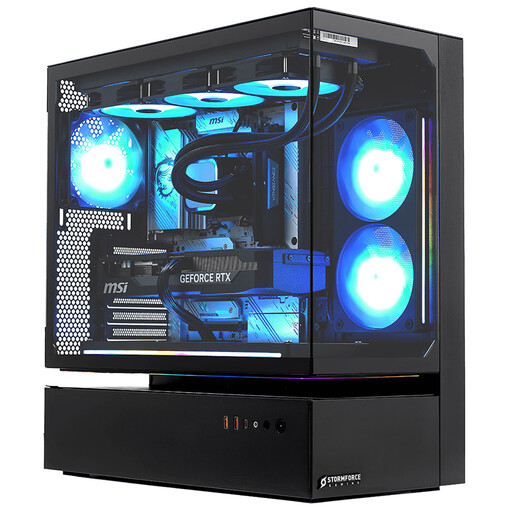
Consider this configuration if your Blender study may extend to GPU rendering or more complex scenes; confirm that its graphics suit the applications you intend to use.
It lists 32GB DDR5 RAM, a 2TB NVMe SSD and Windows 11 Home. Plan space for the tower and arrange the monitor, keyboard and mouse separately.
 No image available
This is a configuration to assess if you plan to try GPU rendering as well as modelling practice; check the exact graphics specification for your software.
The product name lists a 2TB SSD. Choose a stable tower position and plan a separate monitor, keyboard and mouse for the standing desk.
 No image available
Consider this desktop if you want a stated dedicated-GPU specification for Blender study that may progress beyond introductory modelling.
It lists 32GB DDR5 RAM, a 1TB NVMe SSD and Windows 11 Home. Check whether that storage capacity suits your software and project files, and plan the display and controls separately.
 No image available
This desktop may suit modelling practice where the stated CPU and RAM are priorities. Before choosing it for Blender rendering, confirm the RTX 5070’s dedicated VRAM.
The name lists a 2TB SSD and Windows 11. Check the tower dimensions against your desk area and plan monitor and input-device positions independently.
The Blender Foundation recommends an 8-core CPU, 32GB RAM and a GPU with 8GB VRAM for Windows. Use those figures to assess how much headroom a particular desktop offers; they are not a requirement to buy the same configuration for every introductory project.
Check the exact GPU against Blender’s requirements before deciding. Its published minimum calls for 2GB VRAM and specified graphics-API support, while its Windows recommendation is 8GB VRAM; an integrated-graphics label or a system-RAM figure alone does not establish that either level is met.
Arrange the monitor, keyboard and mouse for the position in which you will use them, not around the tower. The Health and Safety Executive advises placing the top of the screen at eye level, roughly an arm’s length away, with the keyboard just below elbow height and the mouse in line with the elbow; check that your setup can maintain suitable positions when the desk is raised.
Studying at home does not, by itself, establish that workplace display-screen equipment rules apply to your personal setup. The Health and Safety Executive describes the regulations as applying to workers who use display-screen equipment daily for continuous periods of an hour or more; if your desk is also used for work, consider that worker criterion separately from your private study.