What to check before choosing
Confirm the course software first, then decide how much rendering headroom and built-in screen space you need. A compact chassis, a larger display and a preferred operating system answer different parts of the small-desk problem.
Compact Windows creator laptop
Consider it when: Desk fit or carrying the laptop matters, but you want a discrete NVIDIA GPU for a supported Blender rendering setup.
Trade-off: A smaller built-in screen leaves less room for modelling panels; an external display needs its own desk space.
Larger Windows laptop with NVIDIA graphics
Consider it when: Built-in screen space and a documented NVIDIA GPU-rendering path matter more than the smallest footprint.
Trade-off: Measure the laptop and power-supply space on your desk; GPU memory can still constrain complex scenes.
MacBook Pro with Apple Silicon
Consider it when: You prefer macOS and your course applications, plug-ins and renderer support the intended Apple Silicon setup.
Trade-off: Do not assume that a Windows/NVIDIA CUDA or OptiX workflow transfers to macOS.
| Concern |
What to check |
Who this matters to |
| Memory and rendering headroom |
For Windows or Linux Blender use, compare installed RAM and dedicated graphics memory with the Blender Foundation’s recommended 32GB RAM and 8GB VRAM. Check the exact GPU and rendering backend. |
If I expect to move from basic models into GPU-rendered scenes, I want room for more demanding work rather than relying on minimum requirements; around 40% of consumers put memory and rendering headroom first. |
| Desk fit and screen space |
Measure the laptop, charger and mouse area. For Blender, check the display against the Blender Foundation’s 1920 × 1080 resolution recommendation and consider whether an external monitor would fit. |
When my laptop has to share a narrow desk with the tools I use to navigate, a workable footprint matters more than a larger built-in screen; around 40% of consumers make desk fit their primary concern. |
| Course and software compatibility |
Get the required application versions, operating system, plug-ins and renderer from your course provider. If Maya is required, check Autodesk’s guidance for the intended hardware. |
I need the laptop to run my course’s particular tools before other specifications matter; around 20% of consumers put software compatibility first. |
Joybuy products for these setups
These laptops offer different balances of screen size, memory and platform for learning 3D modelling. Compare each configuration with your course requirements and the space available on your desk.
 No image available
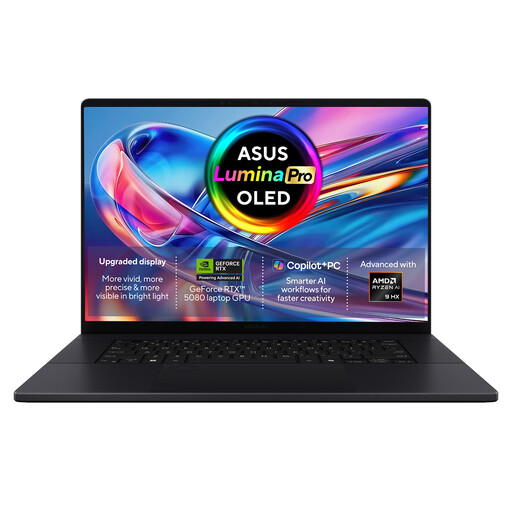
ASUS ProArt P16 H7606WW-SE006W, 16-inch 4K OLED, RTX 5080
Consider this Windows laptop if you can accommodate a 16-inch screen and want to compare a higher-memory configuration with your Blender projects and course software.
The listed variant has 64GB RAM, an RTX 5080 with 16GB graphics memory, a 2TB SSD and Windows 11 Home. Its 16-inch format takes more desk space than a compact model.
View on Joybuy
 No image available
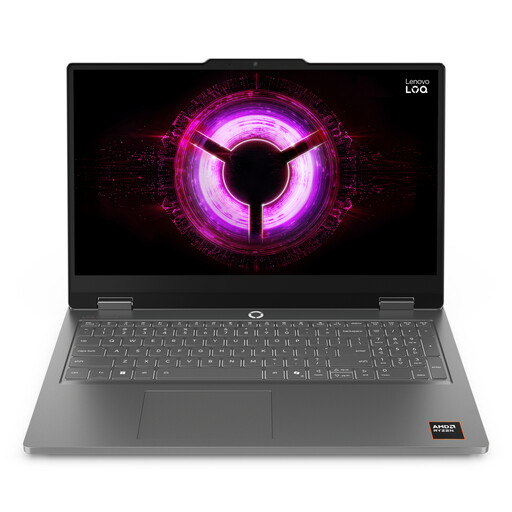
Lenovo LOQ Essential 15ARP11, 15.6-inch FHD, RTX 5050
Consider this model if you want a 15.6-inch built-in screen and can accept a configuration below Blender’s recommended system-memory figure.
The title specifies 16GB RAM, a 1TB SSD, an RTX 5050 and a 144Hz FHD display. Its listed RAM is below the Blender Foundation’s 32GB Windows and Linux recommendation; confirm graphics memory and course compatibility for your intended work.
View on Joybuy
 No image available
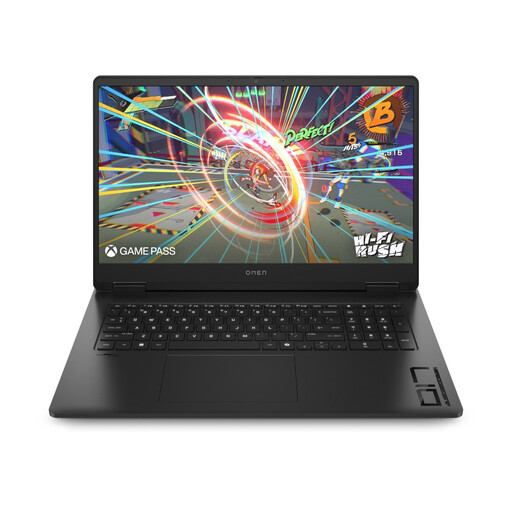
HP OMEN 17-db1000na, 17-inch Full HD, RTX 5060
Consider a 17-inch screen only if built-in workspace takes priority and you have measured where the laptop and mouse will fit.
This variant lists 16GB RAM, a 1TB SSD, an RTX 5060 and Windows 11 Home. Its RAM is below the Blender Foundation’s 32GB Windows and Linux recommendation; check the exact GPU memory before planning GPU-rendered projects.
View on Joybuy
 No image available
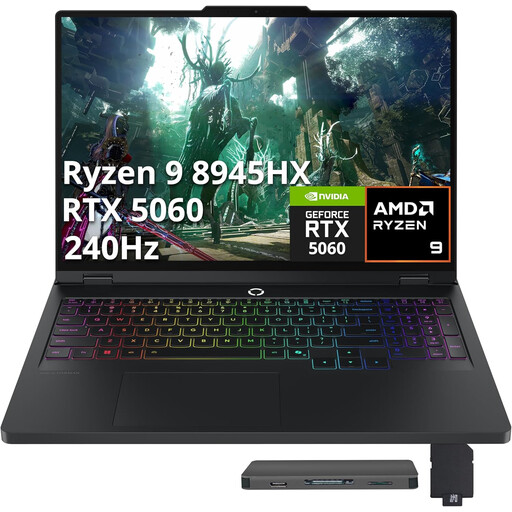
Lenovo Legion Pro 5 LEG P5 R9, 32GB/2TB, RTX 5060
Consider this configuration if matching Blender’s recommended system-memory figure matters, subject to your desk space and course requirements.
The product name specifies 32GB RAM, 2TB storage and an RTX 5060. Confirm the exact graphics memory and supplied operating system before deciding whether it fits your rendering and software workflow.
View on Joybuy
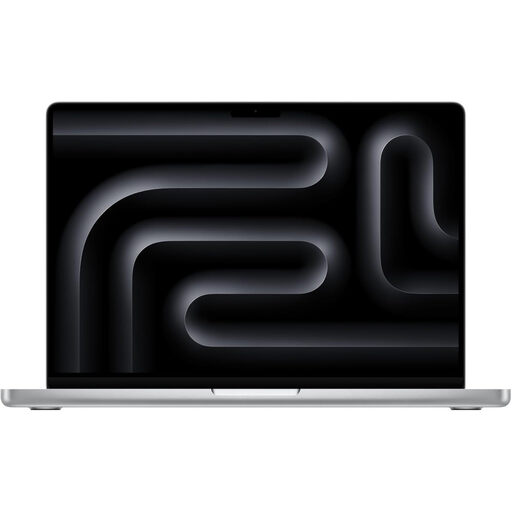 No image available
Apple MacBook Pro 14.2-inch M5 Pro, 15-core CPU/16-core GPU, 24GB/2TB, Silver
Consider this compact macOS option if your course applications, plug-ins and renderer support Apple Silicon.
The listed configuration has 24GB unified memory and 2TB storage. Check the built-in display resolution against the Blender Foundation’s recommendation and confirm that this memory configuration suits your intended projects.
View on Joybuy
Frequently asked questions
Is 8GB RAM enough to start learning Blender?
It meets the Blender Foundation’s published Windows and Linux minimum, but not its 32GB recommendation. For introductory modelling, compare the rest of a laptop’s configuration with what you plan to do; if you expect larger scenes or rendering work, give the recommended figure more weight.
Do I need an NVIDIA GPU for Blender?
No single GPU brand is mandatory for Blender. The Blender Foundation documents different GPU-rendering backends, including CUDA and OptiX for eligible NVIDIA hardware; check the exact GPU, drivers and backend needed for your intended workflow.
Can I learn Blender on a 13-inch laptop?
Yes, if the configuration suits your projects and you can work comfortably with its screen and input setup. The Blender Foundation recommends at least 1920 × 1080 resolution and a three-button mouse for optimal use; measure your desk before relying on an additional monitor.
Can I choose a MacBook Pro for a course that uses Maya?
A MacBook Pro may be suitable, but check your course’s exact Maya version, macOS requirements, plug-ins and renderer before buying. Autodesk publishes Maya 2026 system requirements and separate graphics-hardware guidance; a general preference for macOS does not establish compatibility with every course setup.
Should I rely only on the manufacturer’s warranty?
No. Citizens Advice explains that warranties and guarantees add to legal rights rather than replacing them. Keep proof of purchase, read the warranty’s claim terms and distinguish a fault with the laptop from a change-of-mind return.


