
24/7 Customer Support

Free returns

Same-day & Next-day Delivery

Quality Guaranteed

Unlock Your Welcome Offers: FREE Delivery | Up to 80% OFF | Free 30-day JoyPlus trial
Download the APP
Buying one of the many 4K gaming monitors available in the UK involves more than comparing resolution and refresh-rate figures. A display may look impressive on a product page yet be unsuitable for your graphics card, console, desk or working environment.
The right choice depends on how you use your screen. Competitive PC players may prioritise refresh rate and response time, while console gamers need suitable HDMI bandwidth. Creators often require dependable colour coverage, and home-office users may gain more from USB-C, ergonomic adjustment and a comfortable panel.
A 4K UHD monitor normally uses a 3840 × 2160 resolution, but resolution alone does not determine motion clarity. A 60Hz panel displays up to 60 frames per second, whereas a 240Hz gaming monitor can refresh far more frequently when paired with suitable hardware.
Check the complete specification rather than focusing on a single headline number. Look at:
A monitor capable of 144Hz, 165Hz or 240Hz will not automatically make games run at that speed. Your graphics card, game settings and connection standard all affect achievable frame rates. Modern consoles may support 4K at up to 120Hz in compatible games, but they cannot use every PC-focused refresh-rate feature.
For a gaming PC, check GPU output and cable requirements before buying. For PlayStation 5 or Xbox Series X|S, prioritise a suitable HDMI 2.1 input when 4K high-refresh gaming is important.
HDR support varies significantly. A basic HDR mode may offer less visible impact than a screen with OLED contrast or Mini LED local dimming. Similarly, a stated colour gamut such as 99% DCI-P3 describes coverage, not necessarily factory accuracy.
For monitors for content creation, also look for calibration information, colour modes, bit depth, panel consistency and compatibility with your workflow. Features such as OLED burn-in protection are useful, but static desktop elements can still require sensible usage habits.
A 27-inch 4K panel produces a dense, sharp image and offers a small footprint. At 32 inches, menus and text are often easier to view while retaining detailed 4K clarity. Larger ultrawide gaming monitors use different resolutions, such as 5120 × 1440 Dual QHD, which provide extra horizontal workspace but are not the same as standard 4K UHD.
Remember to check operating-system scaling. Very high pixel density can make text and interface elements appear small without appropriate display scaling.
OLED gaming monitors can suit dark-room gaming and cinematic content, while IPS models may be more straightforward for mixed office use. Do not select a panel type without considering brightness, reflections, static desktop use and warranty terms.
FreeSync monitors synchronise refresh rate with compatible AMD graphics hardware, while G-Sync monitors are designed for compatible NVIDIA systems. Some displays support both technologies, but compatibility can depend on the connection and graphics card.
Also consider:
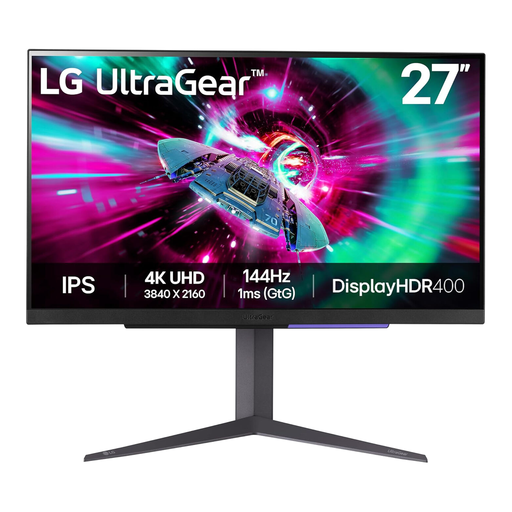
Why This Fits Their Persona: A practical entry point for PC or console users wanting 4K detail without moving to an ultrawide or OLED format.
Its stated 4K resolution and 144Hz refresh rate are clearly specified, with HDMI and DisplayPort connectivity plus adaptive-sync support.
31.5-inch IPS panel, 144Hz refresh rate and 1ms GTG response time; the stand supports tilt, height and pivot adjustment.
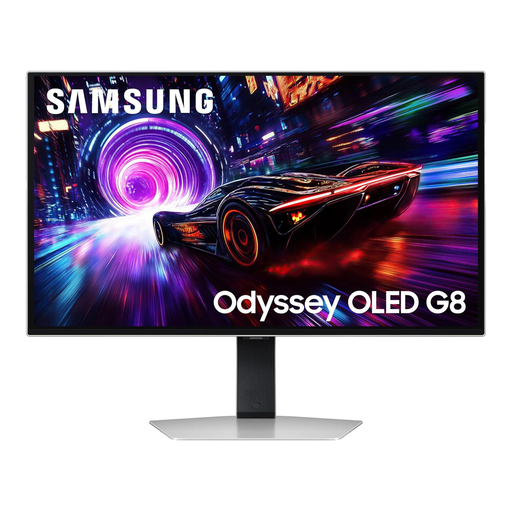
Why This Fits Their Persona: Suits players who want 4K image density, OLED contrast and a high refresh rate in a conventional 16:9 format.
The specification identifies 4K QD-OLED, 240Hz and HDMI 2.1, rather than relying on a generic “gaming” label. OLED protection features are also listed.
3840 × 2160 resolution, 240Hz refresh rate, 0.03ms GTG response time and AMD FreeSync Premium Pro support.
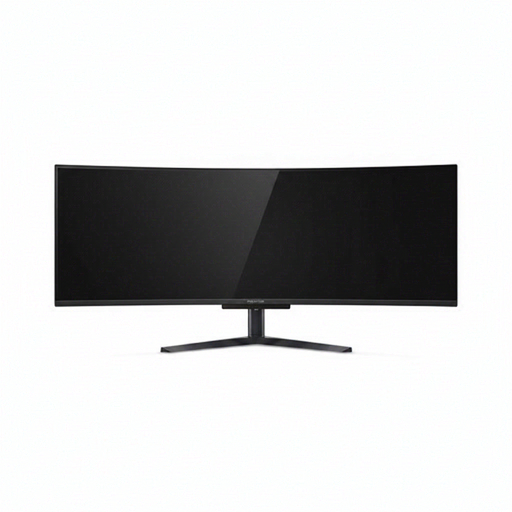
Why This Fits Their Persona: Designed for users who want a wide field of view for racing, simulation, multitasking and two-source desktop workflows.
Its 32:9 aspect ratio and 5120 × 1440 Dual QHD resolution are stated clearly, helping buyers distinguish it from standard 4K 16:9 screens.
49-inch QD-OLED panel, 240Hz refresh rate, 1800R curve, USB-C with 90W Power Delivery and integrated KVM switch.
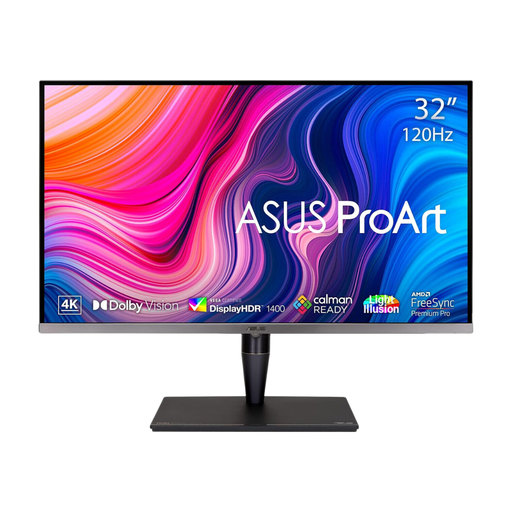
Why This Fits Their Persona: Aimed at video editors, photographers and designers who need 4K detail, wide colour coverage and HDR-focused controls.
Its listed colour-gamut figures, calibration support, HDR formats and Mini LED backlight provide more useful detail than an unsupported colour-accuracy slogan.
32-inch 4K UHD resolution, 120Hz refresh rate, Mini LED backlighting, HDMI 2.1 and support for Dolby Vision and HDR10.
We have compiled a complete, real-time list of products that fully satisfy these strict selection criteria and UK safety regulations.
Before ordering, measure desk depth and viewing distance, particularly for curved gaming monitors and 49-inch ultrawide models. Confirm that your desk can support the stand and that your chosen monitor arm meets the screen’s VESA pattern and weight.
Use the supplied or certified cables, connect the correct input and manually select the intended refresh rate in Windows or your console settings. Enable FreeSync or G-Sync-compatible options only after confirming that your graphics hardware supports them.
For OLED displays, use pixel-care settings, allow automatic panel maintenance and avoid leaving static taskbars or game interfaces at high brightness for extended periods. These steps do not remove every image-retention risk, but they are sensible ownership precautions.
They can be suitable if your console and game support 4K output. For high-refresh console gaming, check for HDMI 2.1, 4K at 120Hz support and variable refresh rate. A 240Hz specification may offer little additional value if the console is limited to 120Hz.
Power consumption varies by panel type, brightness, refresh rate and size. OLED and high-brightness HDR models may use more power during demanding scenes, while features such as automatic brightness control and power-saving modes can reduce consumption. Check the manufacturer’s typical and maximum figures rather than judging from resolution alone.
Service life depends on usage, brightness, ventilation and static-image exposure. Use the built-in pixel-shift, screen-care and automatic standby functions, and vary static desktop content where practical. Check the individual product warranty and OLED coverage before purchase.