Colour-managed animation creators
If your work is intended for sRGB, Rec.709 or a wider-gamut workflow, check the exact monitor’s colour modes, coverage and calibration information rather than relying on its 4K resolution alone.


Start with the colour space your animation workflow uses, then choose the screen size that fits both your timeline and your desk. A 27-inch 4K monitor takes up less room, while a 31.5- or 32-inch model gives frames and reference material a physically larger canvas; neither size settles questions about calibration, screen positioning or laptop compatibility.
If your work is intended for sRGB, Rec.709 or a wider-gamut workflow, check the exact monitor’s colour modes, coverage and calibration information rather than relying on its 4K resolution alone.
You need room on screen for frames, a timeline and references without crowding your workstation. The Health and Safety Executive advises placing the top of the screen at eye level and the display about an arm’s length away.
If you regularly connect a laptop, USB-C or Thunderbolt docking features may simplify your desk. Check that your computer and cable support the monitor’s intended video connection and charging arrangement.
For arranging animation frames at home, settle your delivery colour space and available desk space before deciding whether docking features or additional screen adjustment matter most to you.
| Concern | What to check | Who this matters to |
|---|---|---|
| Colour consistency | Check the exact model’s sRGB or Rec.709 coverage for your delivery workflow, plus its colour modes and calibration documentation. | If I review colour from frame to frame, I need a display mode that matches where the animation will be shown. Around 31% of consumers put colour consistency first. |
| Canvas and desk fit | Compare 27-inch and 31.5/32-inch screen footprints, including stand depth, against your desk and preferred viewing distance. | I want to keep a timeline and reference images visible, but a larger screen still has to fit where I work. For around 25% of consumers, usable workspace and desk fit come first. |
| Screen positioning | Check stand height and tilt, mounting options and whether room lighting will cause reflections. | During long frame-arranging sessions, I need to position the screen comfortably rather than work around a fixed stand. Comfortable positioning is the main concern for around 25% of consumers. |
| Laptop connection | Confirm your laptop’s video-output protocol, the required cable and whether the monitor’s stated power delivery meets its charging needs. | If I move my laptop between desks, I want to reconnect the display and peripherals without unnecessary cable changes. Around 19% of consumers prioritise laptop connectivity. |
Two 4K monitors can have different colour-space coverage, calibration claims and screen sizes. The specifications published by BenQ, ASUS and Dell for their named models illustrate why the pixel count is only a starting point.
Identify your delivery colour space, then check the exact model’s coverage, available colour modes and calibration information.
A USB-C socket on the monitor does not establish what video signal, charging power or peripheral connection your particular laptop can use.
Check the laptop port, monitor connection mode, cable and charging requirement together before relying on a single cable.
Screen size alone does not tell you whether the stand will leave enough room for your keyboard, drawing tablet or a suitable viewing distance. The Health and Safety Executive also advises setting screen height with posture in mind.
Measure the usable desk area and check the stand’s footprint and adjustment range, or the monitor’s mounting options.
If the included stand cannot place the screen appropriately, a compatible monitor arm or riser may be needed.
A manufacturer warranty is separate from statutory remedies for a faulty or misdescribed monitor. GOV.UK distinguishes those remedies from a retailer’s own returns process.
Keep your order record, inspect the panel and supplied parts, and check both the seller’s fault-reporting process and the warranty terms.
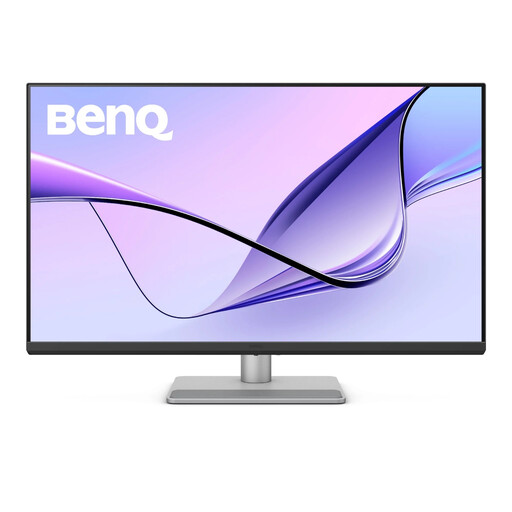
BenQ’s PD2706UA and PD3225U are creator-oriented 4K monitors with manufacturer-documented sRGB and Rec.709 coverage.
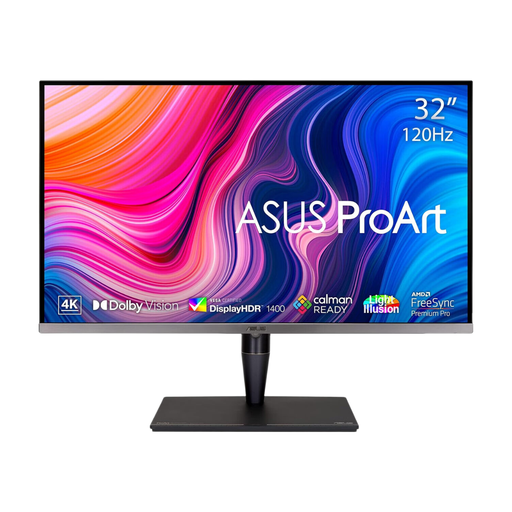
The 32-inch ProArt PA329CV is relevant to a large-canvas workflow using sRGB or Rec.709.
The 27-inch UltraSharp U2725QE is a 4K hub-monitor option for a laptop-centred desk.
These 27-inch and 32-inch-class 4K monitors offer different ways to arrange frames on a home desk. Compare each model’s stated colour capabilities and connections against your delivery workflow and computer; a larger canvas or an HDR label does not settle those checks.
 No image available
Consider its larger canvas if you keep frame strips and references open together and have room for a 32-inch screen.
The product title lists an IPS Mini LED panel, 120 Hz refresh rate, Thunderbolt 3 and hardware calibration. Check the applicable brightness specification before making an HDR-dependent choice, and confirm its connection requirements with your computer.
 No image available
This larger-screen option is relevant if your desk can accommodate a broad frame-and-timeline layout.
The product name identifies a Nano Glossy IPS screen, USB-C and a height-adjustable stand. For Rec.709 delivery, confirm this model’s coverage and calibration information; check USB-C video and charging compatibility with your laptop.
 No image available
Its 27-inch format is worth considering when a 32-inch-class screen would crowd your desk.
The product name identifies a Nano Glossy IPS screen, USB-C and a height-adjustable stand. Check Rec.709 coverage and calibration information for your colour workflow, and confirm that your computer supports the intended USB-C video and charging setup.
 No image available
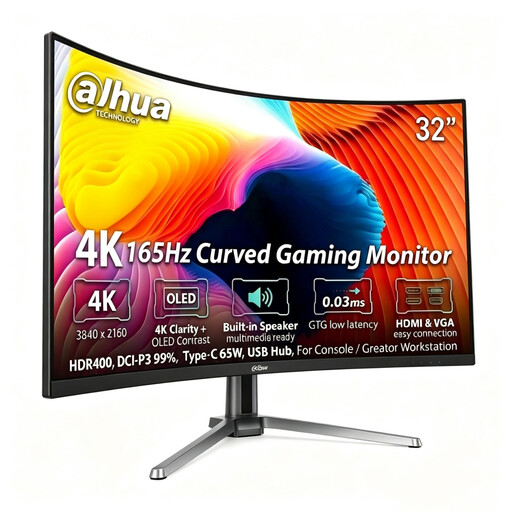
Consider the large, curved canvas only if that screen shape suits how you inspect frames and arrange your desk.
The product title lists an OLED panel, 165 Hz refresh rate, 99% DCI-P3 coverage, USB-C with 65 W power delivery and a USB hub. Check sRGB or Rec.709 coverage if either is your delivery standard, along with laptop video and charging compatibility.
 No image available
This 27-inch option suits a desk where you want a compact 4K screen and can connect through HDMI or DisplayPort.
The product title lists a 60 Hz IPS panel, 95% DCI-P3 coverage and built-in speakers. If your animation is intended for sRGB or Rec.709, check this exact model’s coverage and calibration information before choosing it for colour review.
Choose 27 inches if desk fit and a closer viewing position matter more; choose 31.5 or 32 inches if you have room and want frames, timelines and references to appear physically larger. Both sizes can provide a 4K pixel grid, so measure the screen and stand footprint rather than treating diagonal size as a quality ranking.
Place the screen directly in front of you and adjust its height and distance to support a comfortable posture. The Health and Safety Executive advises keeping the top of the screen at eye level, positioning it about an arm’s length away and adjusting lighting or placement to reduce reflections.
It can if your laptop supports the required USB-C or Thunderbolt video mode, the cable is suitable and the monitor provides enough power for that laptop. Check those three parts together, plus any connection-mode limits on the display or attached peripherals.
No. For a UK purchase from a trader, GOV.UK distinguishes statutory remedies for faulty or misdescribed goods from a manufacturer warranty. Keep your order details and report a fault to the seller; check its process without assuming its voluntary returns policy removes those rights.
Use an appropriate electrical-waste collection route rather than ordinary household rubbish. GOV.UK describes same-type electrical-waste take-back duties for qualifying retailers when you buy a replacement; check the seller’s arrangements and any applicable conditions, or find a suitable local collection option.