Detail-first drawing reviewers
If dimensions, layers and small annotations are your priority, compare screen size and listed pixel density as well as resolution. A compact desk also makes an adjustable viewing position worth considering.


For detailed drawing comparison at a compact desk, start by considering a 27-inch 4K monitor; choose a 31.5-inch 4K screen instead if a larger physical view matters more and the desk can accommodate it. BenQ and Dell list around 163 pixels per inch for the referenced 27-inch models, while BenQ lists 140 for its 31.5-inch PD3225U; whichever size you favour, check screen positioning, reflections and laptop video compatibility before deciding whether USB-C or Thunderbolt connectivity is useful.
If dimensions, layers and small annotations are your priority, compare screen size and listed pixel density as well as resolution. A compact desk also makes an adjustable viewing position worth considering.
A single monitor connection is appealing when the desk also needs laptop charging and USB peripherals. Check the computer’s video-output capability and charging requirements before relying on one cable.
A 31.5-inch panel gives plans and reference windows a larger physical display area if the desk has room. At the same 4K resolution, the referenced larger BenQ model has lower listed pixel density than the referenced 27-inch examples.
Decide whether fine detail or physical screen area is your priority, then check how the monitor will sit in the study and connect to your computer.
| Concern | Buying check | Who this matters to |
|---|---|---|
| Drawing detail | Compare native 3840 × 2160 resolution, screen size and listed pixels per inch. | If I spend my time comparing fine lines and annotations at a compact desk, I want detail to remain easy to inspect; around 36% of consumers put drawing detail first. |
| Study placement | Check stand adjustment or VESA mounting, desk depth and how the screen handles reflections. | When I work at the same desk for long stretches, I need a position that fits my seating and lighting; roughly 29% of consumers prioritise study placement. |
| Laptop connection | Confirm compatible video output, the required cable and whether monitor power delivery suits the laptop. | If I regularly connect a laptop and peripherals, I want fewer desk cables without losing the video connection or charging I need; about 21% of consumers make laptop integration their main concern. |
| Colour workflow | Match stated colour-space coverage and calibration features to the files and output you use. | For visualisations or presentation graphics alongside plans, I need to assess colour requirements separately from line detail; around 14% of consumers put that workflow first. |
A USB-C socket alone does not establish that a laptop can send video to the monitor or receive enough power from it.
Check the laptop’s DisplayPort Alt Mode, Thunderbolt or compatible USB4 display support, then compare its power needs and the exact monitor’s cable requirements.
BenQ lists 140 pixels per inch for the 31.5-inch 4K PD3225U and 163 for the 27-inch 4K PD2705U. The larger screen gives a larger physical view, not additional pixels at that resolution.
Measure the available depth and consider your viewing distance before choosing between compact detail review and a larger canvas.
Making room for a larger display may also mean rearranging the desk or checking whether a suitable monitor arm can be fitted.
Manufacturer colour-gamut and calibration figures describe a monitor under specified conditions; files, software colour management and the output process also affect the result.
Check which colour spaces your work requires. For print-critical output or matching another display, plan the wider colour-management process rather than relying on a monitor specification alone.
The Health and Safety Executive’s display-screen guidance highlights workstation setup and reflection control as considerations for qualifying work use.
Check the stand’s adjustments or VESA compatibility, then position the screen and study lighting to manage reflections.
Creative Pro models worth comparing when CAD-oriented viewing and the choice between a compact or larger 4K panel matter.
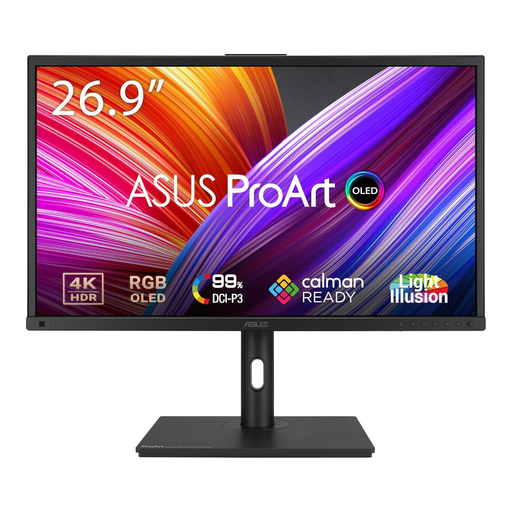
ProArt models are relevant when architectural drawings are reviewed alongside colour-sensitive visualisations or presentation assets.
UltraSharp hub-oriented models are a reference point for a laptop desk that also needs peripheral connections.
The UltraFine 27UP85ZK-W is a 27-inch 4K IPS reference for buyers considering USB-C and stand adjustment.
These models cover compact drawing review and larger-screen study setups. Compare the exact panel, surface finish and computer connection against your desk and workflow; the products below are not all the same type of display.
 No image available
Consider its larger screen if you want more physical space for drawings and have room on the desk.
The product title identifies an IPS Mini LED display with HDR, 120 Hz and hardware-calibration features. Check the exact brightness and Thunderbolt connection specifications before relying on either for your workflow.
 No image available
This 27-inch option is worth comparing when a smaller physical screen suits your study desk.
The product name identifies a 4K OLED panel. If laptop connection or charging is important, confirm the exact USB-C video and power-delivery capabilities before ordering.
 No image available
Consider this 27-inch 4K model if you are comparing monitors for a compact drawing-review desk.
The name describes a matte-black finish, which does not establish the screen’s reflection treatment. Check the panel finish and any USB-C video or charging requirements that matter to your setup.
 No image available
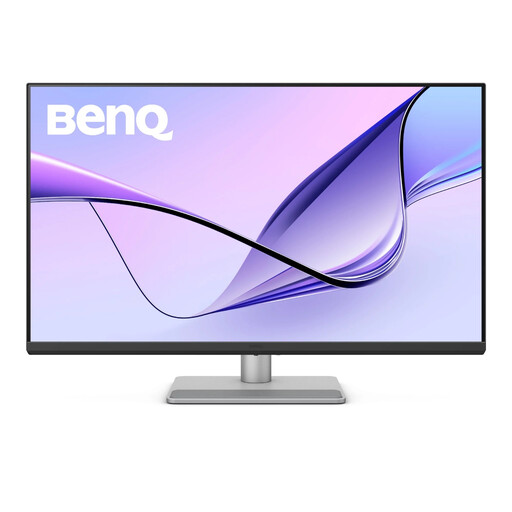
This larger-screen option is relevant if you want a bigger physical view of plans and can position it comfortably.
The product name identifies a Nano Glossy surface, USB-C and a height-adjustable stand. Check how study lighting reflects in the screen and whether its connection features suit your computer.
 No image available
Compare this curved, larger-screen model with flat displays if its shape and desk footprint suit the way you review plans.
The product title specifies 3840 × 2160 resolution, a USB hub and USB-C rated at 65 W. Check the exact screen dimensions, surface finish and computer compatibility before relying on those features in a quiet-study setup.
Choose a 27-inch model if a compact desk and higher listed pixel density matter most; consider a 31.5-inch model if you have room and prefer a larger physical view. Dell and BenQ list around 163 pixels per inch for the referenced 27-inch models, compared with BenQ’s 140 for the 31.5-inch PD3225U. Those figures do not establish which size you will find easier to read at your viewing distance or display-scaling setting.
No: check that the laptop supports a video-output mode compatible with the monitor, such as the applicable DisplayPort Alt Mode or Thunderbolt connection. Also compare the monitor’s power delivery with the laptop’s charging needs and check the cable required for the exact setup.
An adjustable stand may be enough if it lets you position the screen for your desk and lighting; an arm is an option when you need a different position. Check the monitor’s VESA pattern and whether the desk can take the arm before buying one. The Health and Safety Executive’s display-screen guidance also addresses workstation setup and reflections for qualifying work use.