For brochure-layout checks, a 27-inch 4K display is a sensible starting point when close inspection of text and placement matters; choose a larger 31.5- or 32-inch display when a physically larger page view matters more. If you also approve colour, prioritise a suitable colour mode and a profile-led PDF workflow rather than treating a monitor’s gamut specification as a print proof; check USB-C video and charging requirements separately if you use a laptop.
Who this is for
Colour-managed brochure reviewers
If you approve brochure PDFs or artwork for a particular print condition, the screen is only one part of the decision. Adobe Acrobat’s guidance on colour-managed documents and PDF output intents makes document profiles and the intended output relevant to an on-screen review.
Detail-first layout checkers
If you spend long sessions inspecting typography, alignment and image placement, weigh physical screen size against pixel density and the space available on your desk. BenQ’s specifications illustrate the choice: its 27-inch PD2705U is listed at 163 PPI, while its 31.5-inch PD3225U is listed at 140 PPI.
Laptop-led creative workers
If the monitor will also serve as your laptop’s desk connection, check video support, power delivery and the peripheral ports you need. A USB-C connector alone does not establish that a particular laptop and monitor will work as a one-cable setup.
What to check when buying
Decide whether colour approval, close layout inspection or laptop connection is your primary need, then check the specifications that serve it. For print-bound work, Adobe Acrobat’s colour-management guidance also makes the PDF’s profiles and output intent part of the review.
| Concern |
What to check |
Who this matters to |
| Colour-managed review |
Look for a stated colour space and an appropriate selectable mode; confirm the profiles and proofing condition used for the PDF. |
If I approve colour for a particular print job, I need the on-screen review to follow that job’s profile and output intent, not just look vivid. Roughly 46% of consumers put colour-managed review first. |
| Layout detail and page size |
Compare 4K screen size, stated pixel density and stand adjustment against your viewing distance and desk space. |
When I inspect small type and alignment for long periods, I need to choose between denser detail and a physically larger page. Around 36% of consumers prioritise layout inspection. |
| Laptop connection |
Confirm USB-C or Thunderbolt video support and compare monitor power delivery in watts with the laptop’s charging requirement. |
If I move a laptop to and from the desk, I want a connection that handles the display and the other devices I use without assuming charging will work. About 18% of consumers put laptop integration first. |
Buying pitfalls
-
Treating gamut coverage as a print guarantee
A monitor’s stated colour coverage does not establish how a brochure will reproduce in print. Adobe Acrobat identifies colour profiles and the PDF output intent as separate parts of a colour-managed workflow.
Ask the print provider which profile, PDF settings and proofing condition apply, then use the relevant monitor mode and soft-proofing setup before approving colour.
-
Choosing a larger 4K screen for detail alone
A larger panel makes the page physically bigger without adding pixels at the same resolution. BenQ lists 140 PPI for the 31.5-inch PD3225U and 163 PPI for the 27-inch PD2705U.
Prioritise the denser 27-inch format for close detail checks, or a larger format when page size, viewing distance and desk space make that trade-off worthwhile.
-
Assuming every USB-C connection provides video and charging
Power delivery differs between models: BenQ specifies 65 W for the PD2705U, while ASUS specifies up to 96 W for the ProArt PA279CRV. The laptop must also support video through the connection you plan to use.
Check the laptop’s video-output capability and charging requirement against the exact monitor’s ports and power-delivery specification.
Depending on that combination, you may still need a separate charger, dock or suitable cable.
-
Taking a specification page as a buying option
A useful model reference is not necessarily available to order. Dell’s UK page marked the P2723QE unavailable when its specifications were recorded.
Check the exact model’s current availability, warranty and returns information with the retailer before deciding to buy it.
Relevant brands for reference
BenQ
BenQ’s PD2705U and PD3225U provide two documented 4K size options for comparing a denser 27-inch view with a larger 31.5-inch page view.
- BenQ specifies 99% sRGB and 99% Rec.709 coverage, 163 PPI and 65 W USB-C power delivery for the PD2705U.
- The PD3225U offers a larger physical screen, but BenQ lists it at 140 PPI; its stated calibration figures are manufacturer specifications, not a substitute for checking the print workflow.
ASUS ProArt
The ProArt PA279CRV is a relevant specification reference when brochure work calls for a 27-inch 4K display and an Adobe RGB or DCI-P3 workflow.
- ASUS specifies 99% Adobe RGB, 99% DCI-P3 and USB-C power delivery up to 96 W for the PA279CRV.
- ASUS’s factory-calibration and colour-accuracy claims describe the model, not the result of a particular PDF or print job; select the appropriate mode and profiles.
Dell
Dell’s P2723QE is a specification reference for a 27-inch 4K desk setup that also needs laptop and peripheral connections.
- Dell specifies 99% sRGB coverage, USB-C power delivery up to 90 W, Ethernet and height, pivot, swivel and tilt adjustment for the P2723QE.
- Dell’s UK page marked this specific model unavailable when these specifications were recorded; check current availability rather than treating it as a direct-buy option.
Joybuy monitors to consider
These 4K monitors cover compact and larger-screen options for checking brochure layouts. Match the exact model to your colour workflow and laptop requirements before choosing; a product title alone cannot establish a print-proof result.
 No image available
ASUS ProArt Display PA32UCG-K 32-inch 4K IPS Mini LED
Consider the larger screen when a physically bigger brochure page suits your desk. The product title identifies an IPS Mini LED display with Thunderbolt 3 and hardware calibration; check the colour mode and laptop charging capability needed for your setup.
View on Joybuy
 No image available
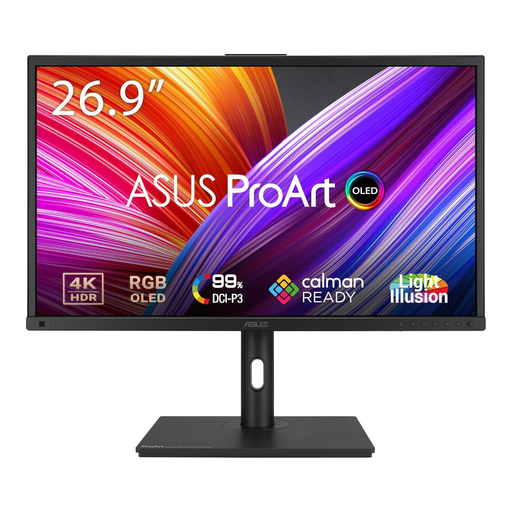
ASUS ProArt PA27DCE-K 4K OLED
This 4K OLED model is an option for a compact brochure-review desk. Confirm that its selectable colour modes suit your PDF workflow, and check USB-C video and charging compatibility if you plan to connect a laptop.
View on Joybuy
 No image available
iiyama ProLite XUB2792UHSU-B6 27-inch 4K
The 27-inch 16:9 format is worth considering when close layout inspection matters more than a larger physical page. Confirm the available colour modes and calibration information if the monitor will be used to approve colour.
View on Joybuy
 No image available
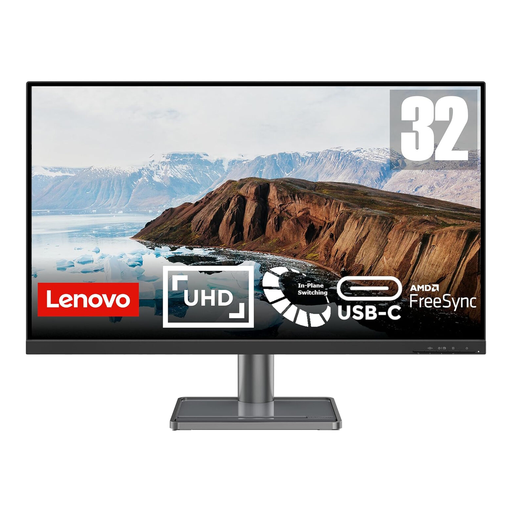
Lenovo L32p-30 31.5-inch 4K IPS USB-C
Consider this larger format if you want a physically bigger page view and have room for it on your desk. The product title identifies USB-C connectivity; confirm the colour modes and the connection’s video and charging capabilities against your workflow and laptop.
View on Joybuy
 No image available
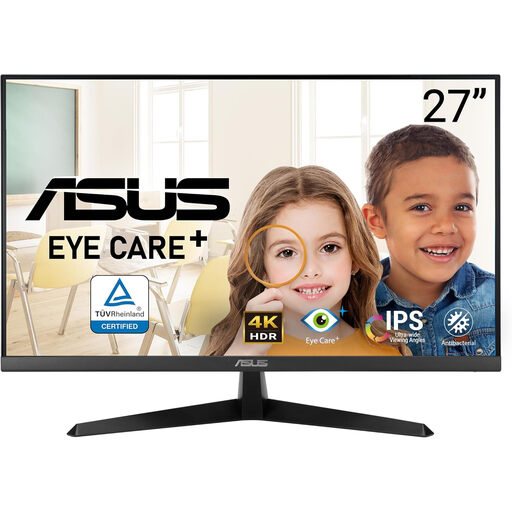
ASUS Eye Care VY27UQ 4K UHD 60 Hz
This 4K model is an option for layout checks where print-colour approval is not assumed from the display alone. Its title specifies a 60 Hz refresh rate; check its colour mode, calibration information and stand adjustment against your working setup.
View on Joybuy
Frequently asked questions
Will a 4K monitor show exactly how my brochure will print?
No: a 4K screen alone cannot guarantee a print match. Adobe Acrobat explains that colour profiles support on-monitor soft proofing and that a PDF output intent describes its final reproduction destination. Confirm the print provider’s profile and proofing requirements when colour approval matters.
Do I need a wide-gamut monitor for brochure layouts?
Choose wider-gamut support when your artwork and managed workflow specifically use a space such as Adobe RGB or DCI-P3; it is not a substitute for the correct colour mode and profiles. For an sRGB-oriented review, a stated sRGB mode and coverage may be the more relevant checks. BenQ specifies 99% sRGB for the PD2705U, while ASUS specifies 99% Adobe RGB and 99% DCI-P3 for the ProArt PA279CRV.
Will any USB-C laptop work with a USB-C 4K monitor?
Not necessarily: check whether the laptop’s port supports video output and whether the monitor supplies enough power for that laptop. BenQ specifies DisplayPort Alt Mode and 65 W power delivery for the PD2705U; ASUS specifies USB-C power delivery up to 96 W for the ProArt PA279CRV.
What if a monitor bought online is faulty or misdescribed?
Faulty or misdescribed goods are different from a change-of-mind return. GOV.UK says a retailer must offer a full refund if an item is faulty, not as described or does not do what it is supposed to do. Keep the order details and contact the seller about the problem; check any separate change-of-mind terms without treating them as a limit on remedies for a fault.


