
24/7 Customer Support

Free returns

Same-day & Next-day Delivery

Quality Guaranteed

Unlock Your Welcome Offers: FREE Delivery | Up to 80% OFF | Free 30-day JoyPlus trial
Download the APP
Buying one of the many 4K monitors available in the UK can involve more than comparing screen size and price. A display may advertise HDR, fast response times or a wide colour gamut, yet still be unsuitable for your computer, desk or everyday tasks.
The right choice depends on how you use your screen, the performance your graphics hardware can deliver and whether the stated specifications describe native 4K UHD resolution or a different widescreen format.
Native 4K UHD means 3840 × 2160 pixels. Some ultrawide monitors use resolutions such as 3440 × 1440 or 5120 × 1440. These provide additional horizontal workspace, but they are not the same 16:9 4K UHD format.
A 21:9 display can be useful for multitasking and immersive gaming, while a 16:9 4K monitor may be more suitable for console compatibility, conventional video editing timelines or sharper text at a familiar aspect ratio. Always check the actual resolution rather than relying on phrases such as “ultrawide 4K monitor”.
A 144Hz 4K monitor can make supported games look smoother, but reaching 144 frames per second at 3840 × 2160 requires a capable graphics card and suitable connection. A 60Hz model may be adequate for office work, study, films and photo editing.
Also check the connection standard. HDMI 2.1 and DisplayPort 1.4 are commonly specified on higher-refresh displays, but the cable, computer, console and monitor port must all support the required resolution and refresh rate.
“HDR Ready”, HDR10 and DisplayHDR ratings do not all describe the same viewing experience. Brightness, local dimming, black levels and panel technology influence perceived HDR performance.
For example, an OLED panel can produce individually controlled pixels and deep blacks, while an IPS monitor may provide consistent viewing angles and practical colour performance. Look at the full specification, including brightness and contrast, rather than selecting an HDR monitor based on the label alone.
A 27-inch 4K UHD monitor offers high pixel density, which can make text and detailed images appear crisp. At 31.5 or 32 inches, content is physically larger while retaining the same 3840 × 2160 resolution. Larger screens require more desk depth and may need operating-system scaling for comfortable reading.
For a very wide workspace, a 37-inch or 49-inch display can replace two screens, but check desk width, viewing distance, stand weight and wall-mount compatibility before ordering.
Colour figures such as 100% sRGB, 95% DCI-P3 or 99% Adobe RGB indicate gamut coverage, not automatically perfect colour accuracy. Photographers and editors should also consider calibration support, colour modes and the requirements of their delivery platform.
A 60Hz display refreshes the image up to 60 times per second, while 144Hz or higher can show more frames when the source device supports it. Response-time figures may use different measurement methods, so they should be treated as useful specifications rather than a complete prediction of motion quality.
AMD FreeSync, Adaptive-Sync and G-SYNC compatibility can help coordinate the monitor’s refresh rate with the graphics card, reducing tearing in supported configurations. Confirm compatibility with your GPU and preferred games.
For long home-office or study sessions, prioritise a stand with height, tilt, swivel and pivot adjustment. VESA support can add flexibility if you use a monitor arm.
USB-C is particularly convenient for laptops, but check the power-delivery rating. A USB-C 4K monitor offering 65W may charge many productivity laptops, although larger performance laptops can require more power. HDMI, DisplayPort, USB hubs, speakers and headphone outputs can also reduce desk clutter.
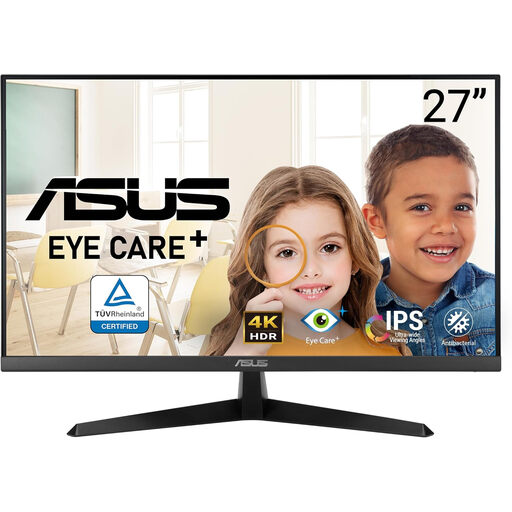
Why This Fits Their Persona: A sensible 27-inch option for students, home-office users and first-time 4K buyers who mainly need sharp text, reliable connectivity and a comfortable everyday display.
Its specification clearly states 3840 × 2160 resolution and 60Hz operation, avoiding inflated refresh-rate expectations. It also includes TÜV Rheinland-certified Flicker-Free and Low Blue Light features.
IPS panel, 100% sRGB coverage, two HDMI 2.0 ports, DisplayPort 1.2 and AMD FreeSync support.
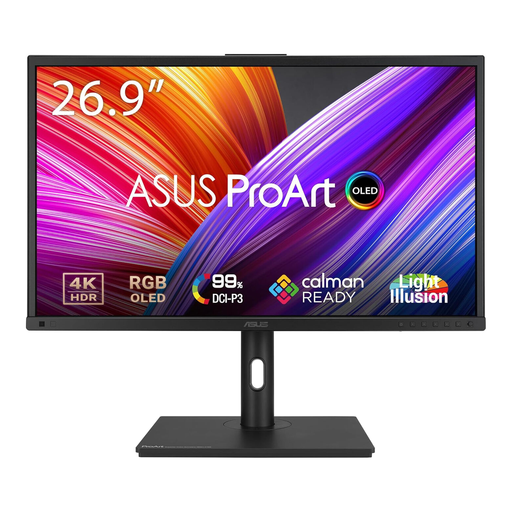
Why This Fits Their Persona: Designed for photographers, graphic designers and video editors who value wide colour coverage, calibration support and an adjustable professional workspace.
The product information specifies OLED technology, 4K resolution, 60Hz refresh rate and a matte surface. Buyers can also account for OLED care requirements, including avoiding prolonged static images.
100% DCI-P3, 99% Adobe RGB, USB-C, DisplayPort, USB hub and height, tilt, pivot and swivel adjustments.
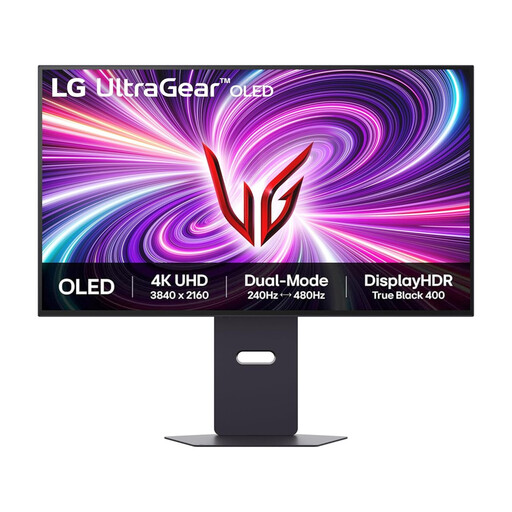
Why This Fits Their Persona: A 4K gaming monitor for players who want high refresh-rate performance, OLED contrast and a larger 32-inch screen for both PC and console use.
It states separate operating modes: up to 240Hz at 4K UHD and up to 480Hz at Full HD. This makes the trade-off between resolution and refresh rate clear.
OLED panel, 0.03ms GtG response time, HDMI 2.1, DisplayPort 1.4, HDR10 and G-SYNC Compatible and FreeSync Premium Pro support.
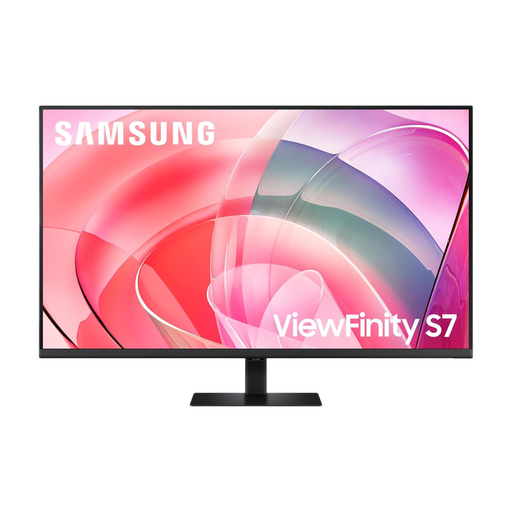
Why This Fits Their Persona: Its expansive format suits professionals, coders and multitaskers who regularly work across multiple windows and want a single large display.
The listing identifies the 37-inch UHD format and USB-C capability, while also advising buyers to check device compatibility, desk strength and the exact ports supplied for their region.
IPS panel, HDR10 support, USB-C connectivity, eye-care features and an adjustable stand with tilt and height adjustment.
We have compiled a complete, real-time list of products that fully satisfy these strict selection criteria and UK safety regulations.
They can be useful where sharper text, detailed spreadsheets or multiple windows matter. A 27-inch 4K UHD monitor provides high pixel density, while a 32-inch model can offer larger interface elements. A 60Hz display is generally sufficient for documents, browsing and video calls.
Check for HDMI 2.1, the console’s supported output modes and the monitor’s refresh-rate limits. Some displays support 4K at 120Hz through a suitable HDMI connection, while others are limited to 60Hz at UHD resolution.
Power consumption varies with panel type, brightness, size and refresh rate. Large, high-brightness or high-refresh displays may use more electricity than a 27-inch 60Hz model. Check the manufacturer’s typical and maximum power figures, and use sleep settings when the display is unattended.