Choose the monitor’s colour modes around what you deliver: an sRGB/Rec.709-focused 4K display is a practical route for SDR web and standard video edits, while print-oriented photography may call for Adobe RGB or P3 coverage and a suitable calibration workflow. Manufacturer accuracy claims describe particular models and conditions, not the reliability of the entire workflow; colour-managed software, an appropriate display profile and a workable viewing position still matter.
Who is this for?
Print-oriented photo editors
If you compare retouched photographs with an intended print result, assess the colour spaces your print workflow uses, soft-proofing features and how you will maintain a suitable display profile. Making an image look more vivid on screen is not the same task.
SDR video and web-content editors
For standard dynamic range (SDR) video, web graphics or social imagery, start with the sRGB or Rec.709 mode relevant to your output. A 4K workspace and connections that suit your desk may matter more to you than an unused wider-gamut mode.
Hybrid home-office creatives
If the same screen serves colour-sensitive editing and everyday laptop work, consider its colour modes alongside display connectivity, charging compatibility and the space needed to position it on your desk.
What matters when choosing?
Set your delivery colour space first, then decide how you will maintain consistent comparisons. Check the laptop connection and physical desk fit before settling on a screen size.
| Concern |
What to check |
Who this matters to |
| Delivery colour space |
Check the exact model’s sRGB, Rec.709, Adobe RGB or P3 modes against your intended output, and whether your editing workflow uses colour management. |
If my edits are destined for web, standard video or print, I want to judge them in a mode relevant to that output rather than choose the widest advertised gamut. Around 33% of consumers put this delivery match first. |
| Repeatable comparisons |
Check the conditions attached to factory-calibration and Delta E claims, plus the model’s supported profiling or calibration workflow. |
When I revisit an edit or compare it across devices, I need a way to maintain a dependable display setup over time. Maintaining repeatable comparisons comes first for around 27% of consumers. |
| Home-office connections |
Confirm the laptop’s display-output support, the monitor’s USB-C or Thunderbolt functions and any required charging capability. |
If my editing laptop also drives the rest of my desk, I need the screen connection to suit that setup without assuming every USB-C port does the same job. Around 20% of consumers make desk integration their primary concern. |
| Screen and desk fit |
Measure usable desk depth and check the screen’s dimensions and adjustment options with its stand. |
I want room for an image and editing controls, but I also need to sit at a workable distance from the screen. Screen size and positioning are the leading concern for around 20% of consumers. |
Buying pitfalls
-
Choosing the widest gamut regardless of output
Extra gamut is useful only when your images and delivery workflow can use it. For SDR web and standard Rec.709 video, the relevant output mode deserves attention; colour management also affects how colour data is interpreted between devices, as the International Color Consortium explains.
Write down your main delivery target before comparing the exact colour modes offered by each monitor.
-
Treating factory calibration as a workflow guarantee
A Delta E figure is a claim for a particular model under stated conditions. It does not, by itself, establish how your editing application, display profile and output device will work together.
Check the claim’s measurement conditions and whether the monitor supports the profiling or calibration approach you intend to use.
Maintaining that approach may also involve a compatible calibrator, software and time for regular checks.
-
Choosing a larger screen before measuring the desk
A 31.5- or 32-inch display needs a position that works with your desk depth. The Health and Safety Executive advises placing a screen roughly an arm’s length away, with its top around eye level.
Check the monitor’s dimensions with its stand, height adjustment and mounting options against your available space.
If the supplied stand cannot give you a workable position, a suitable arm or riser may become part of the setup.
-
Assuming USB-C guarantees a single-cable setup
Display output, charging and hub functions depend on the monitor, laptop port and cable. The stated power-delivery rating also varies between models.
Check your laptop’s display-output and charging requirements, the monitor’s supported functions and the cable specification before relying on one connection.
An incompatible connection could mean using another cable, adapter or dock.
Relevant brands to consider
BenQ
The SW photographer-monitor line is relevant when print-oriented editing calls for wide-gamut modes, soft-proofing features and an ongoing calibration workflow.
- BenQ UK specifies 99% Adobe RGB and P3 coverage, 100% sRGB and Delta E ≤ 1.5 for the SW272U, alongside a 16-bit 3D LUT and reflection-reduction features.
- Those are BenQ’s specifications for the SW272U, not promises for every BenQ display or a replacement for colour-managed software and an appropriate profile.
ASUS
Specified ProArt models offer different routes for standard-gamut SDR work and wider-gamut editing; choose by model and delivery target rather than the line name alone.
- ASUS UK specifies 100% sRGB and Rec.709 coverage for the PA279CV, while its PA329CRV specification states 98% DCI-P3 coverage. ASUS states Delta E < 2 for both models.
- The wider-gamut specification of one model does not establish an advantage for an sRGB- or Rec.709-only workflow. Check the exact model’s modes and calibration conditions.
Dell
The UltraSharp U3225QE is a relevant example for editors who also want laptop and peripheral connections at a home-office desk.
- Dell UK lists the U3225QE as a 31.5-inch 4K monitor with 99% DCI-P3, 100% sRGB and BT.709 coverage, Thunderbolt 4, Ethernet and up to 140W power delivery.
- Confirm that your laptop supports the connection and charging functions you need. Hub features do not replace a managed colour workflow.
4K monitors on Joybuy
These models offer different starting points for a home editing desk, from a display listing hardware-calibration capability to simpler 4K screens and a curved OLED option. Match each model’s stated features to your delivery colour space, then check the colour modes and setup details that matter to your work.
 No image available
ASUS ProArt Display PA32UCG-K 32-inch 4K HDR monitor
Consider this model if hardware calibration and a P3-oriented mode are relevant to your editing workflow. Its listed features include an IPS Mini LED panel, DCI-P3, Delta E < 1 and Thunderbolt 3; treat the accuracy figure as a product claim under its stated conditions. Check the available colour modes and compatibility with your intended calibrator and software before relying on it for print comparisons.
View on Joybuy
 No image available
Dahua 32-inch curved 4K OLED monitor, 165Hz
This curved display may suit a desk used for both editing and other screen-intensive tasks, provided its shape works for your viewing position. The product name specifies 99% DCI-P3 coverage, USB-C with 65W power delivery and a USB hub. Check its sRGB or Rec.709 modes and calibration options against your delivery workflow rather than treating the gamut figure as a complete colour-accuracy assessment.
View on Joybuy
 No image available
iiyama ProLite XUB2792UHSU-B6 27-inch 4K monitor
The 27-inch format is worth considering if desk fit matters alongside a 4K editing workspace. Before choosing it for repeatable colour comparisons, check the exact sRGB and Rec.709 modes, calibration options and any USB-C charging requirement for your laptop.
View on Joybuy
 No image available
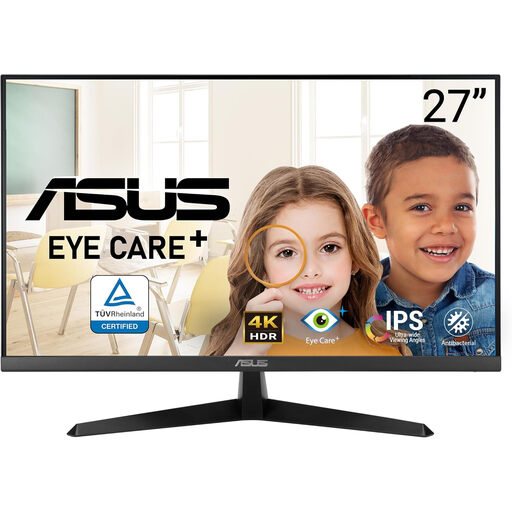
ASUS EYE CARE VY27UQ 4K 60Hz monitor
This is a 4K option to assess for a home desk where you can establish the colour mode needed for your edits. Check its sRGB or Rec.709 settings and calibration approach before making colour-critical comparisons. Its listed stand adjustment is tilt only, so check whether you can position it comfortably.
View on Joybuy
 No image available
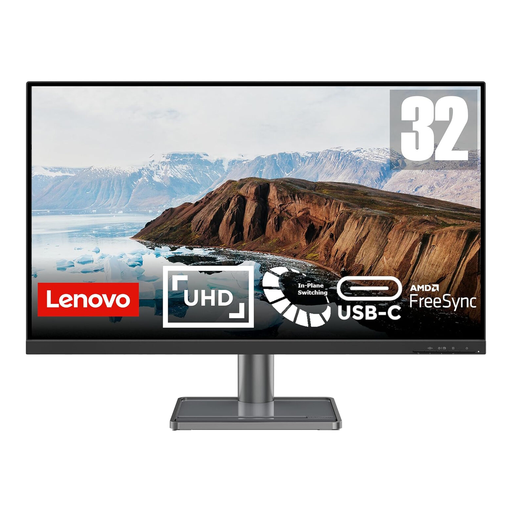
Lenovo L32p-30 31.5-inch 4K IPS USB-C monitor
Consider the 31.5-inch screen if you have room for it and want USB-C in a laptop-based setup. Check the model’s relevant colour modes and calibration approach for your output, as well as the USB-C functions and charging requirement of your laptop. Measure desk depth before choosing the larger format.
View on Joybuy
Frequently asked questions
Do I need a wide-gamut monitor to compare colour edits at home?
Not for every output: an sRGB or Rec.709 mode is the more relevant starting point for SDR web and standard video work. Consider Adobe RGB or P3 coverage when your photography, print or video workflow uses it, and use colour-managed applications with appropriate profiles.
Does factory calibration remove the need for a display profile?
No. Factory calibration is a model-specific starting specification; an appropriate display profile supplies information used in colour-managed conversions, as the International Color Consortium explains. If you need comparisons to remain consistent, check how the exact monitor supports your intended profiling and calibration routine.
What should I check before putting a 4K monitor on my home desk?
Check that the screen and stand fit while leaving a workable viewing position. The Health and Safety Executive advises placing the top of the screen around eye level and the screen roughly an arm’s length away; measure your desk and check the monitor’s adjustment options before choosing its size.


