For comparing colour edits in a student room, start with a 4K monitor whose colour mode matches the work you will deliver, then check whether its stand fits your desk and your laptop can drive the display. A 27-inch adjustable IPS model is a useful starting point, but standard web or Rec.709 work calls for different colour targets from a DCI-P3 or Adobe RGB workflow. If accurate comparisons are central to your coursework, look for a model-specific calibration claim or report rather than treating a wide gamut or HDR badge as proof of accuracy.
Who needs which setup?
Colour-critical coursework editors
If you compare grades, retouch images or prepare video and design work, match the display mode to your intended output and consider how you will calibrate or profile the screen. Adobe’s calibration guidance and the model-specific claims from ASUS and BenQ make these more useful checks than judging a screen by how vivid it looks.
Small-desk laptop creators
If your laptop and monitor share a bedroom or study desk, measure the space for the stand, keyboard and cables. An adjustable screen may help with positioning, but check the laptop’s video output and charging needs before planning a one-cable USB-C setup.
Mixed-use student users
If the screen will also serve reading, coursework and entertainment, decide which colour space your edits actually require before prioritising a wider gamut or higher refresh rate. Dell’s S2725QC specifications, for example, pair a stated sRGB gamut with a refresh rate of up to 120 Hz; those are separate considerations.
What matters when choosing?
Set the colour target for your coursework first; then measure the desk and check the connection you intend to use. The priorities below concern consumers choosing a 4K monitor to compare colour edits in a student room.
| Concern |
What to check |
Who this matters to |
| Dependable colour comparison |
Match the available colour mode to sRGB, Rec.709 or the wider-gamut output you need; look for a model-specific calibration claim or report. |
If my edits must look consistent for coursework, I need a suitable colour mode and a way to check the display’s calibration, not just saturated colours. Around 42% of consumers put dependable colour comparison first. |
| Desk fit and positioning |
Measure the stand footprint and cable clearance; compare the exact model’s adjustments and mounting options with your desk. |
On a shallow student-room desk, I need space to position the screen without crowding my keyboard or working area. Desk fit is the primary concern for about 33% of consumers. |
| Laptop connection and mixed use |
Check the laptop’s video output against the monitor’s inputs; if using USB-C, check video support and power delivery separately. |
If one screen handles editing and everyday coursework, I want a connection that works with my laptop without assuming one cable will also charge it. Roughly 25% of consumers prioritise connection convenience and mixed use. |
Buying pitfalls to avoid
-
Treating a wide gamut or HDR badge as proof of colour accuracy
Gamut coverage, HDR capability and colour accuracy describe different things. ASUS specifies Calman verification and a Delta E claim for the PA279CRV, while LG specifies DCI-P3 coverage and DisplayHDR 400 for the 27UP85ZK-W; one claim cannot stand in for another.
Start with your delivery colour space, then check the display mode and any model-specific calibration or accuracy claim relevant to your work.
-
Assuming USB-C means video and sufficient charging
USB-C connections differ, and a monitor’s stated power delivery may not meet a particular laptop’s charging requirement.
Check the laptop’s USB-C video capability and charging requirement against the exact monitor’s connection and power-delivery specifications.
-
Checking the diagonal but not the stand
A 27-inch screen can still occupy substantial desk depth. BenQ lists a 256.8 mm stand depth and a 9.3 kg net weight for the PD2705U.
Measure the available desk depth, including room for cables and your keyboard, and check the exact model’s stand dimensions and adjustment range.
If the supplied base obstructs the workspace, a compatible monitor arm or alternative stand may be needed.
-
Expecting a factory specification to guarantee matching results
A model’s stated colour specification does not account for your selected display mode, room lighting or editing application settings. Adobe describes calibration as aligning screen colours with colour standards.
Use the mode intended for your output, calibrate or profile the display when your work calls for it, and compare critical edits under consistent lighting.
Relevant brands to consider
ASUS ProArt
A creator-monitor line to consider when a documented wide-gamut starting point matters to your workflow.
- For the PA279CRV, ASUS specifies 99% DCI-P3 and 99% Adobe RGB coverage, Calman verification, factory pre-calibration to Delta E < 2 and USB-C power delivery up to 96 W.
- Those PA279CRV specifications do not guarantee matching results in every room; select the appropriate colour mode and check laptop compatibility.
BenQ PD
A designer-monitor line worth examining when coursework is chiefly delivered for sRGB or Rec.709 viewing.
- For the PD2705U, BenQ specifies 99% sRGB and Rec.709 coverage, an average Delta E of ≤3, a factory calibration report and 65 W USB-C power delivery.
- The PD2705U’s stated colour targets focus on sRGB and Rec.709; check its stand footprint against a small desk.
Dell Plus
A general-purpose 4K route for coursework, occasional colour comparisons and everyday screen use.
- For the S2725QC, Dell specifies a 4K IPS display, 99% sRGB coverage, USB-C connectivity, up to 120 Hz and height, pivot, swivel and tilt adjustment.
- A stated sRGB gamut alone is not a calibration report or a colour-accuracy claim; check the available colour modes for your work.
LG UltraFine
A 4K IPS route to examine when DCI-P3 coverage, USB-C and an adjustable stand match your requirements.
- For the 27UP85ZK-W, LG specifies 95% DCI-P3 typical coverage, USB-C, DisplayHDR 400 and height, pivot and tilt adjustment.
- DisplayHDR 400 and gamut coverage are not colour-accuracy guarantees; assess the exact display mode and calibration needs of your workflow.
Joybuy monitors for this setup
These 4K monitor choices cover different student-room priorities, from a 27-inch laptop setup to a larger creator display. Compare each model’s colour options, desk fit and connections against the work you actually do.
 Image unavailable
iiyama ProLite XUB2792UHSU-B6 27-inch 4K UHD monitor
For a laptop-based editing desk, consider this 27-inch model if its stand and inputs fit your setup. The listed variant is 4K UHD; check its colour modes and the laptop connection before relying on it for colour-critical comparisons or one-cable use.
Joybuy
 Image unavailable
ASUS ProArt Display PA32UCG-K 32-inch 4K IPS Mini LED monitor
For colour-focused work that calls for a larger screen, consider this model only after checking the space available on your desk. Its listed variant includes 120 Hz, Thunderbolt 3 and HDMI 2.1, alongside a Delta E < 1 claim; check the applicable colour mode and calibration conditions for your workflow.
Joybuy
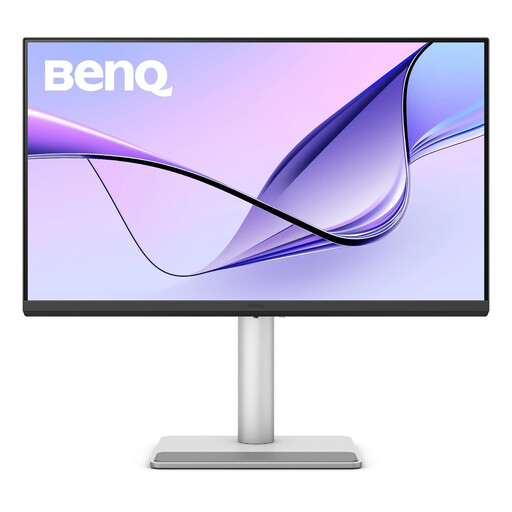 Image unavailable
BenQ MA270UP 27-inch Nano Glossy IPS 4K USB-C Mac monitor
For a Mac-centred study desk, consider this model if its glossy screen finish and connections suit your room and laptop. The listed variant is a 27-inch 4K USB-C monitor; check its colour modes for editing and its available functions if you use a non-Mac computer.
Joybuy
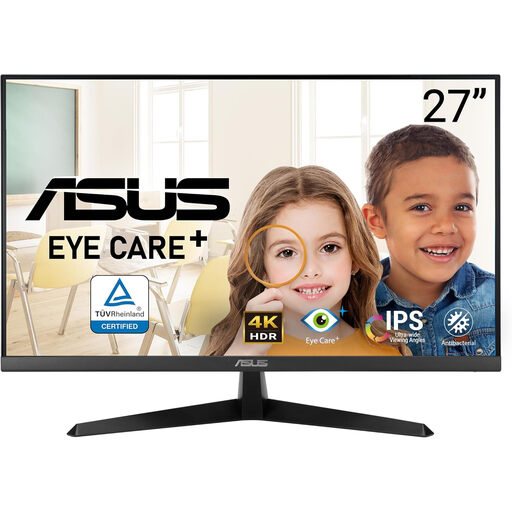 Image unavailable
ASUS Eye Care VY27UQ 4K UHD 60 Hz monitor
For study alongside colour-editing work, consider this model if its positioning options and inputs suit your desk and laptop. The listed variant is 4K UHD at 60 Hz; check its colour mode and stand adjustment before choosing it for comparisons.
Joybuy
Frequently asked questions
Do I need a wide-gamut monitor for colour-editing coursework?
Not if your work is primarily intended for standard sRGB or Rec.709 viewing. Choose a colour mode suited to the intended output; DCI-P3 or Adobe RGB coverage becomes relevant when your workflow requires it. Adobe’s calibration guidance also makes clear why screen calibration remains a separate consideration.
Can one USB-C cable display video and charge my laptop?
It can if the laptop supports video over USB-C and the monitor’s power delivery meets its charging needs. ASUS specifies up to 96 W for the PA279CRV and BenQ specifies 65 W for the PD2705U; check the exact laptop and monitor rather than assuming their USB-C ports provide the same functions.
What should I do if a monitor bought in the UK is faulty?
Report the fault to the seller and keep your order details; a manufacturer warranty does not replace your rights against the seller. GOV.UK guidance says that for an item returned within six months, the seller must repair or replace it unless they can prove it was not faulty when bought. The available remedy depends on the circumstances and differs from a change-of-mind return.
How should I dispose of an old monitor?
Check your local electrical-equipment collection arrangements or a retailer take-back route rather than putting the monitor in ordinary waste. UK Government guidance on waste electrical and electronic equipment describes routes for free household collection and recycling; confirm which arrangement applies where you live.


