What should you check?
Check that you can position the monitor at both desk heights, then assess drawing legibility. Colour-work and laptop-connection requirements can narrow the choice further.
| Concern |
Buying checks |
Who this matters to |
| Drawing detail |
Confirm native 3840 × 2160 resolution and that drawing text stays legible at your preferred scaling. Consider screen reflections at your desk. |
When I compare crowded annotations or drawing revisions, I need enough legible workspace to spot differences; around 33% of consumers put drawing detail first. |
| Sit-stand positioning |
Measure seated and standing eye heights, then compare them with stand travel. For an arm, check the VESA pattern and desk compatibility. |
Changing desk height should not leave me looking down at a poorly placed screen; roughly 27% of consumers prioritise positioning across both working heights. |
| Presentation colour |
Check coverage for the colour space your work uses and whether your workflow needs calibration. Treat factory colour claims as model-specific specifications. |
If I review material palettes or renderings as well as plans, I need a dependable colour workflow; around 20% of consumers make presentation colour their primary concern. |
| Laptop connection |
Confirm the laptop’s display-output mode and charging requirement against the monitor’s USB-C or Thunderbolt ports. |
When I bring a laptop to the desk, I want the display and charging connections to work with that computer; approximately 20% of consumers put laptop connectivity first. |
Joybuy monitor choices
These 4K monitors offer different panel sizes, finishes and connections for drawing review at a height-changing desk. Check each model’s usable stand height against your own seated and standing positions.
 No image available
ASUS ProArt Display PA32UCG-K 32-inch 4K IPS Mini LED
Consider the larger panel if you want space for drawings and presentation work, provided it fits your desk and viewing position.
The product title specifies HDR, hardware calibration and Thunderbolt 3. Check the stand’s height range and the brightness specification that matters to your work before choosing.
View on Joybuy
 No image available
iiyama ProLite XUB2792UHSU-B6 27-inch 4K UHD
The 27-inch 4K format is worth considering for dense drawings where desk space also matters.
Check whether its screen finish suits your lighting and whether its stand reaches your viewing position at both desk heights. Confirm laptop-charging requirements separately if you plan to use USB-C.
View on Joybuy
 No image available
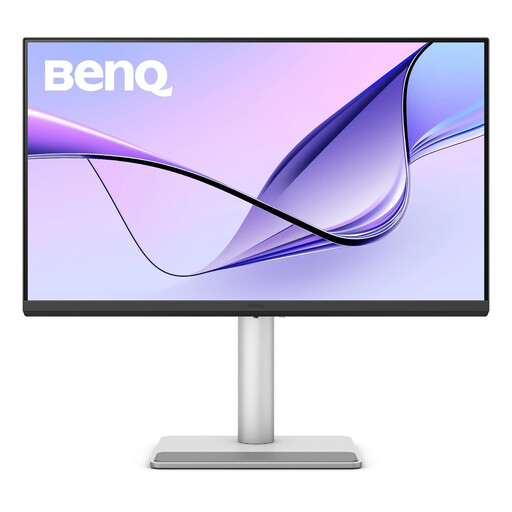
BenQ MA270UP 27-inch Nano Glossy 4K IPS
Consider this adjustable 27-inch display if you compare drawings and use a USB-C-connected computer.
Its product title specifies a Nano Glossy finish and a height-adjustable stand. Check reflections in your working light, the stand’s height range and compatibility with any Mac-specific features you intend to use.
View on Joybuy
 No image available
LG UltraGear G8 27G850A 27-inch 4K Nano IPS
Its 27-inch 4K format makes it a drawing-review option if its gaming-focused connections also suit your computer.
The title specifies DisplayPort 2.1 and HDMI 2.1. Check the stand’s height range and screen finish for your desk; the stated gaming refresh modes do not replace those checks.
View on Joybuy
 No image available
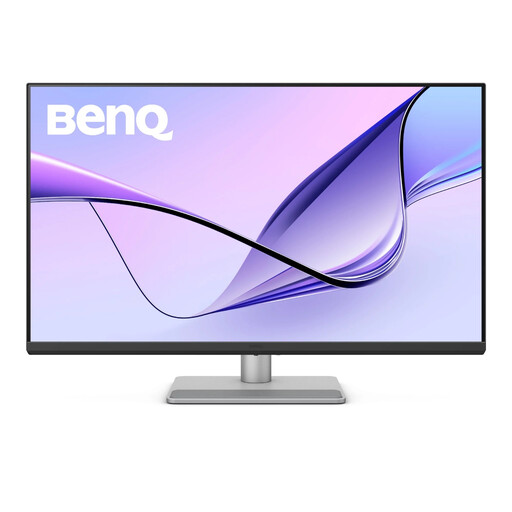
BenQ MA320UP 32-inch Nano Glossy 4K IPS
Consider the larger 4K panel if it fits the depth of your desk and your preferred drawing layout.
The product title specifies USB-C, a Nano Glossy finish and a height-adjustable stand. Check the stand’s reach at both working heights and whether reflections would interfere with linework.
View on Joybuy
Frequently asked questions
Do architectural drawings require a 32-inch 4K monitor?
No: a 27-inch 4K monitor can also serve detailed drawing work. Choose between 27 and 32 inches by checking desk depth, viewing distance, preferred application scaling and how much physical screen area you want.
Where should the monitor sit when I stand?
The Health and Safety Executive advises placing the top of the screen around eye level and the screen about an arm’s length away. Measure at the standing height you use, then check whether the stand or a compatible arm can reach that position while keeping the screen and keyboard central.
Will USB-C carry video and charge my laptop through one cable?
Only if the laptop and monitor support the required display connection and the monitor supplies enough power for that laptop. Check the computer’s display-output and charging specifications, as well as the cable and monitor port, before relying on a one-cable setup.
Does a factory-calibrated monitor settle presentation and print colour decisions?
No. A factory-calibration claim describes a starting condition for a particular model, while ambient light, settings, colour management and the output device can affect what you see. Use a managed workflow when approval of rendering or print colour is consequential.
Does a workplace standing-desk setup need a screen assessment?
In the UK, the Health and Safety Executive states that employers must assess workstations for workers who use display screen equipment daily as a normal part of their work for continuous periods of an hour or more. The assessment covers the whole workstation, the work and any special user requirements; a change to the workstation or reported discomfort can also call for reassessment.


