For detailed map checking at changing desks, a 27-inch 4K monitor is the more compact choice, while a 31.5-inch 4K monitor gives map panes and controls more physical space without adding pixels. Check how the map software looks at your intended scaling, then confirm desk space, screen adjustment and the exact laptop’s display and charging compatibility. Where staff regularly use display screen equipment for continuous periods of an hour or more each day, the Health and Safety Executive’s guidance also makes the whole workstation relevant.
Who is this for?
Hot-desk map reviewers
People moving between shared desks who need to reconnect a work laptop without repeatedly changing several cables, while keeping detailed maps readable. Dell UK and LG UK list monitor connections relevant to this setup; the laptop and cable still need to match.
Large-area map analysts
People who want a physically larger view for map layers and supporting documents and have room for a 31.5-inch screen, such as the size listed for Dell’s U3225QE.
Daily display users
People who need to position a shared screen for sustained work and account for lighting, furniture and viewing position. The Health and Safety Executive advises considering the whole workstation, not just the monitor.
What matters when choosing?
Start by viewing a familiar map at the intended screen size and software scaling. Then check whether the monitor fits the desk and connects to the office laptop as required.
| Concern |
What to check |
Who this matters to |
| Laptop connection |
Match the laptop’s video connection and charging requirement to the monitor and cable; check whether desk peripherals need a hub. |
When I change desks, I want to reconnect my laptop and working accessories without rebuilding the setup. Around 36% of consumers put straightforward desk-to-desk connection first. |
| Map workspace |
Compare 27-inch and 31.5-inch 4K screens using the actual map application and scaling; measure available desk depth. |
If I inspect layers beside reference documents, I need labels and panes at a workable physical size. For around 29% of consumers, map workspace is the primary concern. |
| Position and glare |
Check stand adjustment and screen placement against the desk, seating and lighting; assess the wider workstation where required. |
For long sessions at a shared station, I need to reposition the display and manage reflections. Screen position and glare come first for around 21% of consumers. |
| Imagery colour |
Define any colour-management requirement before choosing a monitor for its gamut or calibration specifications. |
When my map work depends on consistent interpretation of imagery, colour settings matter more than they do for routine map navigation. Around 14% of consumers prioritise imagery colour. |
Buying pitfalls
-
Choosing by “4K” alone
A 27-inch and a 31.5-inch display can each show 3840 × 2160 pixels, but the image occupies a different physical area. Labels that feel cramped at one size may be easier to view at another, while the larger screen needs more desk space.
Open the intended map application at the planned scaling and measure desk depth before settling on a size.
-
Assuming every USB-C setup works through one cable
USB-C on a monitor does not, by itself, establish that an office laptop and cable can carry the required video, data and charging. Dell UK, BenQ UK and LG UK list different power-delivery capabilities for their respective models.
Check the exact laptop, cable, video-output mode and charging requirement, including any peripherals that need to remain at the desk.
-
Relying on screen features instead of workstation setup
An adjustable stand or eye-comfort feature does not address every issue with lighting, furniture or screen placement. The Health and Safety Executive advises employers to consider the whole workstation for qualifying display screen equipment users.
Position the screen and lighting together, and review the workstation assessment when the setup changes.
-
Specifying colour features without a colour requirement
Wide-gamut and calibration specifications do not add map pixels or resolve connection and positioning needs. They matter when the imagery workflow has defined colour requirements.
Establish those requirements before prioritising colour specifications over the map workspace, ergonomics and laptop connection.
Brands to consider for this setup
Dell
Dell UK lists 27-inch and 31.5-inch UltraSharp 4K hub monitors that address different desk-space and map-view preferences.
- The U2725QE is a 27-inch Thunderbolt hub option; Dell UK lists an anti-glare surface and power delivery up to 140W EPR.
- The 31.5-inch U3225QE offers a larger physical display, but its footprint and viewing position need checking at each shared desk.
BenQ
BenQ UK’s PD2705U is a 27-inch 4K option for buyers who also have USB-C and defined colour-workflow requirements.
- BenQ UK specifies 3840 × 2160 resolution, 163 PPI, a KVM function and 65W USB-C power delivery for the PD2705U.
- Check its stated 250-nit typical brightness in the intended lighting and whether 65W meets the laptop’s charging requirement.
LG
LG UK’s 27UP85ZK-W is a 27-inch 4K IPS option with USB-C connectivity and an adjustable stand.
- LG UK lists USB-C charging up to 90W and height, pivot and tilt adjustment for the 27UP85ZK-W.
- Confirm that its connections, the chosen cable and the office laptop support the required display and peripheral setup.
Joybuy monitor choices
These monitors offer 4K choices for map checking at shared desks, including compact displays and a larger-screen option. Compare each listing with your desk space, lighting and laptop requirements before choosing.
 No image available
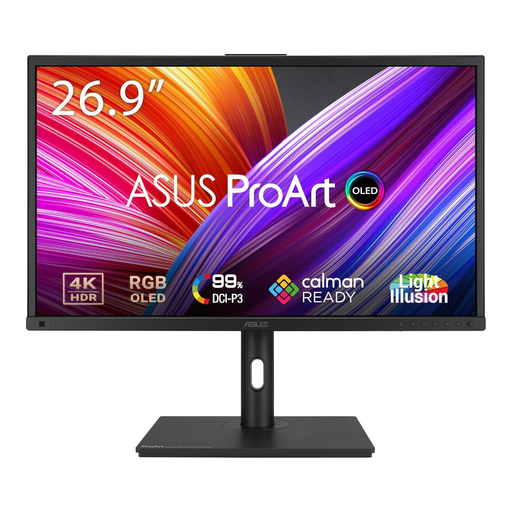
ASUS ProArt PA27DCE-K OLED 4K UHD
Consider this for map checking where a smaller shared-desk display is preferred. Confirm its screen-position options and the exact laptop’s USB-C video, data and charging requirements before relying on a one-cable setup.
View on Joybuy
 No image available
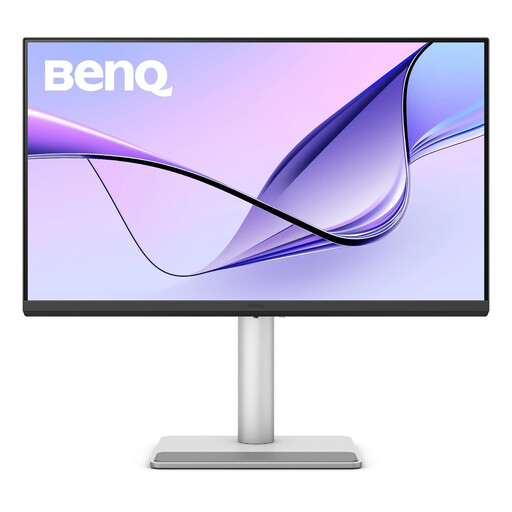
BenQ MA270UP Nano Glossy 27-inch 4K IPS USB-C
The 27-inch format is worth considering where desk space is limited. Check how the Nano Glossy surface behaves under the office lighting, and confirm USB-C video compatibility and charging against the intended laptop.
View on Joybuy
 No image available
ASUS ProArt Display PA32UCG-K 32-inch 4K IPS Mini LED
Consider the larger physical screen when map panes and supporting material need room side by side. Measure the shared desk and viewing position; confirm the laptop connection and charging arrangement separately.
View on Joybuy
 No image available
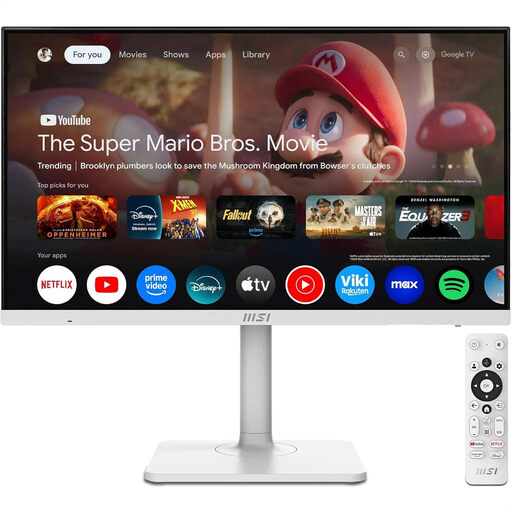
MSI MD272UPSW Smart 27-inch 4K UHD IPS, USB-C 65W
The 27-inch display suits a desk where a compact map workspace is the priority. Its title specifies USB-C 65W; check that the laptop supports the required video connection and that this charging level is sufficient. Check the screen surface under the intended lighting.
View on Joybuy
 No image available
iiyama ProLite XUB2792UHSU-B6 27-inch 4K UHD
Consider this 27-inch option for detailed maps at a shared desk. Before using it as a laptop docking point, confirm the necessary video, data and charging functions; check its screen finish against the office lighting.
View on Joybuy
Frequently asked questions
Is a 31.5-inch 4K monitor better for detailed maps than a 27-inch one?
Not automatically: both can show 3840 × 2160 pixels, while the 31.5-inch screen makes the image physically larger and the 27-inch screen packs the pixels more densely. BenQ UK specifies 163 PPI for its 27-inch PD2705U. Check map labels, interface scaling, viewing position and desk depth before choosing.
Will one USB-C cable carry the map display, peripherals and laptop charging?
Only if the monitor, laptop and cable support the required video, data and charging functions together. LG UK lists display, data and charging up to 90W over USB-C for its 27UP85ZK-W, while BenQ UK specifies 65W power delivery for the PD2705U; neither figure establishes compatibility with every office laptop.
Does changing monitors in a UK shared office call for a DSE assessment?
For workers who use display screen equipment daily as part of normal work for continuous periods of an hour or more, the Health and Safety Executive says employers must assess workstations and reduce risks. Its guidance calls for considering equipment, furniture and work conditions, and for reassessing when a workstation is set up or changed.


