Colour-consistency reviewers
If you compare materials or renders across the screen, check calibration documentation and panel-uniformity features. A shift in the display itself could make a subtle seam harder to judge.


For reviewing texture seams, choose a 4K monitor with a colour mode that suits your files, and look for documented calibration and a stated uniformity feature when small tonal differences matter across the screen. A 27-inch display suits close inspection; a 31.5- or 32-inch display gives you a physically larger view but needs more desk space. Check laptop connections and charging requirements before paying for a more specialised colour-management setup.
If you compare materials or renders across the screen, check calibration documentation and panel-uniformity features. A shift in the display itself could make a subtle seam harder to judge.
If you examine fine joins and edge transitions close to the display, compare a 27-inch 4K screen with a larger one at your usual viewing distance, with your editing tools visible.
If texture review shares a desk with other work, check that the monitor connection carries the video signal you need and that any stated power delivery meets your laptop’s charging requirement.
For texture review in a home office, decide how much colour consistency you need before choosing screen size and desk connections. A 4K resolution alone does not settle those other choices.
| Concern | What to check | Who this matters to |
|---|---|---|
| Colour consistency | Look for calibration documentation, a mode suited to your files and an explicit panel-uniformity feature. | If small colour or brightness shifts could be mistaken for a seam, I need confidence in the view across the panel; around 50% of consumers put colour consistency first. |
| Detail and canvas size | Compare 27-inch and 31.5- or 32-inch 4K screens at your viewing distance, with your application tools open. | When I inspect fine joins up close, I want enough visible detail without losing room for my tools; roughly 30% of consumers make detail and workspace their primary concern. |
| Desk and laptop fit | Confirm video-input compatibility, any USB-C or Thunderbolt charging rating, and stand adjustment. | If I use one laptop desk for review and everyday work, I need a connection and screen position that fit that setup; about 20% of consumers prioritise home-office integration. |
Resolution determines pixel detail, not whether colour and brightness remain consistent across the panel.
For seam checks that depend on subtle tonal differences, check the exact model’s calibration documentation, suitable colour modes and stated uniformity features.
Gamut coverage does not tell you which display mode to use for a particular texture or delivery workflow.
Identify the colour space used by your review files, then check for an appropriate monitor mode and use it consistently.
USB-C and Thunderbolt monitors can differ in video support and power delivery, so a convenient-looking connection may not meet your laptop’s requirements.
Compare the laptop’s video output and charging needs with the monitor’s stated inputs and power-delivery rating; check the cable needed for the connection too.
Glare and an awkward viewing position can make a long review session harder to manage, regardless of the monitor’s colour features.
Position the screen and lighting to reduce reflections, adjust the workstation for a comfortable posture and plan breaks or changes of activity, in line with Health and Safety Executive display-screen guidance.
The 31.5-inch PD3225U is a reference point for buyers considering a larger 4K canvas with documented colour features.
The ColorEdge CG2700X illustrates a more specialised route for a workflow built around repeated calibration.
The UltraSharp U2725QE is relevant when 27-inch 4K detail must sit alongside laptop-based office work.
These 27-inch and larger 4K monitors provide different starting points for a home-office texture-review desk. Check each model’s colour-management features and connections against the work you actually do.
 No image available
Consider the larger screen if you want a physically bigger view of texture joins at your usual desk distance. The product name lists USB-C and a height-adjustable stand; check the colour mode, calibration documentation, panel uniformity and compatibility with your Mac before choosing it for consistency-sensitive review.
 No image available
This larger-screen option is worth examining if calibration is part of your texture-review workflow. The product name lists hardware calibration and a Delta E < 1 claim, but neither establishes panel-wide uniformity; check the relevant colour mode and your laptop’s connection and charging needs.
 No image available
Consider whether a curved, gaming-oriented screen suits the way you inspect texture joins. The product name lists 3840 × 2160 resolution, 165Hz refresh and 65W USB-C power delivery; check calibration, panel uniformity and whether 65W meets your laptop’s requirement.
 No image available
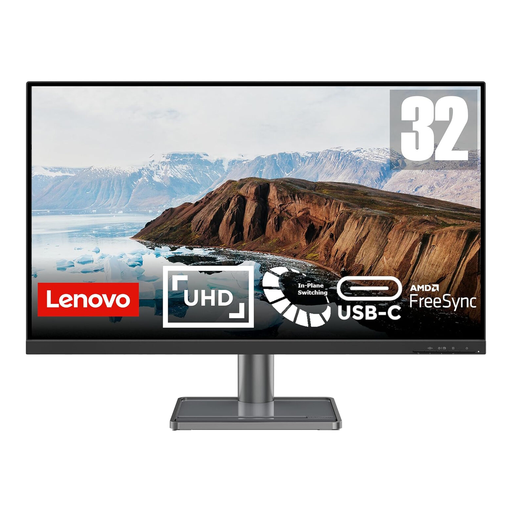
The 31.5-inch screen is an option if a larger review canvas fits your desk. The product name lists USB-C; check its video and charging specifications for your laptop, along with calibration and panel-uniformity features if subtle colour shifts affect your decisions.
 No image available
The 27-inch 4K format is worth comparing if you inspect fine joins close to the screen. Confirm that its colour mode suits your files, check calibration and panel uniformity for consistency-sensitive work, and verify the connection your laptop requires.
Not necessarily: it is most relevant when scheduled, repeatable calibration is part of your workflow and you do not want to rely on a separate measuring device. EIZO says the CG2700X can run sensor-based calibration at scheduled times; for occasional checks, start by confirming that a monitor has a colour mode suited to your files and appropriate calibration documentation.
Choose 27 inches if you work close to the display and favour a denser view of fine detail; consider 31.5 or 32 inches if you want the image to appear physically larger. Compare both at your normal desk distance and make sure the larger screen leaves you a comfortable viewing position.
Arrange the screen and lighting to limit reflections, adjust your working position and plan breaks or changes of activity. The Health and Safety Executive includes these steps in its guidance on working with display-screen equipment.