Colour-managed photo and print editors
If you compare edits for Adobe RGB, P3 or print-oriented output, look beyond vivid default colour to documented gamut coverage, calibration controls and an ICC-profiled workflow.


Start with a 27-inch 4K monitor whose colour-space coverage matches the edits you deliver, then use an accurate display profile in colour-managed software. A wider-gamut or hardware-calibratable model is worth considering when your P3, Adobe RGB or print workflow calls for it. On a small desk, check the complete stand or hood depth as well as the screen size, and confirm that any USB-C connection meets your laptop’s video and charging needs.
If you compare edits for Adobe RGB, P3 or print-oriented output, look beyond vivid default colour to documented gamut coverage, calibration controls and an ICC-profiled workflow.
If your work centres on web images or SDR video, sRGB or Rec.709 coverage and a usable 27-inch 4K workspace may matter more than specialist print features. Check how much room the stand leaves for your keyboard and other equipment.
If you edit from a compatible laptop, one connection for video, data and charging can simplify the desk. Check those connection requirements separately from the colour specifications needed for your output.
Choose the colour workflow first, then measure the space it will occupy; treat laptop docking as a separate compatibility decision.
Consider it when: You mainly compare web images or SDR video and want a 27-inch 4K display for a compact workspace.
Keep in mind: Stated coverage or factory calibration does not replace a suitable monitor profile and colour-managed application.
Consider it when: Your photography or digital delivery workflow uses Adobe RGB or P3 alongside standard colour spaces.
Keep in mind: Wider coverage alone will not make unmanaged files or applications display colour reliably.
Consider it when: Repeatable photo or print comparisons and controlled viewing are central to your work.
Keep in mind: A shading hood can take substantially more desk depth than the display without it.
| Concern | What to check | Who this matters to |
|---|---|---|
| Colour-space fit | Compare coverage and selectable modes with your output space; check how you will profile the display for colour-managed software. | If I compare edits for print, photography or P3 delivery, I need the display mode and profile to reflect that output. Around 42% of consumers put colour-managed output matching first. |
| Desk footprint | Measure usable depth and allow for the full stand, cable clearance and any hood; check the adjustments you need. | When my keyboard and editing equipment share a shallow desk, I need enough room to position the screen comfortably. For around 33% of consumers, fitting the setup is the primary concern. |
| Laptop connection | Check the laptop’s video-output capability, charging requirement and cable specification against the monitor’s USB-C functions. | I want to connect my editing laptop without adding cable clutter, but the connection still has to carry what my laptop needs. Connection convenience comes first for around 25% of consumers. |
A wide-gamut specification describes colour coverage, not how an unmanaged image will appear. Adobe says accurate ICC-compliant profiles are essential for reliable colour management.
Match the display mode to your intended output, work in colour-managed software and create or verify the monitor profile before judging subtle differences.
BenQ specifies a 238.3 mm stand depth for the PD2706U, while its SW272U is specified at 364.8 mm deep with the shading hood fitted. Both are 27-inch monitors, but those configurations occupy different amounts of desk depth.
Measure the usable surface and cable clearance, then compare dimensions for the exact stand and hood arrangement you intend to use.
If the stand obstructs your keyboard or viewing position, you may need a different placement, a suitable monitor arm or more desk depth.
Video, data and laptop charging depend on the capabilities of the monitor, computer and cable; a stated power-delivery rating alone does not establish that the whole setup will work through one connection.
Check the laptop’s video support and power requirement alongside the monitor port and the cable needed for your chosen setup.
A separate charger, dock or suitable cable may still be necessary.
HDR support alone does not establish a reference-grade HDR grading workflow or answer whether a monitor suits comparisons in your intended SDR colour space.
For SDR work, establish the required colour space, profiling workflow and physical fit first; assess HDR features against a specific HDR editing and delivery requirement.
Creative Pro PD and PhotoVue SW offer different routes: the former includes displays for sRGB and Rec.709 editing, while the latter addresses more specialised photo and print workflows.
The ProArt PA279CRV is a 27-inch 4K option for workflows requiring documented Adobe RGB and DCI-P3 coverage alongside USB-C laptop connectivity.
The U2725QE takes a connectivity-focused route for a 27-inch 4K workspace rather than establishing a specialist print-calibration workflow.
These 4K monitors offer different starting points for a compact colour-editing setup, from sRGB-oriented work to models labelled for P3 or Adobe RGB workflows. Check each model’s full dimensions and colour-management options against your own desk and output.
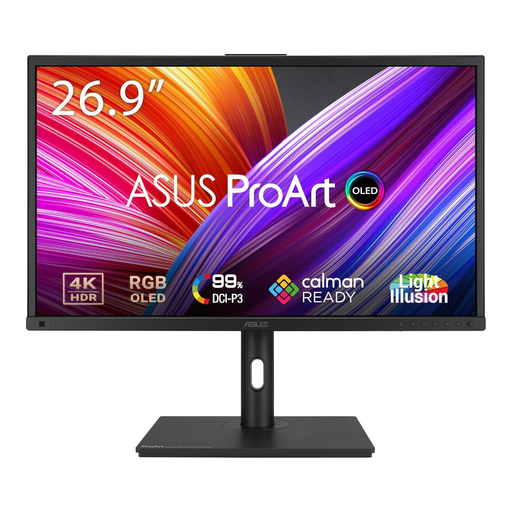 No image available
Consider this model if you are assessing an OLED display for 4K colour-editing work. Confirm the colour documentation, complete stand depth and USB-C video and charging functions against your workflow before choosing it.
 No image available
This 27-inch 4K model is worth assessing for a standard colour-editing workspace. Check its colour-profile documentation, full stand dimensions and any laptop connection requirements before relying on it for critical comparisons.
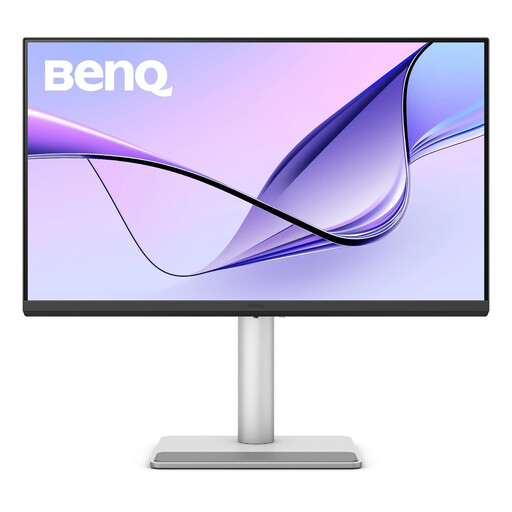 No image available
Its stated P3 orientation and USB-C connection make this a model to assess for a laptop-based editing desk. Confirm the supported colour modes, profiling options, stand depth and USB-C functions for your exact setup.
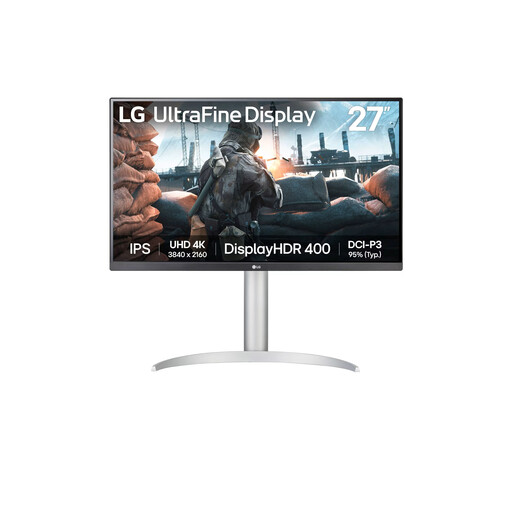 No image available
If P3 coverage is relevant to your output, this model’s stated 95% DCI-P3 coverage gives you a specification to assess alongside its 4K IPS panel. It is also listed with HDMI and DisplayPort; check the complete stand depth and your required profiling and laptop connections separately.
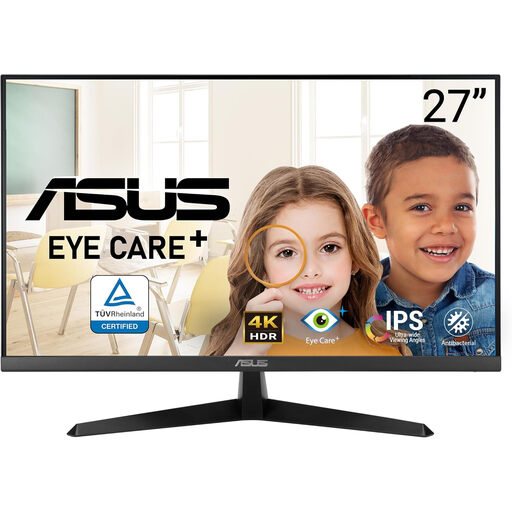 No image available
Consider this 4K model for an sRGB-focused setup after checking its colour modes and profiling options. Measure the space needed for the complete monitor and its cables before deciding whether it fits your desk.
You need wider-gamut coverage when your source, editing and delivery workflow uses Adobe RGB or P3; sRGB and Rec.709 coverage addresses common web-image and SDR-video work more directly. Use an appropriate monitor mode, an accurate ICC profile and colour-managed software in either case.
No: factory calibration is an initial reference, not a substitute for knowing how your own display currently reproduces colour. Adobe says accurate ICC-compliant profiles are essential for reliable colour management, so profile and verify the monitor when subtle comparisons matter.
Measure usable desk depth and compare it with the monitor’s complete depth in the configuration you will use, allowing for cables and any hood. BenQ specifies 238.3 mm with the stand for the PD2706U, while its SW272U is specified at 274 mm without the hood and 364.8 mm with it. Check whether the available adjustment or a suitable monitor arm will let you position the screen comfortably.
Only if the monitor’s power delivery meets your laptop’s requirements and the connection supports the functions you need. BenQ specifies 90W USB-C power delivery for the PD2706U, and ASUS specifies 96W for the PA279CRV; check your laptop’s video-output support, charging demand and cable capability as separate requirements.