Typography-focused laptop workers
If you compare body text, interface copy or documents, you need to judge detail while keeping text comfortable to read. Check your operating system’s text and display settings as well as the monitor’s resolution.


Start with a 27-inch 4K monitor if you want to inspect typography without making room for a larger screen, but measure the stand and check whether you can sit at a comfortable viewing distance. Prioritise a compatible USB-C connection for a tidier laptop setup, or defined colour modes if you also review colour-sensitive layouts; test text scaling in your usual applications before deciding.
If you compare body text, interface copy or documents, you need to judge detail while keeping text comfortable to read. Check your operating system’s text and display settings as well as the monitor’s resolution.
If typography sits alongside layouts or colour-sensitive assets, the stand footprint, screen adjustment and relevant colour modes matter alongside the 4K panel.
If you want fewer cables at a compact workstation, compare the monitor’s USB-C functions with your laptop’s display connection and charging requirements. A USB-C port alone does not establish that every function will work.
Check text in your usual applications, measure the space available for the stand and keyboard, then decide which connection or colour controls your work requires.
| Concern | What to check | Who this matters to |
|---|---|---|
| Text detail and size | Check native resolution and try your normal applications at a comfortable Windows text or display scale, or Mac display setting. | If I inspect letterforms and interface text, I need enough detail without making everyday reading uncomfortable; around 40% of consumers put readable typography first. |
| Desk fit and placement | Measure usable desk depth, including keyboard space, and compare the stand footprint and adjustment range. | When my desk is shallow, I need to place the screen at a workable height and distance without crowding the keyboard; around 30% of consumers make desk fit and placement their primary concern. |
| Laptop and colour workflow | Check laptop display output and charging requirements, or look for the colour modes and calibration documentation your workflow needs. | If I connect a laptop or review colour-sensitive layouts, I need the relevant ports or defined colour controls to suit that work; around 30% of consumers prioritise these workflow needs. |
More pixels do not determine how large text appears in your applications. Microsoft Support describes separate Windows text-size and display-scale controls, while Apple Support notes that Mac display settings affect the size of text and objects.
Open your normal documents, browser and design tools at your usual viewing distance, and try the available text and display settings while you can still assess whether the monitor suits you.
A stand can take up space needed for the keyboard and viewing distance. BenQ lists the PD2705U with a 614 × 256.8 mm stand footprint; the Health and Safety Executive advises placing the top of the screen at eye level and the screen about an arm’s length away.
Measure usable depth and compare it with the stand. Consider a monitor arm only after checking the monitor mount, desk and clamp are compatible.
If the stand leaves too little room, rearranging the desk or using a compatible arm may be necessary.
Dell specifies up to 90 W USB-C power delivery for the P2725QE and advises checking device compatibility; BenQ specifies 65 W for the PD2705U. The stated power rating alone does not establish that a particular laptop will charge as required.
Check your laptop’s charging requirement, USB-C display-output capability and relevant manufacturer compatibility notes before relying on one cable.
The Health and Safety Executive’s display screen equipment guidance considers the whole workstation, including equipment, furniture and working conditions, rather than a monitor specification in isolation.
If you use a screen regularly for work, ask your employer about a workstation assessment and consider the desk, chair, keyboard and screen position together.
The Dell Pro 27 Plus P2725QE is relevant if a 27-inch 4K display also needs to serve as a laptop-oriented USB-C hub.
The BenQ PD2705U is relevant when typography previews share a workflow with sRGB or Rec.709 colour review.
The LG 27UP850K-W is a model to compare if you need a 27-inch 4K IPS display with USB-C and a DCI-P3-oriented specification.
These 4K monitor choices are relevant to previewing typography in a compact workstation. Compare their stated connections and stand features against your own laptop, desk and colour-work needs.
 No image available
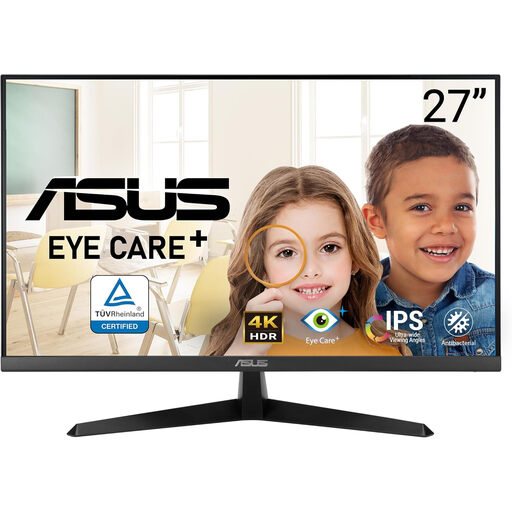
Consider this model if you want a 27-inch 4K screen with a USB-C connection for a Mac-oriented desk setup. Its product name specifies a height-adjustable stand; measure the stand against your usable desk depth and check that its colour features suit your workflow.
 No image available
This 4K UHD model is an option for typography previews when a 60 Hz specification suits your work. If screen height or one-cable laptop use matters, confirm the stand adjustment and connections before choosing it.
 No image available
The 27-inch 4K UHD format suits a typography-preview setup where a larger screen would be difficult to place. Compare its stand depth with your available desk space, and check USB-C charging compatibility if you plan to connect a laptop with one cable.
 No image available
This 27-inch model offers a 4K IPS format for previewing type alongside layouts. Its product name specifies 60 Hz, 95% DCI-P3, HDMI and DisplayPort; check the stand dimensions before placing it on a shallow desk, and confirm the colour controls you need for your work.
 No image available
Consider this 27-inch 4K model if your compact desk also needs a USB-C laptop connection. Its product name specifies 65 W USB-C power delivery; compare that rating with your laptop’s requirements, measure the stand and check colour-mode needs separately.
No: resolution alone does not set the physical size of text in your applications. Microsoft Support describes Windows text-size and display-scale controls, and Apple Support explains that Mac display settings affect the size of text and objects. Try your normal software at your intended viewing distance.
Allow space for the stand, keyboard and a comfortable viewing distance rather than measuring panel width alone. The Health and Safety Executive advises placing the screen directly in front of you, with its top at eye level and the screen about an arm’s length away.
Not necessarily: your laptop and its connection must be compatible with the monitor’s functions and available power. Dell specifies up to 90 W for the P2725QE, while BenQ specifies 65 W for the PD2705U. Check your laptop’s charging requirement and USB-C display-output support before relying on one cable.
A monitor specification alone does not assess the workstation. The Health and Safety Executive says the display screen equipment regulations apply to workers who use screens daily for continuous periods of an hour or more; its assessment guidance considers equipment, furniture and working conditions together. Ask your employer about an assessment if this describes your work.