Web and UI vector reviewers
If you check icons, interfaces or illustrations for standard digital output, look for documented sRGB or Rec.709 coverage and a stated accuracy specification, as well as enough room for artboards and panels.


Choose a 27-inch 4K monitor if its stand and cables fit your desk and you want a larger physical canvas for reviewing artwork. If width is the overriding constraint, consider a 24-inch-class 4K model instead. For web and UI work, check sRGB or Rec.709 coverage and the exact model’s stated colour accuracy; prioritise wider-gamut features or USB-C charging only when your workflow needs them.
If you check icons, interfaces or illustrations for standard digital output, look for documented sRGB or Rec.709 coverage and a stated accuracy specification, as well as enough room for artboards and panels.
If the same artwork feeds digital and wider-gamut or print-oriented work, your intended colour spaces and calibration process matter alongside screen size.
If desk depth or cable space is tight, compare the stand footprint and placement options before deciding whether USB-C charging or hub connections would simplify your setup.
Choose when: You want a larger physical canvas for artwork and panels, and the monitor’s full width and stand fit your desk.
Trade-off: A 27-inch model needs more width than a compact screen; its base depth must be checked separately.
Choose when: Reducing screen width matters more than having a larger physical canvas.
Trade-off: The screen is physically smaller, and a compact diagonal does not establish how much desk depth its stand needs.
For vector-art review on a small desk, decide which requirement would take priority if you could not satisfy every preference. Then check the exact monitor and laptop against it.
| Concern | What to check | Who this matters to |
|---|---|---|
| Colour for digital output | Check the exact model’s sRGB or Rec.709 coverage and whether its accuracy figure describes factory calibration. | If I review web or UI artwork, I need to judge it in the intended colour space rather than rely on pixel count alone. Around 33% of consumers put that colour-consistency need first. |
| Desk fit and positioning | Measure usable width and depth, then compare dimensions with the stand, cable clearance and any VESA mounting option. | When my keyboard or drawing area shares a shallow desk with the monitor, its base and viewing position can decide whether it fits. Roughly 27% of consumers prioritise desk fit and adjustment. |
| Laptop connection | Match the laptop’s video-output and charging requirements to the monitor’s USB-C power delivery and hub functions. | If I connect a laptop at this desk, I want fewer cables without losing the charging or connections I need. About 20% of consumers make that laptop-connection need their priority. |
| Wider-gamut workflow | Check whether your output requires Adobe RGB or DCI-P3 and whether your applications and calibration process support that target. | For artwork reviewed across colour-managed outputs, I need the appropriate gamut and a way to keep settings consistent. Around 20% of consumers put specialised gamut or calibration needs first. |
Resolution describes pixel count, not gamut coverage, colour modes or calibration accuracy. Those are separate specifications when reviewing vector artwork for a defined output.
For web and UI work, compare the exact model’s sRGB or Rec.709 specifications and stated accuracy before giving other display features priority.
A base can occupy keyboard or drawing space on a shallow desk. BenQ lists the PD2705U as 256.8 mm deep with its stand; other models need their own measurements.
Measure usable desk width and depth, including cable clearance. If considering an arm, check the monitor’s VESA pattern and whether the desk can safely accommodate the mount.
Fitting an arm may also require rearranging the desk.
USB-C power delivery varies by monitor, and a laptop must support the relevant video connection as well as receive enough charging power.
Compare the monitor’s stated power delivery and video support with your exact laptop’s requirements before planning a one-cable setup.
You may still need to use your laptop charger or a separate dock.
Adobe RGB or DCI-P3 coverage can matter in a colour-managed workflow, but it does not by itself make ordinary sRGB vector review more appropriate.
Identify the colour space of the work you deliver before choosing wider-gamut or self-calibrating features.
The ProArt models considered here include 27-inch standard-gamut and wider-gamut 4K options, plus a 23.6-inch professional 4K display.
The PD2705U is a 27-inch 4K option for standard-gamut design work and a USB-C laptop setup.
The U2725QE is a 27-inch 4K hub-monitor option for a laptop-centred workspace.
The VG2756-4K offers a docking-oriented route where laptop connections matter alongside 4K artwork review.
These 4K displays offer different ways to approach vector-art review, from 27-inch desk setups to a larger professional screen. Measure the space available and check the colour specifications you need for your output; the 32-inch option warrants particular attention to desk fit.
 No image available
Consider this 27-inch 4K display if you have room for a larger physical canvas. Check the exact model’s colour-accuracy specification and its stand dimensions before relying on it for colour-critical work at a shallow desk.
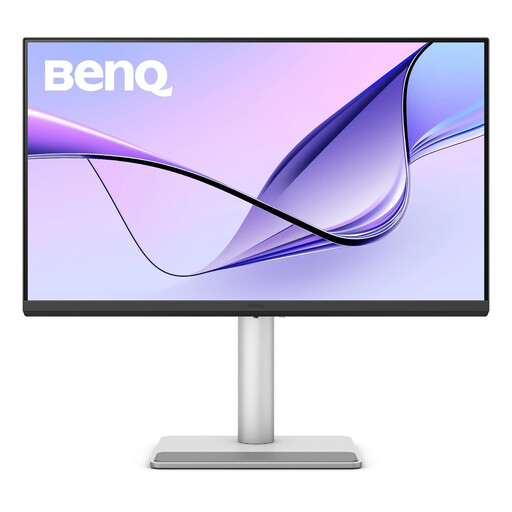 No image available
Consider this model if a 27-inch screen, an adjustable stand and USB-C suit your laptop desk setup. Its title also identifies HDR and P3 features; confirm the colour-accuracy specification, stand footprint and laptop compatibility for your particular workflow.
 No image available
Consider this 32-inch professional display only if its larger size fits your desk and your work calls for its HDR and calibration features. The title identifies an IPS Mini LED panel, Thunderbolt 3 and hardware calibration; measure the full footprint and check laptop-charging requirements before ordering.
 No image available
Consider this 4K model if you are assessing straightforward artwork review rather than a specialised calibration workflow. Confirm its colour-accuracy specification, stand footprint and adjustment options against your desk and viewing needs.
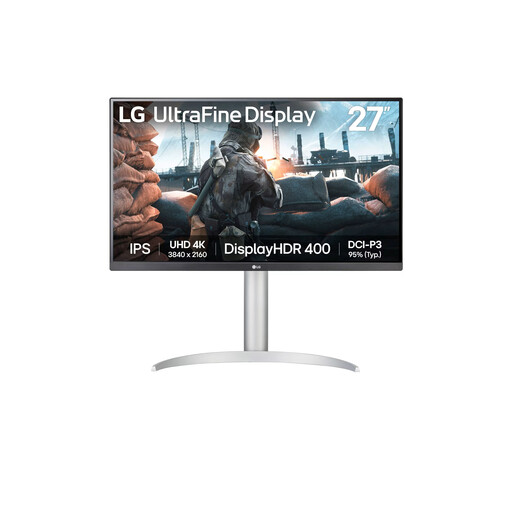 No image available
Consider this 27-inch display if its IPS panel and adjustable positioning suit your review setup. Its title states 95% DCI-P3 coverage, 60Hz refresh, HDMI and DisplayPort; check for the sRGB or Rec.709 mode and accuracy specification your output requires, as well as the stand footprint.
For web and UI review, start with documented sRGB or Rec.709 coverage and a stated accuracy specification. Consider Adobe RGB or DCI-P3 coverage when your output workflow uses those targets and you can manage colour settings consistently; ASUS specifies 100% sRGB and Rec.709 for PA279CV and 99% Adobe RGB and DCI-P3 for PA279CRV.
Not necessarily: the monitor’s full width, stand depth and cable clearance decide whether it fits. BenQ lists the PD2705U as 614 mm wide and 256.8 mm deep with its stand; its 100 × 100 mm VESA mounting offers another placement option if your desk can safely accommodate an arm.
It can simplify the setup if your laptop supports the monitor’s video connection and the delivered power meets its charging needs. For comparison, ASUS and BenQ specify 65W for PA279CV and PD2705U, while ViewSonic specifies up to 90W for VG2756-4K; check the exact laptop and monitor before relying on one cable.
A built-in colorimeter is a specialised choice if regular calibration is part of your colour-managed workflow, not a requirement implied by 4K resolution or vector work alone. ASUS specifies one for PA24US; for standard digital output, assess the monitor’s documented sRGB or Rec.709 mode and stated accuracy against your needs first.