What matters when choosing?
Decide which colour space the brochure review uses, then confirm how the computer will drive two displays and whether the pair will fit on the desk.
| Concern |
What to check |
Who this matters to |
| Colour-space fit |
Check for an sRGB or Rec.709 mode for standard screen review; consider documented Adobe RGB or DCI-P3 coverage only if the workflow calls for it. |
When checking artwork across two screens, I want the colour mode to match the files I am reviewing, without treating it as proof of a print match. Around 42% of consumers put colour-space fit first. |
| Two-display connectivity |
Confirm the computer’s supported external-display count and the outputs, dock or downstream monitor connection the setup requires. |
If my laptop cannot drive both screens as planned, the rest of the monitor choice will not solve my layout-checking task. For about 33% of consumers, connection compatibility is the primary concern. |
| Desk fit and alignment |
Measure usable width and depth for two units; compare stand dimensions and height or pivot adjustment. |
I need room to position both pages where I can compare them, particularly if one screen will be vertical. Desk fit comes first for roughly 25% of consumers. |
4K monitors to consider on Joybuy
These individual monitors offer different starting points for a two-screen brochure-review desk, from 27-inch layouts to larger 32-inch setups. Before choosing two units, compare their colour modes, desk dimensions and the connections supported by your computer.
 No image available
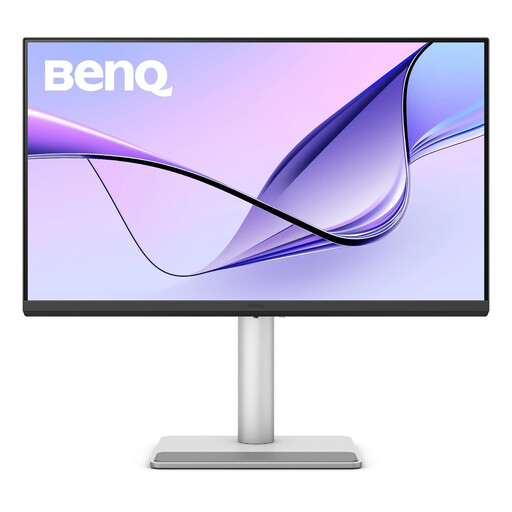
BenQ MA270UP Nano Glossy IPS 27-inch 4K USB-C monitor
Consider this 27-inch option if a pair of 4K screens with USB-C connections suits your desk. Check its colour modes against your brochure files and confirm that your computer can drive two external 4K displays.
View on Joybuy
 No image available
iiyama ProLite XUB2792UHSU-B6 27-inch 4K monitor
Its 27-inch 4K format is a candidate for a matching side-by-side pair. Check the colour presets and stand dimensions for two units, as well as your computer’s external-display support.
View on Joybuy
 No image available
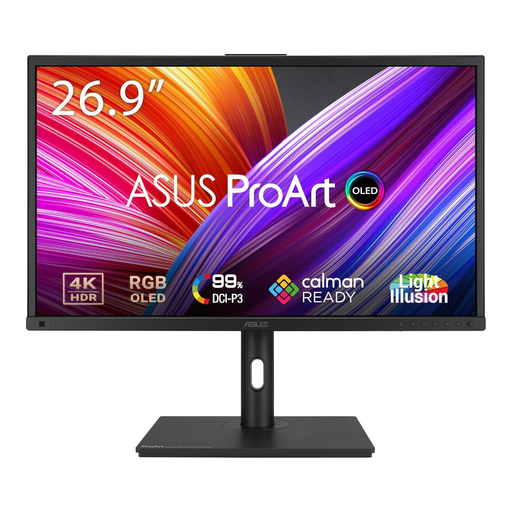
ASUS ProArt PA27DCE-K OLED 4K monitor
Consider this model when the approved brochure workflow calls for a colour-focused 4K display. Check its documented colour modes and calibration details for the exact model; a monitor specification alone cannot establish a match to a printed proof.
View on Joybuy
 No image available
ASUS ProArt PA32UCG-K 32-inch 4K HDR Mini LED monitor
The 32-inch format calls for careful desk measurement if you intend to use two screens. Check the colour settings against the approved workflow and confirm the applicable brightness specification if it matters to your work.
View on Joybuy
 No image available
Dahua 32-inch curved OLED 4K 165 Hz monitor
If you are considering a larger curved screen for brochure review, measure the space for two units and decide whether that format suits side-by-side page checks. The product name also specifies a Type-C 65 W connection; confirm the required computer and display connection arrangement before buying.
View on Joybuy
Common questions
Can one computer run two 4K monitors for brochure checks?
It can if its supported external-display count and connection path accommodate both screens. Check the exact computer and any dock before buying; DisplayPort’s guidance notes that daisy-chaining also depends on a suitable monitor video output, available bandwidth and the source hardware.
Do the two monitors need to be the same model?
No, but matching models make it simpler to compare their size, colour modes and physical adjustment when checking layouts side by side. If you mix models, compare their resolution, colour presets, calibration documentation and stand adjustment rather than relying on screen size alone.
Should every brochure workflow use a wide-gamut monitor?
No. Look for explicit sRGB or Rec.709 support when those are the review spaces, and prioritise Adobe RGB or DCI-P3 coverage when the artwork and approved workflow require them. Wider-gamut coverage alone does not establish a match to the final print.
How much desk width do two 27-inch monitors need?
Use the dimensions of the exact models, not the diagonal screen size, to plan the desk. BenQ UK lists the PD2705U at 614 mm wide, so two of those units account for at least 1,228 mm of width before you allow for positioning and clearance.


