Start with a 4K monitor if seeing fine virtual-house details and fitting office windows on screen matter most, provided your device can output the resolution at a refresh rate you want. A 27-inch model keeps the screen more compact, while a 31.5-inch model needs more desk space; choose high-refresh QHD instead if smooth play matters more to you than 4K detail. Check the connections and screen-positioning options before deciding.
Who these monitors suit
Detail-first virtual decorators
If you inspect small furnishings and textures while also working with text-heavy windows, a 4K IPS monitor is a useful starting point. Check that your computer supports the resolution and refresh rate you intend to use.
Work-and-play desk sharers
If you switch between a work computer and a gaming device, screen positioning and connections may matter as much as size. A KVM feature can be useful when both devices support the required video and USB connections.
Smooth-play QHD buyers
If you also play games where you value a high refresh rate, but 4K detail is not your priority, consider a QHD model. Dell’s G2724D illustrates this route with a 27-inch Fast IPS panel and an adjustable stand.
What matters when choosing
27-inch QHD high refresh
Choose it when: Smooth play takes priority over maximum on-screen detail; Dell lists the G2724D at 2560 × 1440 and up to 165Hz through DisplayPort.
Trade-off: QHD has fewer pixels than 4K, and Dell lists a lower 144Hz maximum for this model over HDMI.
27-inch 4K high refresh
Choose it when: Fine decorating details matter and you want a relatively compact screen; ASUS lists the ROG Strix XG27UCS at 3840 × 2160 and 160Hz.
Trade-off: Check that your device and connection can deliver the 4K mode and gaming refresh rate you want.
31.5-inch 4K with KVM
Choose it when: You have room for a larger screen and want to switch between devices; Gigabyte lists 4K, 144Hz and KVM for the M32U.
Trade-off: Allow enough desk space and check the USB and video connections needed for your two-device setup.
| Concern |
What to check |
Who this matters to |
| Fine detail and workspace |
Compare native resolution and screen size, then confirm your device can output the intended 4K mode. Treat stated colour-gamut coverage separately from calibrated colour accuracy. |
If I spend time placing small objects and reading office documents, I want enough on-screen detail for both tasks; around 45% of consumers put this need first. |
| Smooth gaming motion |
Check refresh rates for the specific input you will use and whether your device supports the desired mode. |
When I move between decorating and other games, I may favour smoother play over 4K detail. This is the primary concern for around 28% of consumers. |
| Desk fit and device switching |
Measure available desk space and check stand adjustment or VESA mounting. For multiple devices, confirm the required video and USB connections. |
I need the screen positioned comfortably for work and want a practical way to change devices; around 27% of consumers prioritise this desk setup. |
Buying pitfalls
-
Assuming the highest refresh rate works through every port
Dell lists the G2724D at up to 165Hz through DisplayPort but 144Hz through HDMI. The connection can therefore change which mode is available.
Check the monitor’s input-specific modes against your computer or console output and the cable you plan to use.
-
Choosing a large screen before measuring the desk
A 31.5-inch display needs enough room for a workable viewing position. The Health and Safety Executive advises placing the screen directly in front of you, about an arm’s length away, with its top at eye level.
Measure usable desk width and depth, then check the stand dimensions and adjustment range or a compatible VESA mount.
If the supplied stand cannot place the screen where you need it, you may need to rearrange the workstation or use a compatible monitor arm.
-
Treating USB-C and KVM labels as universal compatibility
ASUS specifies USB-C DisplayPort Alt Mode for the XG27UCS, while Gigabyte describes the M32U’s KVM as a way to control multiple devices. Neither feature alone establishes that your particular devices have all the connections you need.
List each device’s video and USB ports, then check the monitor manual’s connection diagram and the cables included.
Your intended arrangement may require additional compatible USB or video cables.
-
Using eye-care features instead of setting up the screen
BenQ lists flicker-free and low-blue-light features for the EX2710U, but these features do not establish that an individual’s eye strain will be prevented.
Prioritise a suitable screen position and work routine; treat monitor comfort settings as optional adjustments.
Brands to consider for these monitor routes
Dell
The G2724D is an example of Dell’s 27-inch QHD high-refresh route.
- Dell lists a Fast IPS panel and height, pivot, swivel and tilt adjustments for the G2724D.
- Its stated maximum is 165Hz over DisplayPort and 144Hz over HDMI; choose the connection with your intended mode in mind.
ASUS ROG
The ROG Strix XG27UCS represents a 27-inch 4K high-refresh option with USB-C display connectivity.
- ASUS lists a 3840 × 2160 Fast IPS panel, 160Hz refresh rate and USB-C with DisplayPort Alt Mode.
- Check your device’s USB-C video capability and the mode available through your chosen connection.
Gigabyte
The M32U represents a larger 4K screen for a work-and-play desk with multiple devices.
- Gigabyte lists a 31.5-inch 4K panel, 144Hz refresh rate, KVM, USB-C and a 130mm height-adjustable stand.
- Check desk depth and the video and USB connections required by your devices before relying on the KVM arrangement.
BenQ MOBIUZ
The EX2710U is a 27-inch 4K gaming option with built-in audio and monitor comfort settings.
- BenQ lists a 144Hz IPS panel, built-in speakers, 100mm height adjustment and VESA mounting.
- Its stated flicker-free and low-blue-light features are not a substitute for suitable workstation positioning.
Joybuy monitor choices
These choices cover 27-inch 4K screens, larger 4K screens and a curved QHD alternative for decorating games and home-office use. Compare each screen’s size and connections with your desk and devices; the list is not an ordering of which route suits everyone.
 No image available
LG UltraGear G8 27G850A 27-inch 4K gaming monitor
Consider this 27-inch model if 4K detail is a priority but you also want a separate high-refresh gaming mode.
The product name specifies Nano IPS, a 4K UHD 240Hz mode and a 480Hz dual mode, plus DisplayPort 2.1 and HDMI 2.1. Check which resolution, refresh rate and connection apply to the mode you intend to use.
Joybuy
 No image available
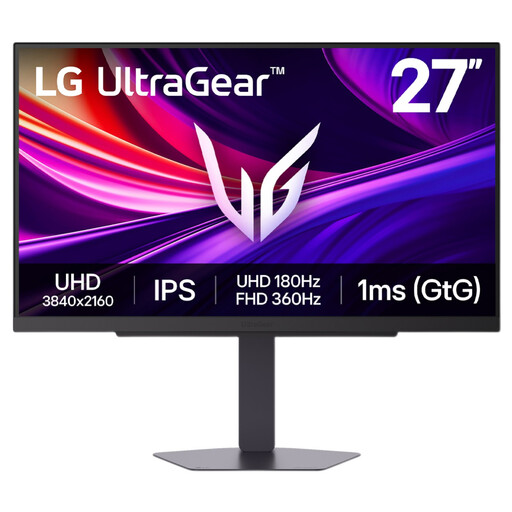
LG UltraGear 27G810A-B 27-inch 4K gaming monitor
This is another 27-inch route if you want 4K resolution for virtual-house detail alongside a dual-mode gaming feature.
The product name specifies an IPS panel, 4K UHD resolution and dual-mode operation with a stated maximum of 360Hz. Confirm the resolution and input required for each mode against your device.
Joybuy
 No image available
Dahua 32-inch curved 4K OLED gaming monitor
Consider the larger curved screen if you have space for it and want 4K resolution for decorating as well as work.
The product name specifies 3840 × 2160 resolution, 165Hz, USB-C with 65W power delivery and a USB hub. Measure your viewing space and check that your device and cable support the video and USB-C functions you intend to use.
Joybuy
 No image available
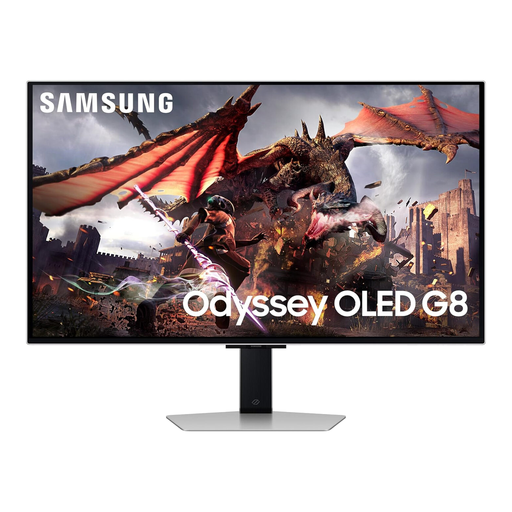
Samsung Odyssey OLED G8 LS32DG802SUXXU 32-inch monitor
This larger Ultra HD gaming screen may suit a desk where you want room to view virtual-house layouts and office windows.
Check its stand adjustment, physical dimensions and the video modes supported by your device before choosing it for a particular workstation.
Joybuy
 No image available
CRUA 32-inch 1500R curved QHD gaming monitor
Choose this QHD route only if its larger curved format suits your desk and 4K detail is not your priority.
The product name specifies 2560 × 1440 resolution, 165Hz, HDMI and DisplayPort inputs, and 100 × 100mm VESA mounting. Check the input needed for your preferred refresh rate and whether the stand or a compatible mount provides the positioning you need.
Joybuy
Common questions
Is 4K or QHD more suitable for decorating virtual homes?
Choose 4K if fine on-screen detail and office workspace matter most and your device can run it at a refresh rate you find suitable. Choose high-refresh QHD if you place more value on smooth play than on the extra pixels; check the available modes for your connection before buying.
How should I position a gaming monitor on a home-office desk?
Place it directly in front of you, with the top of the screen at eye level and the screen about an arm’s length away, as advised by the Health and Safety Executive. Check the stand’s adjustment range or compatibility with a monitor arm if your desk makes that position difficult.
Will a USB-C or KVM monitor switch my keyboard and mouse between two computers?
Only if the monitor’s switching arrangement and both computers’ connections support the setup you want. Gigabyte describes KVM switching for the M32U, while ASUS lists USB-C DisplayPort Alt Mode for the XG27UCS; check the relevant manual and each device’s video and USB ports rather than treating those features as interchangeable.
Do low-blue-light or flicker-free modes prevent eye strain?
Do not rely on those modes to prevent eye strain. BenQ lists them as features of the EX2710U, but suitable screen positioning and a workable routine still matter for home-office use.


