Start with the monitor’s HDMI input and its available sound controls, then choose a streaming player and audio route that work together. If the monitor offers no convenient way to hear and adjust sound, consider a documented headphone route, a suitable monitor audio output or an HDMI audio extractor feeding independently controlled speakers. For 4K or HDR viewing, check the whole connection path rather than relying on the player’s 4K label.
Who this setup suits
Monitor owners without usable sound control
If your monitor shows HDMI video but has no speakers, accessible audio output or convenient volume control, plan where the sound will go before choosing a player. A separate audio device may be more useful than a remote with TV-volume buttons.
Occasional 4K monitor streamers
An existing 4K monitor can serve as an occasional streaming display, but an HDMI socket alone does not establish that its selected input supports the resolution, HDR format or protected playback you want. Roku Support and Netflix both identify HDCP compatibility as a check for 4K or HDR connections.
Private-listening streamers
If headphones matter more than room sound, look for a listening method documented for the exact player. Roku describes Bluetooth Headphone Mode for its Streaming Stick Plus through the Roku mobile app; do not assume the same method applies to every Roku model.
What to check before buying
Settle the sound route and the monitor’s display capabilities before comparing streaming platforms; app and remote preferences cannot make an unsuitable connection work.
| Concern |
What to check |
Who this matters to |
| Sound and volume control |
Check for monitor speakers or an active audio output. Otherwise, verify a player-supported headphone route or an extractor connected to an audio device with its own volume control. |
If I cannot comfortably hear or adjust sound from where I watch, the audio route determines whether the setup is practical. About 36% of consumers put sound and volume control first. |
| 4K, HDR and protected playback |
Confirm the selected HDMI input’s resolution, refresh rate, HDR support and required HDCP level, including any equipment placed between player and monitor. |
I want the picture format I chose the player for, not just a working HDMI connection. Around 29% of consumers make display-path compatibility their primary concern. |
| Space and power |
Check clearance around the HDMI port and the player’s specified power arrangement; allow space and power connections for any separate audio equipment. |
When I only use the monitor for streaming occasionally, a compact arrangement that is easy to connect matters most. About 21% of consumers prioritise a manageable setup. |
| Apps and controls |
Check your required services on the exact platform and verify what equipment its remote can control. |
I need my usual apps and controls once picture and sound are sorted. For roughly 14% of consumers, platform fit is the deciding need. |
Common setup mistakes
-
Assuming a 4K player guarantees 4K on any monitor
The monitor and its selected input must accept the intended signal. Roku Support specifies an HDMI 2.0 input with HDCP 2.2 for its Streaming Stick+ 4K or HDR setup; Netflix advises checking HDCP 2.2 or later throughout a 4K or HDR connection path.
Read the monitor’s input specifications and the requirements for the exact player and service. If playback fails after adding other equipment, test a direct player-to-monitor connection to help isolate the problem.
-
Choosing the stick before planning sound
An HDMI picture is of limited use if the monitor cannot play audio or provide convenient volume control. An added extractor also becomes another device whose display and HDCP compatibility needs checking.
Trace the route from player to monitor and then to headphones or speakers. Choose a documented headphone method, a usable monitor output or a compatible extractor according to how you want to listen.
An extractor or separate speakers can also mean more cables and power connections.
-
Expecting TV-volume buttons to control monitor speakers
Roku and Amazon advertise remote volume controls for compatible TV or audio equipment. Those descriptions do not establish that the buttons will control a particular computer monitor.
Check control compatibility with your exact monitor or audio device. If it is not established, plan for headphones or speakers with accessible volume controls.
-
Adding an extractor without checking protected playback
Netflix states that HDCP is required when streaming from a connected device and recommends checking the full connection path for 4K or HDR. An intermediary that does not meet the needed requirements can interrupt playback.
Check the extractor’s stated resolution, HDR pass-through and HDCP support against the player, monitor input and services you intend to use.
Streaming brands to consider
Roku
Roku’s Streaming Stick Plus is relevant if you want an HDMI player with a documented private-listening option.
- Roku lists up to 2160p at 60 fps for the Streaming Stick Plus and describes Bluetooth Headphone Mode through its mobile app.
- Its remote’s TV-volume feature does not, by itself, establish control over monitor speakers or an unrelated sound system. Check features against the exact Roku model you choose.
Amazon Fire TV
Fire TV is worth checking if its interface and the services listed for a particular UK model match what you watch.
- Amazon’s UK Fire TV Stick 4K Select listing names services including BBC iPlayer, ITVX, Channel 4 and NOW; confirm current availability and account requirements for your chosen model.
- A Fire TV remote’s volume buttons should not be treated as proof that it can adjust your monitor or separate speakers.
Google
Google TV Streamer (4K) is an HDMI-connected option if its setup requirements suit the monitor’s location.
- Google says Google TV Streamer (4K) connects to a display system with an HDMI port.
- Plan for its HDMI cable, power outlet, network connection, Google account and compatible mobile device for setup. Do not transfer specifications from Chromecast with Google TV to the Streamer without checking the model.
Joybuy streaming-stick selections
These Roku streaming sticks are options to consider for occasional monitor streaming. Check your monitor connection and sound route against the exact model before choosing one.
 No image available
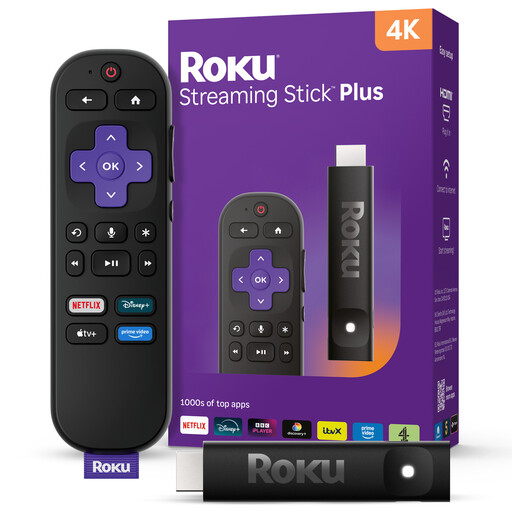
Roku Streaming Stick 4KPlus
Consider this for an occasional HDMI monitor setup if you can confirm a practical way to hear and adjust sound.
If you want private listening, check the headphone connection and volume-control method for this exact model. Confirm the monitor input’s resolution and HDCP support before relying on 4K protected playback.
View on Joybuy
 No image available
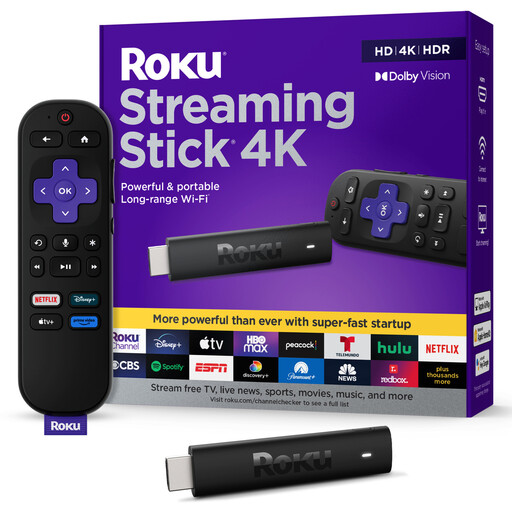
Roku Streaming Stick 4K Doly Vision
For occasional monitor streaming, consider this model only once you have confirmed how sound will reach your headphones or speakers.
Check the monitor’s resolution, HDR and HDCP capabilities for the viewing format you want. Verify whether its remote can control your chosen audio equipment and whether your required apps are currently available.
View on Joybuy
Frequently asked questions
Will any streaming stick work with a computer monitor?
An available HDMI input is the starting point, not a guarantee of every picture format or a usable sound route. Check the monitor’s supported resolution and refresh rate, its HDCP capability for the services you use, and where the audio will play.
Why might the remote’s volume buttons not solve monitor audio?
Those buttons are intended to control compatible equipment, which may not include your monitor. If the monitor has no usable speakers or output, check a documented headphone method or connect an independently controlled audio device through a suitable monitor output or HDMI audio extractor.
What should I check before buying an HDMI audio extractor for 4K streaming?
Check the extractor’s stated resolution, HDR pass-through and HDCP compatibility alongside the player and selected monitor input. Netflix says HDCP is required for streaming from a connected device and advises HDCP 2.2 or later across a 4K or HDR path.
Can a monitor’s USB port power a streaming device?
Only use it if the monitor’s USB output meets the exact player’s power requirements. Otherwise, plan for the manufacturer-specified power supply and an available outlet; do not assume that a USB port beside the HDMI input provides enough power.


