What to check when choosing
At a bright-window desk, deal with the position of the screen and incoming light before choosing between a compact docking display, a larger editing canvas or specialist colour features. The Health and Safety Executive advises adjusting screens and lighting to avoid reflections and glare.
| Concern |
What to check |
Who this matters to |
| Daylight visibility |
Compare the exact model’s stated typical brightness and screen finish; check whether you can turn the screen away from the window or control the light. |
If reflected window shapes obscure dark timeline controls, I need a workable screen position before extra display features. Around 42% of consumers would put daylight visibility first. |
| Colour confidence |
Check modes relevant to your delivery space and the model’s calibration report or ongoing calibration support; distinguish SDR work from HDR requirements. |
When I approve the look of footage, I need colour settings I can identify and maintain rather than relying on resolution alone. For around 33% of consumers, dependable colour review would be the primary need. |
| Timeline space and docking |
Check screen dimensions against desk depth, then confirm your laptop’s video connection and the monitor’s stated charging capability. |
If my timeline, preview and panels share one screen, I want room to arrange them without making the laptop connection awkward. Roughly 25% of consumers would prioritise workspace and docking. |
Joybuy monitor choices
These 4K monitors offer different ways to arrange a video timeline: larger screens, a compact adjustable display and laptop-oriented connections. For a desk beside a bright window, check each model’s screen finish and typical brightness as well as the space and connections you need.
 No image available
ASUS ProArt Display PA32UCG-K 32-inch 4K Mini-LED monitor
Consider this larger screen if you need room for a video timeline and use its listed HDR and calibration features. The product title specifies a 120 Hz IPS Mini-LED display, Thunderbolt 3 and hardware calibration. Check the exact model’s typical SDR brightness before relying on it beside a window; its listed peak-brightness figures conflict.
View on Joybuy
 No image available
Dahua 32-inch 4K 165 Hz curved OLED monitor
Consider the larger curved screen if physical timeline space and a laptop connection are priorities. Its product title lists 4K resolution, a 165 Hz refresh rate, a USB hub and 65 W Type-C power delivery. For a bright-window desk, check the screen finish and typical SDR brightness rather than treating a maximum brightness figure as typical performance.
View on Joybuy
 No image available
iiyama ProLite XUB2792UHSU-B6 27-inch 4K monitor
The 27-inch format is a compact choice when desk space limits where you can place the timeline screen. Check the panel’s surface treatment for window reflections and confirm the USB-C video and charging capabilities needed by your computer. The title’s “Matte Black” wording describes the monitor colour, not a verified anti-glare screen finish.
View on Joybuy
 No image available
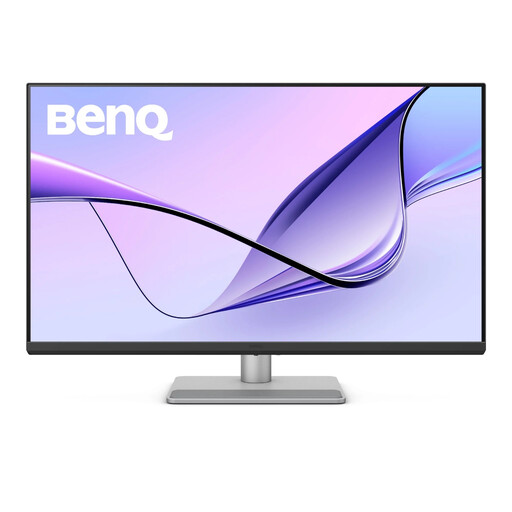
BenQ MA320UP Nano Glossy 32-inch 4K USB-C monitor
This larger display is a possible fit when timeline space and a Mac-oriented USB-C setup matter. Its title identifies a Nano Glossy IPS screen and a height-adjustable stand. If reflected window images are your main difficulty, assess whether that glossy finish and your available screen position work together; also check typical SDR brightness rather than using a peak figure.
View on Joybuy
 No image available
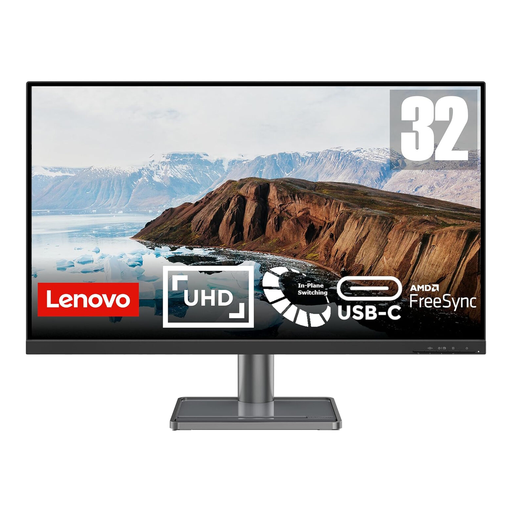
Lenovo L32p-30 31.5-inch 4K USB-C monitor
The 31.5-inch IPS screen is worth considering when you want more physical room for a timeline and editing panels. The product title identifies a USB-C connection; confirm its video and charging capabilities against your laptop. Check the exact screen finish and typical brightness before choosing it for a position beside a bright window.
View on Joybuy
Frequently asked questions
Will a brighter monitor solve glare from a window?
No: brightness can help the displayed image compete with ambient light, but it does not remove a reflected window. The Health and Safety Executive advises adjusting screens and lighting to avoid glare, so check the screen angle and incoming light alongside its finish and stated typical brightness.
Should I choose a 27-inch or a 31.5–32-inch 4K monitor for a video timeline?
Choose by the physical space your editing layout needs and what your desk can accommodate: 27 inches takes a smaller footprint, while a 31.5–32-inch screen gives a timeline, preview and panels more physical room. Check viewing distance and placement; the Health and Safety Executive describes a typical screen position as about an arm’s length away.
Do I need a calibration-capable monitor for timeline review?
Not necessarily if you are mainly navigating and arranging an edit. If you make colour-critical decisions, check that the exact monitor supports the modes and calibration process required by your Rec.709, P3 or HDR workflow; a factory report alone is not an ongoing calibration plan.
What if an online monitor order does not suit my setup?
Check the seller’s cancellation and return instructions promptly, and distinguish a change-of-mind return from a problem such as a faulty or misdescribed monitor. GOV.UK sets out cancellation rules for distance purchases and separate obligations concerning faulty goods; retain the packaging while you inspect the screen and arrange any return safely.


