A 27-inch 4K monitor with an adjustable stand is a practical starting point when several people check brochure layouts at one desk. For colour approval, check for a documented colour mode suited to your files and a calibration claim; for quick laptop handovers, confirm that each laptop supports the monitor’s video connection and that its charging output meets the laptop’s needs. Wider colour-gamut coverage is worth prioritising when the review workflow uses it, but it does not by itself establish a match to printed output.
Who is this for?
Colour-critical brochure reviewers
If you assess brand colours and photographs before approval, look beyond the 4K label to the colour modes and calibration claims for the exact monitor. BenQ and ASUS document different colour-gamut and calibration specifications for their PD2725U and PA279CRV models; neither set of specifications establishes a match to your printer.
Teams rotating through one desk
If colleagues bring different laptops to the same workstation, stand adjustment and compatible video connections matter alongside screen quality. Check how each person will reposition the display and connect their laptop before relying on a one-cable setup.
Layout and typography checkers
If your main task is inspecting small type, grids and image placement rather than approving print colour, prioritise 4K detail and a workable viewing position. Check the screen finish against the desk’s lighting so reflections do not interfere with page review.
What matters when choosing?
For brochure checks at a shared desk, decide which requirement takes priority, then check the remaining requirements against the exact monitor and laptops.
| Concern | What to check | Who this matters to |
|---|
| Colour confidence |
Check for a documented sRGB or Rec.709 mode. If the workflow uses Adobe RGB or P3, check the exact coverage and calibration claim. |
When brochure colours are being approved, I need screen settings that fit the files and a way to assess the wider colour workflow. Around 38% of consumers put this need first. |
| Shared-desk adjustment |
Check the stand’s height and tilt range, whether pivot or swivel is needed, and how the screen fits the desk lighting. |
When different people take turns at the desk, I want to reposition the screen rather than work around a fixed position; around 31% of consumers make adjustment their primary concern. |
| Laptop connection |
Match each laptop’s USB-C video standard and charging requirement to the monitor; check hub or KVM features if peripherals will be shared. |
With laptops changing throughout the day, I want handovers that do not require rebuilding the cable setup. This is the first priority for around 23% of consumers. |
| Desk fit and energy information |
Measure the space needed for the screen and stand or arm, and compare energy labels separately from display features. |
On a crowded desk, I need the monitor to fit without crowding the working area and want to compare its energy information; around 8% of consumers prioritise this concern. |
Buying pitfalls
-
Choosing on resolution alone
4K detail helps with type and layout inspection, but it does not tell you which colour modes are available or whether the screen fits your print-review workflow.
Check the exact model’s sRGB or Rec.709 options. Prioritise Adobe RGB or P3 coverage when your files and output process use those colour spaces.
-
Assuming USB-C covers every laptop
A USB-C connection does not, on its own, establish video compatibility or adequate laptop charging. Dell, BenQ and ASUS list different power-delivery outputs for the U2725QE, PD2725U and PA279CRV.
Check each laptop’s video support and charging requirement against the exact monitor and connection you plan to use.
You may still need the laptop’s charger or a separate dock if the monitor cannot provide the required connection or power.
-
Leaving the screen in one fixed position
Successive users may need different screen positions. The Health and Safety Executive identifies poorly designed display-screen workstations as a possible contributor to discomfort and fatigue.
Check the stand’s adjustment range, glare at the desk and mounting compatibility if you intend to use an arm.
A separate arm may be needed if the supplied stand cannot provide the adjustment your desk requires.
-
Using an energy label to judge display quality
An energy label is for comparing energy information, not colour modes, laptop compatibility or ease of adjustment.
Use the label for its own purpose, then assess the features needed for brochure review separately.
Brands to consider
Dell
Dell’s UltraSharp U2725QE is a shared-laptop-desk reference: Dell UK lists a 27-inch 4K IPS Black panel, an integrated USB hub, an adjustable stand and up to 90 W power delivery.
- The documented hub and stand features are relevant when users swap laptops and reset the screen position.
- Check the laptops’ video and power requirements, plus the colour mode needed for brochure approval.
BenQ
BenQ UK specifies a 27-inch 4K IPS panel, 100% sRGB and Rec.709 coverage, 95% P3 coverage and a calibration report for the PD2725U. It also lists Thunderbolt 3, KVM and 65 W power delivery.
- Documented colour specifications and KVM functionality give teams specific features to assess for creative review and peripheral sharing.
- Confirm that 65 W meets each laptop’s charging needs and that the selected colour mode fits the review workflow.
ASUS
ASUS UK specifies 99% Adobe RGB and 99% DCI-P3 coverage for the 27-inch 4K IPS ProArt PA279CRV, alongside a factory calibration claim, an adjustable stand and USB-C power delivery up to 96 W.
- The documented gamut specifications are relevant when the files and review process use those colour spaces.
- A factory calibration claim does not establish a match to printed output; check the profiles and verification process your work requires.
LG
LG UK lists the UltraFine 27UP83AK-W as a 27-inch 4K IPS model with typical 95% DCI-P3 coverage, USB-C charging up to 65 W and height, tilt and pivot adjustment.
- Its documented connections and adjustment options address common shared-desk setup needs.
- LG states that calibration software is not included; check the required software, equipment and colour modes if the screen will be used for controlled colour approval.
Joybuy monitor choices
These monitors offer different starting points for shared-desk layout checks, from 27-inch 4K displays to larger or OLED creative-workflow options. Check colour settings, stand adjustment and laptop connections against your own review process before choosing.
 No image available
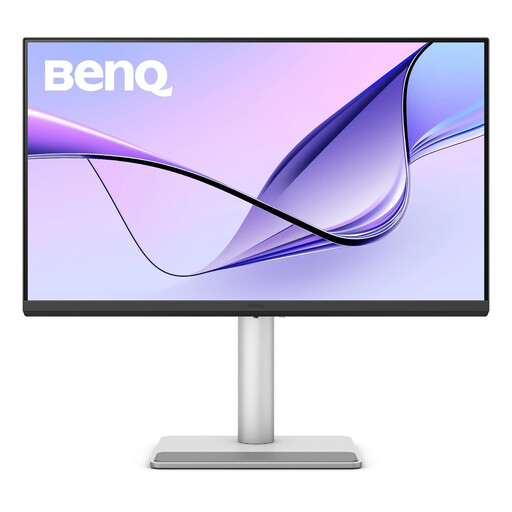
BenQ MA270UP 27-inch 4K Nano Glossy Mac monitor
Consider this 27-inch IPS display when 4K layout detail and a height-adjustable screen matter at the shared desk.
The name specifies USB-C and a Nano Glossy finish. Check how that finish looks under the desk’s lighting, and confirm the colour mode, laptop video support and charging output your setup needs.
View on Joybuy
 No image available
ASUS ProArt Display PA32UCG-K 32-inch 4K IPS Mini LED monitor
Consider the larger 32-inch screen if you have room to review brochure pages at a shared desk; measure the space needed before choosing it over a 27-inch model.
The name specifies Thunderbolt 3 and hardware-calibration capability. Confirm the colour workflow and the exact laptop video and charging arrangement rather than assuming a single cable will cover both.
View on Joybuy
 No image available
iiyama ProLite XUB2792UHSU-B6 27-inch 4K monitor
This 27-inch 4K model is a starting point for checking fine type and page layout at a shared desk.
If colleagues will connect by USB-C or use the screen for colour approval, check the exact connection, charging and colour-mode requirements before purchase.
View on Joybuy
 No image available
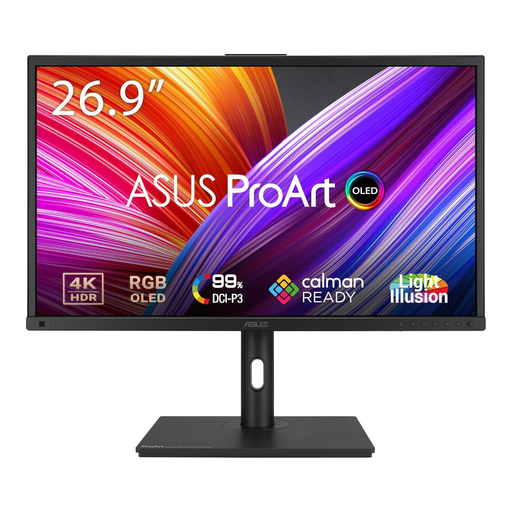
ASUS ProArt PA27DCE-K 4K OLED monitor
Consider this ProArt model when your brochure-review process calls for an OLED display, while checking its settings against the files and output you use.
The name specifies 4K UHD resolution. Confirm the required sRGB or Rec.709 mode and laptop charging arrangement if either is important to your shared desk.
View on Joybuy
 No image available
LG UltraGear G8 27G850A 27-inch 4K Nano IPS monitor
The 27-inch 4K screen can be assessed for fine layout detail, but this gaming model should not be selected for colour approval on that basis alone.
Its name specifies DisplayPort 2.1 and HDMI 2.1. Check for the colour mode your work needs and whether those connections fit each laptop at the desk.
View on Joybuy
Frequently asked questions
Is 4K enough for checking brochure colours?
No. 4K helps you inspect layout detail, while colour review also depends on the monitor’s modes, calibration state and the computer-to-output workflow. Check for an sRGB or Rec.709 option for work using those spaces, and assess wider-gamut coverage when your files require it.
Can one USB-C cable serve everyone using the desk?
It can serve compatible laptops if the monitor accepts their video output and supplies enough power for each one. Check the connection standard and charging requirement for every laptop that will use the desk; a USB-C socket alone does not settle either question.
What should I check if several people share the monitor?
Check whether each person can adjust the screen position and avoid reflections at the workstation. The Health and Safety Executive includes hot-desking in its display-screen guidance and identifies poorly designed workstations as a possible contributor to discomfort and fatigue.
Does factory calibration guarantee that screen colours match a printed brochure?
No. A model’s factory-calibration claim concerns the display under the manufacturer’s stated conditions, not the complete computer, application and print workflow. Check the colour profile and output process you will use; DisplayCAL describes verification measurements as a way to assess a display chain on a particular setup.


