Detail-first world builders
If you spend long sessions placing small blocks, managing inventories or keeping guides beside the game, 4K detail and a screen that fits your workstation may matter more than the highest refresh number.


Choose a 27-inch 4K monitor if detailed building, desktop space and office work come first; consider QHD with a higher refresh rate if smooth movement matters more than 4K detail. Check which resolution and refresh-rate combination your computer, port and cable can deliver, then make sure the screen can be positioned comfortably at your desk. For prolonged work with static windows, consider the panel-care guidance before choosing OLED.
If you spend long sessions placing small blocks, managing inventories or keeping guides beside the game, 4K detail and a screen that fits your workstation may matter more than the highest refresh number.
If one desk serves a work computer and a gaming system, input selection, compatible laptop charging or keyboard-and-mouse switching can matter alongside resolution and refresh rate.
If responsive camera movement matters most while exploring or playing faster modes, compare high-refresh options against the output your graphics hardware, port and cable can support.
Start with the balance between 4K detail and QHD high-refresh play. Then check how the monitor connects to your work and gaming devices, and whether its stand or a compatible mount will suit your desk.
| Concern | What to check | Who this matters to |
|---|---|---|
| Building detail and workspace | Compare native resolution and the refresh rate available at that resolution; check your computer’s graphics output. | I want room for a building interface, inventories and office windows without making refresh rate my only priority. Around 29% of consumers put detailed building and workspace first. |
| Work-and-gaming connectivity | Check each device’s display input, the monitor’s USB-C power-delivery rating or KVM arrangement if needed, and the required cables. | Switching between my work computer and gaming system is the main complication at my desk. For around 36% of consumers, connecting and switching devices is the primary concern. |
| High-refresh play | Distinguish native from overclocked modes and confirm that the graphics card, port and cable support the mode you want. | I would rather prioritise responsive movement than maximise desktop detail. Smooth-motion play comes first for around 14% of consumers. |
| Desk positioning | Check stand adjustment or VESA-mount compatibility against your eye height and available desk depth. | Long sessions at my home-office desk make screen position my deciding factor. Around 21% of consumers place workstation fit first. |
LG says the 27GS85Q-B runs at 180Hz, while its 200Hz overclock mode requires both DisplayPort 1.4-capable graphics hardware and a DisplayPort 1.4 cable.
Choose on the basis of a mode your setup can use, and check every prerequisite before counting on the overclocked rate.
For the LG 27GR93U-B’s 4K 144Hz mode, LG specifies graphics support for DisplayPort 1.4 with DSC or HDMI 2.1. The shape of a connector alone does not establish that support.
Check the output specification of the computer you will connect and the cable you plan to use.
The Health and Safety Executive advises positioning the top of a display at eye level and the screen about an arm’s length away for display-screen work.
Measure your desk and check the exact monitor’s stand adjustment or VESA-mount compatibility.
If the stand cannot provide a suitable position, a compatible monitor arm or another desk adjustment may be needed.
ASUS describes OLED Care Pro and a proximity sensor on the PG27UCDM as features intended to reduce burn-in risk, not as a guarantee against wear from static content.
If office windows will stay in place for long periods, read the manufacturer’s care guidance and weigh an IPS alternative against the OLED features you want.
These ranges illustrate different monitor configurations; check the exact model rather than assuming a feature applies across a brand.
Dell’s Alienware range includes distinct 27-inch IPS dual-resolution and QD-OLED high-refresh options.
LG UltraGear includes both QHD high-refresh IPS and 4K IPS options for this work-and-gaming decision.
The ASUS ROG Swift OLED PG27UCDM combines a 4K gaming specification with laptop-oriented USB-C connectivity.
The BenQ MOBIUZ EX271U is relevant when a home-office desk needs multi-device switching alongside 4K gaming.
These monitors offer 4K and QHD routes for a desk shared between sandbox gaming and home-office work. Some list a faster alternative mode; compare that mode with the output your own computer can provide, and check desk-positioning and connection needs separately.
 No image available
Consider this model if you want 4K detail for building and a separate faster mode for play.
Its listed modes are 4K UHD at 240Hz and FHD at 480Hz. The title specifies Nano IPS, DisplayPort 2.1 and HDMI 2.1; check whether your computer and cable can deliver the mode you intend to use.
 No image available
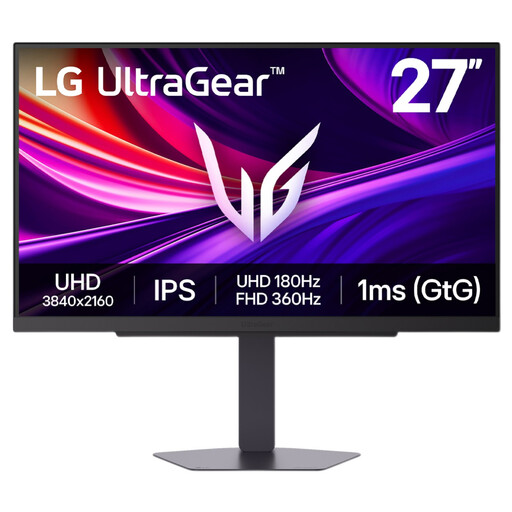
Consider this model if a 4K desktop and a faster alternative gaming mode both matter at your desk.
Its title specifies a 27-inch IPS 4K UHD display and dual mode with a maximum stated refresh rate of 360Hz. Confirm the resolution, computer output and cable needed for the mode you plan to use.
 No image available
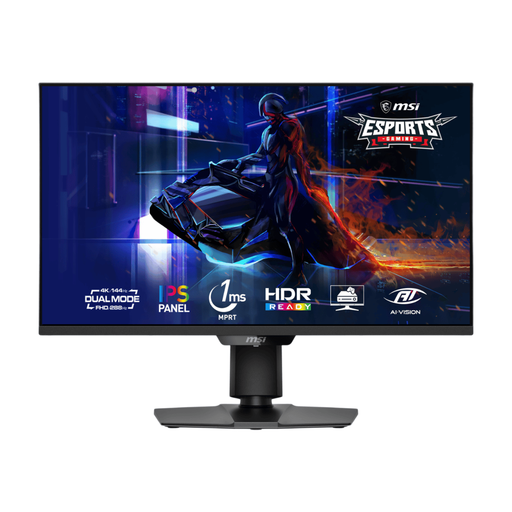
Consider this model if you want 4K for detailed building with an FHD mode available for faster play.
The stated dual modes are 4K UHD at 144Hz and FHD at 288Hz. Check that your graphics output and cable support the mode you intend to use.
 No image available
Consider this QHD option if high-refresh play matters more to you than a 4K desktop.
The stated refresh rate is 240Hz. Check your computer, port and cable for that mode, and read the applicable OLED panel-care guidance if static office windows will remain on screen for long periods.
 No image available
Consider this QHD model if a stated high refresh rate is a stronger priority than 4K building detail.
The title specifies 2560 × 1440 resolution and 220Hz. Confirm that your graphics hardware, port and cable can deliver the stated mode, and check height adjustment or VESA-mount compatibility for your desk.
Check the requirements for the exact monitor mode before buying. LG says the 27GS85Q-B’s 200Hz overclock needs DisplayPort 1.4-capable graphics hardware and cable, while its 27GR93U-B needs graphics support for DisplayPort 1.4 with DSC or HDMI 2.1 to use 4K at 144Hz. Other models can have different requirements.
Aim to place the top of the screen at eye level and the screen about an arm’s length away, in line with Health and Safety Executive display-screen guidance. Check whether the supplied stand can achieve that position on your desk, or whether a compatible monitor arm would be needed.
No; weigh its gaming specifications against your working pattern and the alternative IPS configurations. ASUS describes OLED Care Pro features on the PG27UCDM as ways to reduce burn-in risk, not eliminate it. If you keep static office windows open for long periods, read the care guidance for the exact model before choosing.
Ask your retailer or local authority which electrical-equipment collection or take-back options are available to you. GOV.UK identifies the UK Waste Electrical and Electronic Equipment Regulations as the legislation underpinning the handling of this type of equipment; the practical route depends on the service available where you live.