What should you check before choosing?
Try your essential tasks with existing settings, then check what barrier remains before selecting an accessory or seeking an assessment.
| Priority | What to check | Your needs |
|---|
| Reading and screen access |
Try screen reading, text enlargement or magnification on the exact device. Check whether your essential websites, documents and apps remain usable. |
I need to read and navigate everyday content without relying on its standard visual presentation. |
| Input and navigation |
Try the intended keyboard, pointer, voice or switch method with your usual tasks. For an external device, confirm the connection, any adapter and the accessibility feature it must work with. |
Typing or selecting controls with a standard mouse, keyboard or touchscreen is difficult for me. |
| Communication support |
Identify the communication task and a workable access method. For complex needs, ask about a specialist assessment and equipment trials before choosing a high-tech aid. |
I need a way to communicate that fits both what I want to say and how I can control the device. |
| Fit before purchase |
Test the operating-system version, required apps and accessories together where possible. Check whether settings already address the task before adding equipment. |
I want the setup to work for my calls, writing or learning tasks, not just connect to the device. |
Joybuy options for tablets and alternative pointing
These products cover two routes: tablets to try with built-in accessibility features, and vertical mice as alternatives to a conventional pointer. None replaces checking your tasks on the exact setup; complex communication aids call for a different selection process.
 No image available
HP 920 Ergonomic Wireless Mouse, Black, with Detachable Wrist Rest
Consider this alternative pointer if a conventional mouse is difficult to position or operate and you can try whether its shape suits your movement.
The product name identifies a wireless mouse with a detachable wrist rest. Check its connection and operation with your computer and required accessibility workflow.
View on Joybuy
 No image available
V7 MW500BT Bluetooth Vertical Mouse, 2.4GHz Dual-Mode
This is another pointing layout to consider when a standard mouse is uncomfortable, provided you can operate its shape and buttons.
Its name specifies six buttons and an adjustable sensor up to 1600 DPI. Check the intended connection and accessibility workflow on your computer before choosing it.
View on Joybuy
 No image available
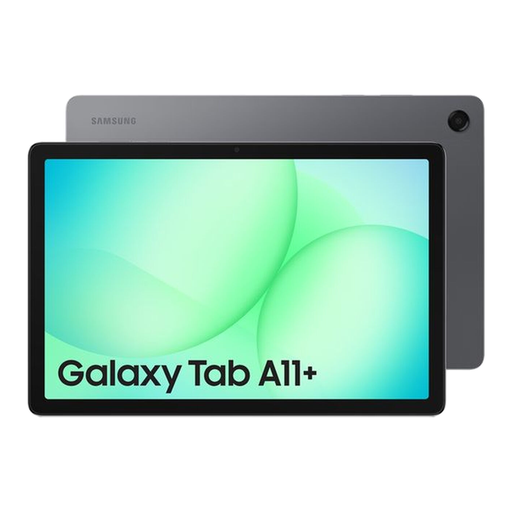
Samsung Galaxy Tab A11+ 8GB 256GB WiFi, Gray
Consider this tablet if you want to try an Android device for reading and navigation with accessibility features.
Google describes TalkBack and Switch Access for Android, but their setup should be tested on this exact tablet with your essential apps and any intended external input.
View on Joybuy
 No image available
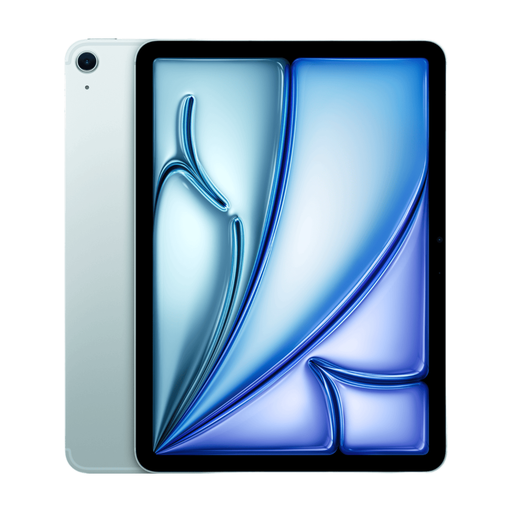
Apple 11-Inch iPad Air (2026, M4), Wi-Fi 128GB, Blue
Consider this iPad if you want to try Apple’s built-in screen, voice or switch access with your regular tablet tasks.
Apple describes VoiceOver, Voice Control and Switch Control; check their operation on this device with your essential apps and any adaptive accessory you intend to use.
View on Joybuy
 No image available
Xiaomi Pad 7 8GB RAM 128GB ROM, Gray, Focus Pen Included
This Android tablet is an option to try if built-in spoken or switch-based access could address your reading or navigation tasks.
Google notes that Android accessibility setup varies by device and version. Test TalkBack or Switch Access on this model with your essential apps and any intended external input.
View on Joybuy
Common questions
Should I try accessibility settings before buying an accessory?
Yes, if you can test the tasks you need to complete on your current or intended device. GOV.UK says phones, computers and tablets often have built-in features, and RNIB recommends checking them before buying a new computer or laptop. Try reading, writing, navigation and calls before deciding what additional equipment might help.
When might an alternative keyboard, mouse or switch make sense?
Consider one when standard controls remain difficult to use for your tasks. AbilityNet describes keyboard and mouse alternatives, while Google describes Android Switch Access for interaction without direct touchscreen use. Check both the physical access method and compatibility with your exact device.
When should I seek a specialist assessment?
Seek advice about specialist assessment before choosing complex communication or highly individual access equipment. NHS specialist services describe identifying communication goals and access methods and trying aids, switches, eye-gaze cameras or software; ask an appropriate local professional about the relevant pathway.
Could a built-in screen reader meet my needs?
It could if it lets you complete your required tasks on the device and apps you use. RNIB describes free built-in screen readers on Windows, Android and iOS and notes that more advanced screen readers are also available. Try your usual content and controls before choosing separate software.
What should I check before buying a switch or alternative input device?
Check your exact device and operating-system version, the USB or Bluetooth connection, any adapter, and support for the accessibility feature you plan to use. Google says Android Switch Access can use external switches or a configured external keyboard; confirm that the intended setup works with your tasks.


