What to check before choosing
Start with where the device will be used and how you will control it. Then try your most demanding task with the intended accessibility settings, apps and any peripheral in place.
Phone
Consider it when: Calls, messages and quick access to information while out are central.
Trade-off: A smaller screen leaves less room for reading and on-screen controls; test the intended input method.
Tablet
Consider it when: You want a portable touchscreen with more visual space than a phone. RNIB notes that the larger screen can help people who use some vision.
Trade-off: Check the connectivity version for use away from Wi-Fi, and try your writing or input setup.
Computer
Consider it when: Longer documents, regular typing or a stable desk setup shape your day.
Trade-off: A desk-based arrangement is less portable; check the operating-system version and the software you need.
| Concern |
What to check |
Who this matters to |
| Screen access |
Try the screen reader or magnifier with essential messages, websites and apps. For braille, check the exact display and connection method. |
If I rely on speech, magnification or braille to read and navigate, the device has to work with the content I use every day; around 31% of consumers put screen access first. |
| Alternative input |
Check the device’s ports or wireless connection and try switching, voice control or typing in the required apps. |
When touch, typing or mouse use is difficult, I need a control method I can use throughout a task; alternative input comes first for around 31% of consumers. |
| Longer tasks |
Try documents, forms and email with the intended screen size, keyboard and access software. |
If reading and writing take sustained effort, I need a setup that works beyond a quick message; around 23% of consumers primarily need support for longer tasks. |
| Daily communication |
Set up and try the calls, messages, reminders and online services that matter most. |
I want to manage everyday contact and routines without making the setup harder to use; roughly 15% of consumers place manageable daily communication first. |
Joybuy devices for everyday access needs
These phones and laptops offer different starting points for everyday communication or longer reading and writing. Choose by the tasks and access methods you need, then check essential apps and any specialist equipment against the exact device.
 No image available
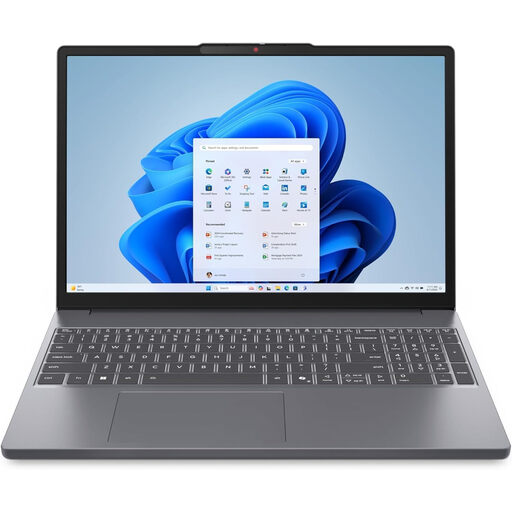
Lenovo IdeaPad Slim 3 15.3-inch laptop (83K7009MUK)
Consider this Windows laptop for longer reading and writing, and test your essential apps with the access method you plan to use.
15.3-inch WUXGA display; AMD Ryzen 5 7535HS; 24GB DDR5 RAM; 512GB PCIe SSD; Windows 11 Home.
If voice control matters, confirm the installed Windows version against Microsoft’s Voice Access requirement of Windows 11 version 22H2 or later.
Joybuy
 No image available
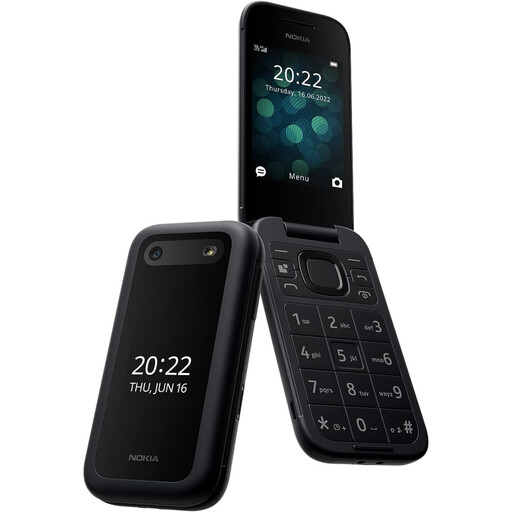
Nokia 2660 TA-1469
Consider this phone if calls and messages are your main tasks; try its controls and display before relying on them for your access needs.
Check whether it can access every online service you need and, if you use a hearing aid, confirm compatibility with your particular device.
Joybuy
 No image available
ASUS Vivobook 14 X1407QA-LY003W Copilot+ PC
Consider this laptop for reading and writing with a keyboard; assess the screen and your essential software with your preferred access settings.
Snapdragon X; 16GB RAM; 512GB SSD; Quiet Blue. The display is non-touch, so choose another input arrangement if touch is essential.
If you need Windows Voice Access, confirm that the installed version meets Microsoft’s Windows 11 version 22H2-or-later requirement.
Joybuy
 No image available
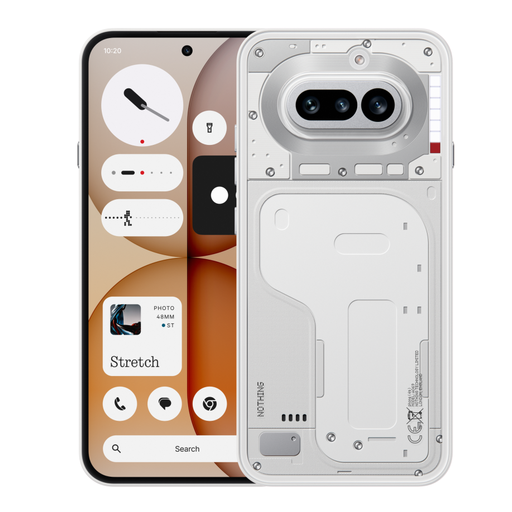
Nothing Phone (4a) 12+256GB White
Consider this smartphone for communication and information access on the move. Try your essential apps with your preferred screen-reading or display settings on the exact phone.
If you intend to use an external switch or keyboard, confirm the accessory, connection and complete input workflow before buying.
Joybuy
Frequently asked questions
Do I need a specialist device to use accessibility features?
Not necessarily: UK government guidance says phones, tablets and computers often have built-in accessibility features. Try those features with your essential tasks first, then consider specialist equipment for an access barrier that remains.
Will any Bluetooth keyboard, switch or braille display work with my device?
No single connection label establishes compatibility. Google documents USB and Bluetooth options for Android Switch Access, Apple lists supported Bluetooth braille displays for iPhone and iPad, and Microsoft says Bluetooth is unavailable for braille displays with Windows Narrator. Check the exact peripheral, device, operating-system version and task.
Can I rely on built-in accessibility features in every app?
No: an operating-system feature does not establish how each app’s controls behave with it. UK government accessibility guidance calls for checking mobile app components with screen readers and keyboard or switch input, so try the services you depend on.
Should I choose a phone, tablet or computer for reading and writing?
Choose according to the length of the task and the input method you need. RNIB notes that a tablet’s larger screen can help people who find a phone screen difficult to see; for lengthy documents or regular typing, try a computer or tablet with the intended keyboard, speech or screen-reading setup.
What if I need accessibility equipment for work?
If you work in England, Scotland or Wales, discuss the access barrier with your employer and check whether Access to Work support applies. Department for Work and Pensions guidance describes support for eligible needs beyond an employer’s reasonable adjustments; employer duties depend on the circumstances. Access to Work does not cover Northern Ireland, where a different service applies.


