Start with the everyday task that is difficult, then try the relevant accessibility settings on your existing phone, tablet or computer. If those settings do not make the task workable, consider hardware or software matched to the difficult step. Before buying, check compatibility with your device and essential apps, and seek specialist advice if equipment needs tailoring.
Who might need a different access method?
People who read or navigate screens differently
Magnification, display changes, spoken feedback or screen-reader navigation may be worth trying when onscreen content is the difficult part of a task. GOV.UK and RNIB describe built-in accessibility features; check them with the websites and apps you actually use.
People who need another way to control a device
If pressing keys, moving a pointer, using touch controls or entering text is the obstacle, identify that action before choosing voice control or an alternative keyboard, mouse or microphone. Scope and AbilityNet both advise matching equipment to the task.
People who need prompts or alerts
For household, communication, learning or work routines, check whether an existing device can provide a useful reminder before adding a planner or wearable. GOV.UK includes organisers and alerts among accessible-technology options.
What should you check before buying?
Test the difficult step with what you already own, then assess an additional tool against the same task. The checks change depending on whether the main need is screen access, input or prompts.
| Concern |
What to check |
Who this matters to |
| Screen access |
Try screen reading, magnification or display settings with essential apps and websites; check the required gestures or keyboard navigation. |
If screen text or controls are difficult to follow, I need a way to navigate the content I use every day; about 29% of consumers put screen access first. |
| Hands-free control and text |
Check voice-control support on the exact operating system and whether the microphone and commands work for the intended apps. |
When typing or touch is the obstacle, I want to operate the device and produce text with less reliance on either; about 29% of consumers make hands-free input their primary concern. |
| Physical input |
Pinpoint the difficult key or pointer action, then check the peripheral’s connection and operating-system compatibility. |
If pressing keys or controlling a pointer is the hard part, I need an input device that fits that action; physical input is the leading need for about 24% of consumers. |
| Planning and alerts |
Check the prompt type you need and, for a separate device, its pairing and notification compatibility. |
For household routines, I need reminders I can notice and use, rather than a different way to type; about 18% of consumers put planning and alerts first. |
Common buying mistakes
-
Choosing by a broad label rather than the difficult step
Reading text, pressing keys and noticing a reminder call for different checks, even when they affect the same activity.
Write down one or two tasks and where each becomes difficult. Try a relevant setting or input method against that step before purchasing.
-
Assuming a peripheral works with every device
A keyboard, mouse or microphone still needs a suitable connection and support from the device and software used for the task.
Confirm the exact device model, operating system, connection method and target app before buying.
-
Assuming a built-in feature makes every task accessible
A screen reader or voice-control feature may be available while a particular website, document or app remains difficult to operate.
Try the essential workflow with the intended access method before replacing a setup you rely on.
-
Buying tailored equipment before considering advice
Non-standard equipment may need to work across several devices or services. Scope advises that assessment routes can vary with the equipment and the help required.
For equipment that needs tailoring or is mainly for work, investigate relevant specialist or workplace support before committing to a purchase.
Brands to consider
Apple
Apple phones, tablets and Macs are worth examining if you want to try built-in access tools before adding hardware.
- Apple documents VoiceOver and device-control options across its product lines.
- Check feature availability and setup on the exact model and operating-system version.
Microsoft
Windows accessibility tools are relevant when voice control or text entry is the difficult part of computer use.
- Microsoft Support describes Voice Access for controlling a Windows 11 PC and authoring text by voice.
- Check language support, microphone setup and the commands needed in your apps; initial setup requires an internet connection to download language files.
Google / Android
Android phones and tablets offer access features to investigate, including TalkBack spoken feedback.
- Google’s Android guidance describes TalkBack and other device-interaction options.
- Google notes that feature names and navigation can vary by market and device; confirm them on the handset or tablet you intend to use.
Joybuy planning and wearable options
These options relate to organising household routines or viewing calendar and app notifications on a wearable. Check their controls and alert methods against your own access needs before relying on either for daily prompts.
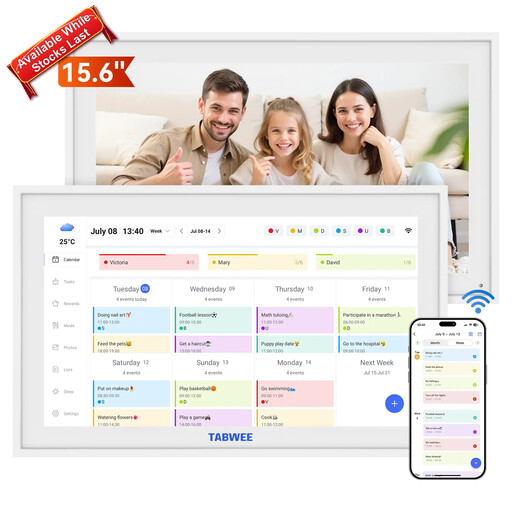 Image unavailable
TABWEE P15 15.6-inch digital wall calendar
Consider this Wi-Fi touchscreen planner if organising household appointments or meals is the main task. It offers weekly and monthly planning views; check whether its controls are usable for you and whether its prompts arrive in the form you need.
View on Joybuy
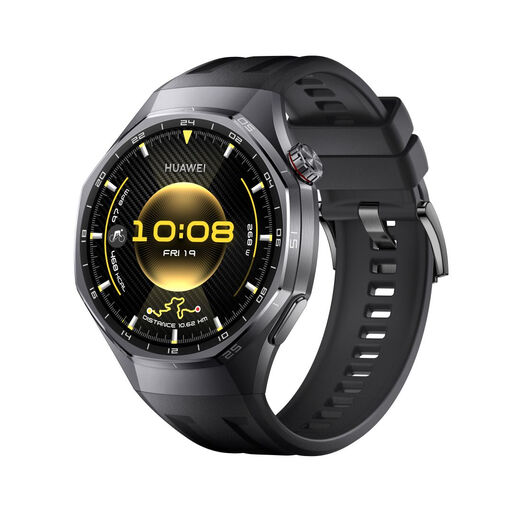 Image unavailable
HUAWEI Watch GT6 Pro 46mm Titanium – Black
Consider this smartwatch if you want calendar information or app notifications on a wearable. Check compatibility with your phone and essential apps, how notifications are delivered, and whether its touchscreen controls suit your access method.
View on Joybuy
Frequently asked questions
Should I try accessibility settings before buying equipment?
Yes, if you have a device available to test: identify the difficult task and try the relevant settings with it. GOV.UK says phones, computers and tablets often have built-in accessibility features, while RNIB points to built-in computer options. Add equipment if those tools do not make the task workable.
When is specialist advice worth seeking?
Investigate advice or an assessment when equipment needs tailoring, several devices or services must work together, or a previous solution has failed. Scope explains that the route can vary with the help needed, location and type of equipment; it does not mean every technology purchase requires an assessment.
What if the technology is mainly for my job?
Explore workplace support before assuming you need to buy it personally. GOV.UK describes employer reasonable adjustments and Access to Work support for individual needs beyond those adjustments. Whether a particular request receives support depends on the circumstances.
Will a listed accessibility feature work on any device?
Do not rely on a platform-wide feature description for a particular device or task. Google notes that Android feature names and navigation can vary by market and device; for Android, Apple or Windows, check the exact model, software version and apps you need to use.


