For reading maps, stop details and accessibility notes in a coach seat, start with a tablet whose screen and accessibility controls work well with the route tools you use. Consider a cellular model if you need updates away from reliable Wi‑Fi; a keyboard-capable tablet makes more sense if detailed notes are a regular part of the task, but adds to what you carry. Check the operator’s arrangements and current journey information separately rather than treating a route shown on screen as confirmation that it will be accessible.
Who needs which setup?
Independent accessible-route planners
If you compare walking distance, stairs, changes and stop details before or during a journey, give priority to an app or website that lets you inspect those constraints clearly. Transport for London’s accessible journey planner illustrates why choices such as walking distance and stair use matter; check the tools available for your own journey.
Low-vision or screen-reader users
If you rely on spoken feedback, magnification or contrast adjustments, try the actual route information with the settings you need. Apple describes VoiceOver, while Samsung describes TalkBack and display adjustments; the usability of a particular app still needs checking.
Mobile route-note reviewers
If you annotate route screenshots or type detailed observations while travelling, consider the input method alongside screen size. Apple, Samsung and Microsoft describe different tablet and accessory options, so check the exact model and the tools your workflow requires.
What matters when choosing?
Check your route-planning tools and accessibility settings first, then decide how you will get updates away from Wi‑Fi. Screen handling and note-taking equipment matter most once those essentials fit your journey.
| Concern | What to check | Who this matters to |
|---|
| Readable route information |
Try the intended app or website with text scaling, screen-reader controls and map navigation on the operating system you plan to use. |
When stops and walking constraints are difficult to inspect, I need route details I can read or hear without losing my place. Around 33% of consumers put accessible route information and readability first. |
| Updates away from Wi‑Fi |
Choose between downloaded information, phone tethering and a cellular tablet; confirm the connectivity of the exact variant. |
If plans change during a journey, I need a practical way to check the latest information without depending on coach Wi‑Fi. For roughly 27% of consumers, connectivity is the primary concern. |
| Handling and outdoor viewing |
Compare weight and screen size for use in a coach seat, and check display behaviour in your expected lighting; consider a case for travel. |
I may hold the tablet between connections and look at it outdoors, so carrying and viewing it comfortably matter more to me than a larger screen alone. Portability and travel use come first for around 20% of consumers. |
| Notes and documents |
Check pen and keyboard compatibility, box contents, file formats and the apps needed for annotation or typing. |
If reviewing a route means marking up maps or writing substantial observations, I need an input setup that suits that work. Roughly 20% of consumers make documentation their primary concern. |
Mistakes to avoid
-
Treating a planned route as a confirmed accessible journey
A map cannot confirm every stop condition, service change or assistance arrangement. The Department for Transport discusses accessible information for local services, while Transport for London lets travellers plan around constraints such as stairs and walking distance; neither establishes the conditions of every coach journey.
Check the operator’s current information and assistance arrangements for your specific service, and save essential journey details offline where possible.
-
Choosing Wi‑Fi-only when live updates are essential
A Wi‑Fi-only tablet cannot connect independently to mobile data when Wi‑Fi is unavailable. A cellular-capable model still needs a suitable plan and signal.
Decide whether phone tethering or offline information will meet your needs before choosing the tablet’s connectivity variant.
-
Assuming a pen, keyboard or charger comes in the box
Accessory support does not establish what is included. Apple lists compatible iPad accessories separately, and Samsung says its Galaxy Tab S10 FE does not include a travel adapter.
Check the exact box contents and accessory compatibility for the model and variant you intend to order.
-
Reading brightness or an IP rating as a travel guarantee
A stated brightness mode has its own operating conditions, and water- or dust-resistance does not establish drop protection or visibility in every setting.
Check readability in the lighting you expect, protect the tablet during travel and keep essential route information available by another means for important journeys.
Relevant brands to consider
Apple
The 11-inch iPad Air is an iPadOS option for people who want a tablet for route viewing and may also use a Pencil or cellular connectivity.
- Apple specifies a 464 g weight for the 11-inch iPad Air Wi‑Fi model and an anti-reflective display; it also describes accessibility features including VoiceOver.
- Check your route apps and files on iPadOS. Wi‑Fi and cellular versions differ, and compatible accessories should not be assumed to be included.
Samsung
The Galaxy Tab S10 FE line offers an Android option with a 10.9-inch display for route review.
- Samsung specifies up to 800 nits in High Brightness Mode for the Galaxy Tab S10 FE and describes TalkBack and display accessibility controls.
- Check whether the exact variant is Wi‑Fi or cellular and whether your route app works with the settings you need. A brightness figure does not guarantee readability in every outdoor condition.
Microsoft
Surface Pro is a 2-in-1 option to consider when route review regularly involves substantial typing or document work.
- Microsoft describes an adjustable kickstand, with a keyboard and Slim Pen available as optional input methods.
- Check which accessories your workflow requires and whether the complete setup is comfortable to carry and use in a coach seat.
Joybuy tablets for route review
These tablets offer different ways to view route information, connect away from Wi‑Fi or work with notes. The larger-screen models deserve particular attention to how much space you have in a coach seat; for every model, check the route apps and accessibility controls you rely on.
 Image unavailable
Apple 11-inch iPad Air (2026, M4), Wi‑Fi, 128GB, Space Grey
Consider this 11-inch model for viewing maps and stop details if Wi‑Fi, downloaded information or phone tethering meets your connectivity needs.
Apple specifies a 464 g weight and an anti-reflective display for the matching 11-inch iPad Air Wi‑Fi model. Check your route apps and any Pencil or keyboard requirements before ordering.
Joybuy
 Image unavailable
TABWEE W90 11-inch tablet, dual 4G SIM, 256GB
The stated dual 4G SIM capability makes this a model to consider if you need to check route changes away from Wi‑Fi, subject to a suitable mobile service and coverage.
The product name specifies an 11-inch display and 256GB storage. Confirm the exact software version, battery specification, outdoor readability and accessibility controls before relying on it for a journey.
Joybuy
 Image unavailable
TECLAST ArtPad Pro 2025 Edition, 12.7-inch 2K, with stylus
Consider the larger display and included stylus if reviewing routes involves handwritten annotations as well as reading maps.
The product name specifies 256GB storage and dual-SIM 4G LTE. Check whether the 12.7-inch tablet is comfortable to handle in your coach seat, and try your route apps and accessibility settings on its Android setup.
Joybuy
 Image unavailable
Apple iPad Pro 13-inch (M5), Wi‑Fi + Cellular, 1TB, Standard Glass, Silver
This cellular model is worth considering if you want a 13-inch screen for route documents and a mobile-data option when Wi‑Fi is unavailable.
Its larger size may be awkward to hold in a confined seat. Check mobile coverage, route-app compatibility and whether the Pencil or keyboard you want is included.
Joybuy
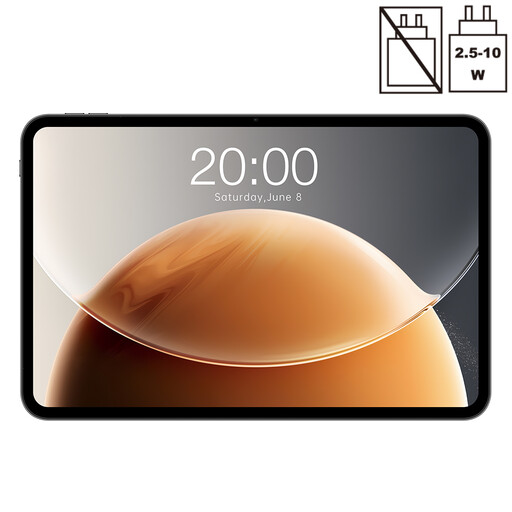 Image unavailable
Teclast T65 2026, 13.4-inch, dual-SIM 4G, 128GB
The 13.4-inch display gives you a larger area for route information, while the stated dual-SIM 4G capability offers a mobile-data option away from Wi‑Fi.
Check the tablet’s handling in a coach seat, the mobile bands and coverage needed for your journey, and the readability and accessibility of your chosen route app.
Joybuy
Common questions
Can a tablet confirm that an accessible coach route will be usable on the day?
No. A tablet can help you inspect route options and current information, but you should confirm the specific operator’s accessibility arrangements, assistance process and disruptions. Transport for London’s planning options show why details such as stairs and walking distance can change which route works for you.
When should I consider a cellular tablet for route updates?
Consider one if you need live information away from dependable Wi‑Fi and do not want to rely on phone tethering. Apple says its Wi‑Fi + Cellular models can use a mobile data plan when Wi‑Fi is unavailable; check the exact tablet variant, plan terms and coverage for your journey.
How can I check accessibility settings before buying?
Try the route-planning app or website with the spoken feedback, enlargement or contrast controls you actually need. Apple describes VoiceOver, and Samsung describes TalkBack and display adjustments, but a device feature alone does not establish how well a particular route tool will work for you.


