What matters when choosing two monitors?
Decide how you will validate contrast, then assess screen-to-screen consistency, your computer’s two-display connections and the amount of detail you need to inspect.
| Concern |
What to check |
Who this matters to |
| Contrast validation |
Look for stated sRGB coverage or an sRGB mode. Check final foreground and background colours with a contrast tool at the intended text size. |
When I review text and controls, I need a measured result rather than colours that merely look distinct; around 36% of consumers put contrast validation first. |
| Consistency between screens |
Compare identical models where possible, including their stated colour modes and calibration claims. Set both screens consistently. |
Side-by-side colour review is harder if the same interface looks different on each display; roughly 29% of consumers make screen-to-screen consistency their primary concern. |
| Connections and desk setup |
Confirm the computer’s supported display count and the complete cable or dock path. Check stand adjustment for aligning the screens. |
I need both displays to work with my laptop and sit comfortably at the desk; about 21% of consumers prioritise the two-screen connection and physical setup. |
| Interface detail |
Compare QHD and 4K resolution for the size of the text and layouts you inspect. Check two-display resolution support and scaling on your computer. |
Small labels and dense layouts make close inspection my deciding need; around 14% of consumers put display detail first. |
Joybuy monitors for colour review
These monitors offer different starting points for a two-screen colour-review desk, from QHD and 4K interface inspection to a display that may also serve creative or gaming work. Choose the pair and connection plan for your own workflow rather than assuming that any single monitor will validate accessible colours.
 No image available
ASUS ProArt PA278CV IPS WQHD
Consider this model for a similarly configured pair if WQHD provides enough detail for your interface reviews.
Its product name specifies an IPS WQHD display. Check your computer’s two-display output and configure both screens consistently.
View on Joybuy
 No image available
iiyama ProLite XUB2792UHSU-B6 27-inch 4K UHD
The 27-inch 4K format is worth considering if fine interface detail is important in your two-screen review.
Check the colour settings and any calibration documentation you need, as well as the computer’s support for two displays at your intended resolution.
View on Joybuy
 No image available
ASUS Eye Care VY27UQ 4K UHD 60Hz
This is another 4K option to assess if close inspection of UI details matters more to you than a docking-centred setup.
The product name specifies 4K UHD and 60Hz. Confirm the colour controls and your computer’s two-display connection plan before choosing a pair.
View on Joybuy
 No image available
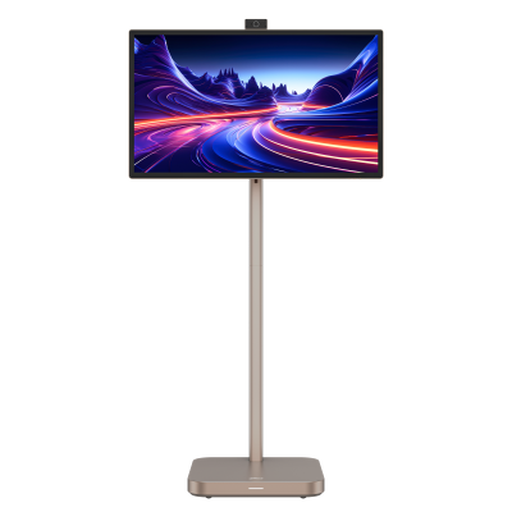
Dahua Explorer 31.5-inch 4K portable smart monitor, Android 11, 8GB+128GB
Consider the larger 4K screen if your workspace also calls for a portable smart-display format.
Its product name specifies a built-in battery and Android 11. Confirm the exact panel technology and colour controls before relying on it for a matched colour-review pair.
View on Joybuy
 No image available
Dahua 32-inch 4K 165Hz curved OLED monitor
This model may suit a desk that combines detailed review with creator or gaming tasks, provided its display modes meet your interface-review needs.
Its product name states 99% DCI-P3 coverage and Type-C 65W alongside 4K and 165Hz. Check for an appropriate sRGB setting and confirm how your computer will drive two screens; wider-gamut coverage is not an accessibility test.
View on Joybuy
Questions about two-screen colour checking
Does a colour-accurate monitor make a website or app accessible?
No. A monitor helps you inspect an interface but cannot establish accessibility on its own. Government Digital Service guidance calls for WCAG 2.2 AA contrast checks, and Department for Work and Pensions guidance gives contrast thresholds of 4.5:1 for normal text and 3:1 for large text. Test the actual colour combinations with an appropriate tool.
Should I buy two identical monitors for colour checks?
Two of the same model are a sensible starting point when screen-to-screen consistency is your priority: their published modes and controls give you a common basis for setup. They are not guaranteed to match exactly, so use consistent presets, brightness and colour-temperature settings when comparing an interface across them.
Do I need 4K on both screens?
Not necessarily. A QHD pair can still offer documented colour specifications, while 4K provides more pixels for inspecting small interface details. Decide which matters more for your work, then check that your computer supports the chosen two-display resolution and that its scaling works for you.
Can USB-C connect both monitors to my laptop?
USB-C alone does not confirm that arrangement. Dell cautions that daisy chaining requires Thunderbolt, and a DisplayPort-out MST feature such as the one BenQ lists for the PD2705Q also needs a compatible connection path. Check your laptop’s supported display count, port specifications and proposed cables or dock.
Is a wide-gamut monitor necessary for checking accessible web colours?
Not necessarily. Stated sRGB coverage or an sRGB mode is a useful starting point for reviewing ordinary digital interfaces; wider-gamut specifications become more relevant if the same screens also serve colour-managed creative work. Either way, check the finished interface’s contrast separately.


