Start with the work or study task that is difficult, then try the accessibility features on the device you already use. A specialist keyboard, pointing device, speech tool, screen-access tool or organiser becomes worth considering when those features do not meet the task; check compatibility, set-up and support against your actual workflow before buying.
Who might need a different approach?
People who need another way to control a computer
If selecting keys, moving a pointer or clicking makes work difficult, compare built-in control settings with keyboards and pointing devices suited to the exact task. Check the computer and applications you must use, not just the peripheral.
People who need easier reading and screen navigation
Screen reading, magnification and display settings are routes to try when text, controls or documents are hard to access. Test them with the actual workplace systems or learning platforms you need.
People who need help producing or organising work
Dictation, microphones, audio recorders and organisers address different tasks: writing, capturing information and remembering what comes next. If recording is involved, check the rules for your course, workplace and material.
What matters when choosing?
Identify the task that most needs a different approach, try the relevant built-in feature, then assess specialist options against the device, applications and setting you use. GOV.UK notes that phones, tablets and computers often include accessibility features; their presence alone does not establish that a particular workflow will be usable.
| Concern | What to check | Who this matters to |
|---|
| Keyboard and pointer control |
Identify the difficult actions, then check operating-system and application compatibility and whether a peripheral uses USB, Bluetooth or a receiver. |
If selecting keys or moving a pointer is my main barrier, I need a control method that works for those actions. Around 30% of consumers would put alternative input first. |
| Screen reading and navigation |
Try the required documents, websites and applications with screen reading, magnification or display adjustments. |
When I cannot reliably read or locate on-screen content, I need to navigate the material my work or course uses; roughly 30% of consumers would prioritise screen access. |
| Writing and communication |
Check the operating-system version, language support, microphone setting and whether the task calls for dictation, commands or transcription. |
If producing text is the stumbling block, I need an input method that fits my documents and surroundings. About 20% of consumers would make writing and communication their primary concern. |
| Notes and task management |
Decide whether recordings need transferring or transcribing, and check the applicable rules before recording people or sensitive material. |
Where remembering tasks or capturing spoken information matters more than changing computer controls, I need a way to revisit it; around 20% of consumers would put organisation first. |
What should you avoid overlooking?
-
Buying a specialist device before trying built-in tools
GOV.UK notes that mainstream devices often have accessibility features. An existing setting may address the particular task without introducing another device to set up.
Try the work or study task on your current device first, then identify what remains difficult.
-
Assuming a wireless or USB peripheral will connect immediately
AbilityNet notes that keyboard and mouse alternatives may need pairing or a receiver. The intended computer or tablet must accommodate that connection.
Check its ports, Bluetooth support, receiver requirements and power method before ordering.
-
Treating a product claim as a personal performance result
A keyboard layout, voice-input feature or eye-control specification does not establish how well it will serve your particular tasks and equipment.
Use specifications to narrow the options, then try the required workflow or seek informed set-up support where possible.
-
Overlooking assessment, training and support
Department for Education and IFF Research describe training and ongoing support as parts of assistive-technology implementation. For the GOV.UK Disabled Students’ Allowance process, equipment bought before assessment will not be reimbursed.
If seeking study support, check the scheme that applies to you before purchasing; for work, ask about available workplace support and whether Access to Work is relevant.
Relevant brands and built-in tools
Microsoft
Built-in Windows accessibility tools are a starting point for compatible work or study computers.
- According to Microsoft Support, Voice Access can control a PC and author text by voice on Windows 11 version 22H2 or later.
- Initial Voice Access set-up needs an internet connection; check the required applications and workflow separately.
Apple
Built-in macOS screen access for people using a Mac.
- Apple Support describes VoiceOver as a screen reader built into macOS, with keyboard, trackpad and compatible braille-display control approaches.
- Try it with the particular documents, websites and third-party applications you need.
Clevy
Specialist keyboards for people comparing alternative key layouts and controls.
- Clevy describes Keyboard 3 as offering USB and Bluetooth connections, larger characters and a hardware key-repeat switch.
- Check whether its 67-key layout and available language options cover your typing and shortcut needs.
Tobii Dynavox
Specialist eye-control hardware for a compatible Windows set-up.
- Tobii Dynavox states that PCEye connects by USB to Windows devices and supports screens up to 27 inches.
- Confirm the exact computer, screen, mounting arrangement and tasks before considering this route.
Nuance Dragon
Windows speech-recognition software for people assessing a dedicated dictation workflow.
- Nuance states that Dragon Professional v16 is optimised for Windows 11 and backward-compatible with Windows 10.
- Check microphone, language and application requirements; brand claims about speed or accuracy are not a personal outcome guarantee.
Joybuy products for specific tasks
These products address two particular tasks: capturing spoken information for later review and trying a different mouse shape for pointer control. Choose by the task you need to complete, and check recording rules or device fit as applicable.
 No image available
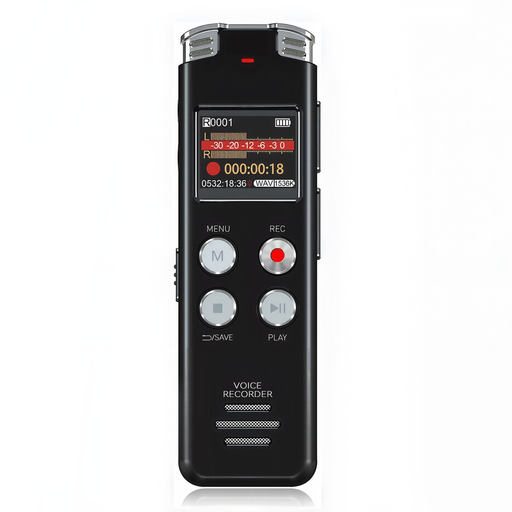
Rexsun L357 128GB Digital Voice Recorder
Consider a dedicated recorder if capturing spoken information is the task you need to address. This L357 variant is listed with 128GB storage and an LCD screen. Check how recordings transfer to your device and whether recording is permitted in the intended setting.
Joybuy
 No image available
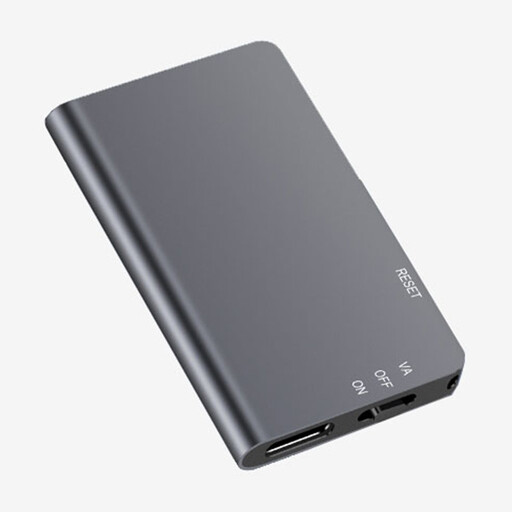
Rexsun L810 64GB One-Touch Digital Voice Recorder
Consider this recorder when a one-touch control suits the way you capture notes. The L810 variant is listed with 64GB storage. Check file transfer with your intended device and the rules for recording in your workplace or course.
Joybuy
 No image available
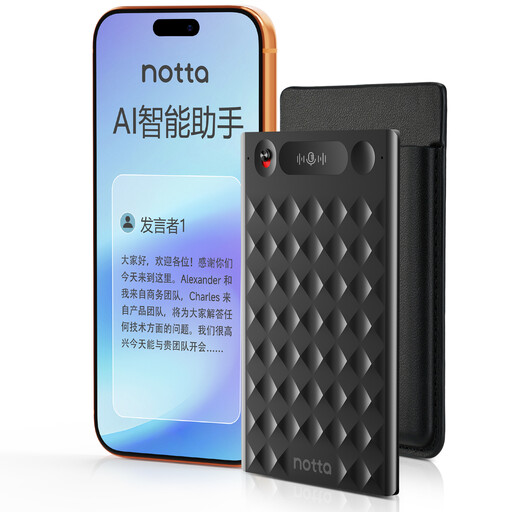
32GB AI Voice Recorder with Case, Black
Consider this option if both recording and turning speech into text are relevant to your tasks. The title lists 32GB storage and a 30-hour battery figure; transcription uses the Notta app. Check English (UK) support, app requirements, any ongoing charges and whether your recording setting permits its use.
Joybuy
 No image available
V7 MW500BT Bluetooth and 2.4GHz Vertical Mouse
Consider a different mouse shape if conventional pointer control is the task you want to change. The MW500BT title lists Bluetooth and 2.4GHz connections, six buttons and an adjustable sensor up to 1600 DPI. Check compatibility with your exact device and whether the shape and buttons suit your pointing tasks.
Joybuy
Common questions
Should I try built-in accessibility features before buying specialist equipment?
Yes, if your existing device has a relevant feature: try it on the exact work or study task first. GOV.UK notes that phones, tablets and computers often have built-in accessibility features; specialist equipment becomes a more relevant option when those features do not meet your task.
What should I check before buying a different keyboard or pointing device?
Check that it connects to your computer and lets you perform the actions you need. AbilityNet notes that keyboard and mouse alternatives may use Bluetooth or a USB receiver and can require pairing; also check layout, power needs and the applications you use.
Could Access to Work help with specialist equipment?
Access to Work may offer eligible applicants support that includes specialist equipment or assistive software, according to GOV.UK. Check the scheme’s current eligibility and assessment process for your circumstances rather than assuming a particular purchase will be covered.
Should I buy equipment before a Disabled Students’ Allowance assessment?
If you expect reimbursement through the GOV.UK Disabled Students’ Allowance process, do not buy the equipment before assessment: its guidance says such purchases will not be reimbursed. Check which scheme applies to your residence and course before ordering.
Why does support after purchase matter?
A suitable device still needs to be set up and used for the required tasks. Department for Education and IFF Research identify training and ongoing support as stages of assistive-technology implementation, so establish who can help with set-up and later difficulties.


