Workers needing different input
If typing, pointing, navigating or drafting on a work computer is difficult with the current setup, compare input options against the specific task and the employer-managed workstation.


Choose equipment for the task that your current workstation does not let you complete reliably: keyboard or pointer input, reading work content, or following workplace communication. Test the proposed tool with your actual applications and employer-managed device, then confirm who is responsible for the adjustment and whether any support has been approved before ordering.
If typing, pointing, navigating or drafting on a work computer is difficult with the current setup, compare input options against the specific task and the employer-managed workstation.
If you need enlarged, spoken or braille access to work applications and documents, check the proposed setup with the actual system and files used for work.
If meetings or computer audio are hard to follow, test captioning or other communication support in the work setting where you need to use it.
For England, Scotland and Wales, the Department for Work and Pensions’ May 2026 Access to Work factsheet distinguishes possible equipment support from reasonable adjustments an employer is legally required to make. Northern Ireland has a separate service. Confirm responsibility and any approval before ordering.
| Concern | What to check when buying | Who this matters to |
|---|---|---|
| Keyboard and pointer access | Try the layout, hand fit, connection and desk placement with the work computer and the tasks you need to perform. | If I need to type or point throughout my working day, I want the controls and connection to suit my actual desk and work setup. Around 26% of consumers put keyboard or pointer access first. |
| Reading workplace content | Test reading, magnification or braille output with representative work applications and documents; check connected devices and software compatibility. | When I need to read work documents or use applications, I want the chosen output to work with the material I actually handle. Around 21% of consumers prioritise readable work content. |
| Spoken drafting and control | Try the software with the work applications and microphone setup; check the operating-system version and whether installation is permitted. | If speaking is my preferred way to draft or control the computer, I need to test it against the tasks and device I use at work. Around 16% of consumers prioritise spoken text production or control. |
| Meetings and work audio | Test the actual meeting platform and audio source; check software prerequisites and whether other communication support is needed. | When I need to follow meetings or computer audio, I want the support to work with the real meeting and audio setup. Around 16% of consumers put accessible work communication first. |
| Assessment and workplace setup | Before ordering, settle the task assessment, employer responsibility, installation and training arrangements, and any support decision. | If I have identified a possible tool but need clarity about assessment, responsibility or deployment, I want those arrangements agreed before buying. Around 21% of consumers prioritise an approvable workplace setup. |
Possible support does not confirm an individual award, and the scheme does not pay for reasonable adjustments an employer is legally required to make.
Confirm the worker’s location, assessment, responsibility and any award before purchasing.
A changed keyboard layout or pointer shape may not suit the worker’s hand, familiar controls or workstation.
Trial the exact device with the relevant task and employer-managed computer before deciding.
Software features and system requirements do not establish that an organisation’s particular applications, documents or meeting setup will work with them.
Test representative work tasks and agree installation and support arrangements. Depending on the setup, licensing, configuration or additional support may also need to be arranged.
A reference point for workers comparing conventional keyboard and pointer input with different layouts or shapes.
Windows accessibility features may be relevant when considering voice control or captions on a compatible workplace PC.
JAWS is a Windows screen-reader line to assess when spoken or braille access may fit the reading tasks.
Dragon Professional v16 is a reference point for Windows-based dictation and transcription tasks.
Brailliant refreshable braille displays are a specialist option when braille output fits the assessed reading task.
These Joybuy listings relate to keyboard and pointer input for workplace computer tasks. Check layout, connection and fit against the work setup before ordering.
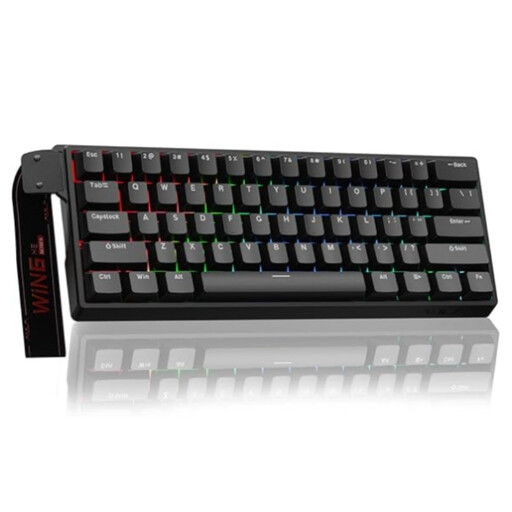 Image unavailable
For keyboard-entry tasks where a compact layout suits the work, check that the available keys meet the commands you need.
The product name specifies magnetic switches, adjustable actuation and a wired connection.
 Image unavailable
Consider this if you are comparing a split keyboard layout for work; try the arrangement with your usual typing tasks before choosing.
The description lists a padded wrist rest, negative tilt, Bluetooth and a wireless dongle, plus a separate repositionable numeric keypad. Check which connection the work computer permits.
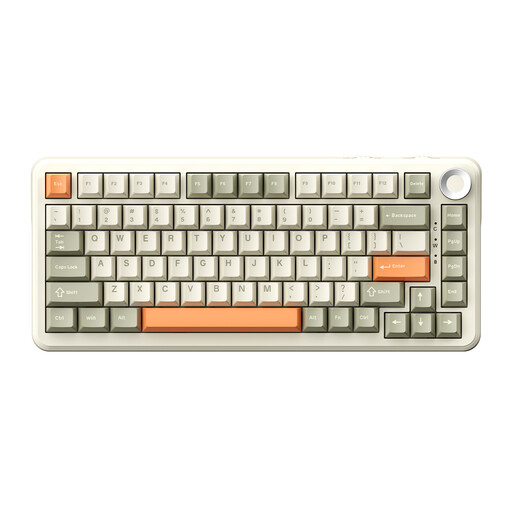 Image unavailable
For keyboard-entry work where a compact layout is being considered, check whether the retained keys and key legends suit your workflow.
The description lists Bluetooth, 2.4 GHz wireless and USB-C wired connection modes, with arrow keys and the F-row. The listed US layout may not suit work requiring UK key legends or layout.
 Image unavailable
For pointer-control tasks where a vertical mouse is being considered, try the grip and controls with your work setup.
The product description lists a handshake grip, six buttons and Bluetooth or 2.4 GHz wireless connection. Check which connection is permitted on the work computer.
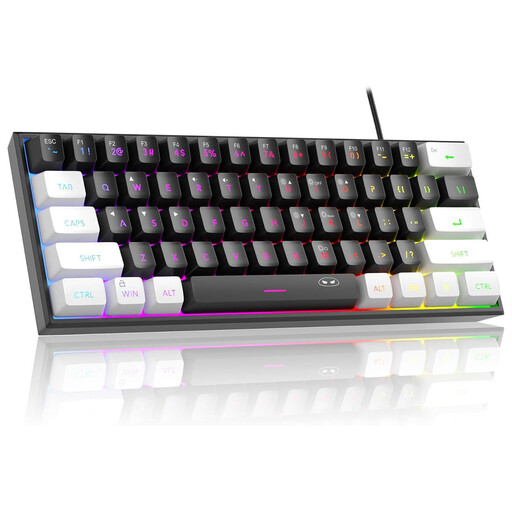 Image unavailable
For keyboard-entry tasks where a compact wired setup is suitable, check that the layout provides the keys your work requires.
The description lists 61 keys and Windows and Mac compatibility. It has no numpad, and the listed US layout may not suit work requiring UK key legends or layout.
Discuss the proposed adjustment with your employer before ordering; a purchase is not automatically an approved workplace adjustment or grant expense. Acas advises discussing the person’s specific needs and possible adjustments, while Access to Work support depends on the circumstances and any applicable decision.
No. The Department for Work and Pensions’ Access to Work factsheet applies to England, Scotland and Wales; Northern Ireland has its own Access to Work (NI) service, described by nidirect.
The Health and Safety Executive says employers must assess workstations for workers who use display screen equipment daily as part of normal work, continuously for an hour or more. The assessment considers the job, the whole workstation and any special requirements; that condition should not be assumed to apply to every worker.
Ask whether the work device permits the required software, receiver and updates, who will configure them, and how you can practise with real tasks. The Health and Safety Executive says employers must provide display screen equipment health-and-safety training and information for workers to whom those requirements apply; agree any product-specific training as part of the individual setup.
Confirm who orders and pays, what any award covers, and who will handle licences, troubleshooting and later changes. GOV.UK explains that a grant may involve costs being paid up front and claimed back later; Acas advises reviewing adjustments when a role, equipment or needs change.