Who needs which type of access?
The useful starting point is the action you need to complete, not the number of accessibility settings a device advertises.
People needing another way to write or navigate
If a standard keyboard, trackpad or touchscreen is difficult to use, consider the required input method—such as a switch, voice control, external keyboard or eye tracker—before choosing a device. Check the exact device, operating system and accessory together.
People needing reading or screen access
Spoken screen content, magnification, text adjustments or braille may shape the choice. Compare the platform’s built-in tools with the requirements of any particular braille display, reading software and essential app.
People setting up everyday communication and organisation
Reading, writing, reminders and communication may call for a manageable app workflow as well as suitable input and output tools. Check those tasks on the intended device, including any tool needed to communicate.
Which platform guides are useful?
Platform documentation helps narrow the access method, but the exact device, software version and essential apps still determine what you need to check.
Apple
Apple’s iPad and Mac guides are relevant when considering built-in access tools, external input on iPad or VoiceOver and braille-device use on Mac.
- Apple Support documents control of iPad through an assistive device or external keyboard, and describes Bluetooth, Lightning and USB-C connection routes for external switches.
- Check the particular iPad or Mac, software version, required accessory and feature availability for your setting.
Microsoft
Microsoft’s Windows guidance covers accessibility tools for vision, hearing, dexterity, mobility and focus.
- Its documentation provides a starting point for checking Windows access methods alongside required desktop applications.
- Windows eye control needs a suitable eye-tracking setup; check Microsoft’s supported-device information and the computer or monitor guide rather than assuming any tracker will work.
Google
Google’s Android guidance is relevant when checking tablet accessibility settings and Switch Access with an external switch or keyboard.
- Google documents USB or Bluetooth connection of an external switch device or keyboard for Android Switch Access.
- Google notes that navigation and feature names can vary by market and device; check the intended tablet and its Android version.
Computer and tablet options on Joybuy
These options cover tablets and computers for everyday tasks. Compare each one with your required apps and access method; a device’s category or operating system alone cannot confirm that a specialist accessory will work.
 No image available
Apple 11-inch iPad Air (2026, M4), Wi-Fi, 128GB, Starlight
Consider this tablet if your essential apps and preferred access method suit an iPad workflow.
The listed variant has an 11-inch display, M4 chip, Wi-Fi and 128GB storage. Apple documents iPad control through assistive devices, but check the required feature, iPadOS version and exact accessory combination for this model.
View on Joybuy
 No image available
Xiaomi Pad 8, 8G RAM, 128GB, Wi-Fi, Grey
Consider this tablet if the apps you need and your input method work in an Android tablet workflow.
The listed variant has 8G RAM, 128GB storage and Wi-Fi. Google documents Android accessibility and external-input options, but feature behaviour and accessory compatibility need checking on the exact tablet.
View on Joybuy
 No image available
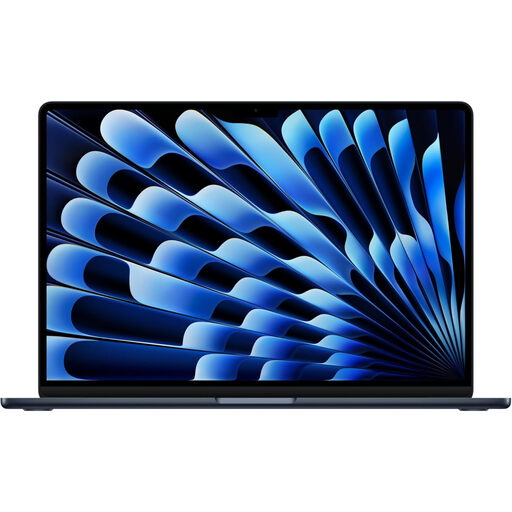
Apple 13-inch MacBook Air (2026, M5), 24GB, 1TB SSD, Midnight
This is a computer option if your essential applications call for a Mac workflow.
The listed M5 variant has a 10-core CPU, 10-core GPU, 24GB memory and 1TB SSD. Apple documents VoiceOver and braille-device options on Mac; check your applications, macOS version and any intended display or input device together.
View on Joybuy
 No image available
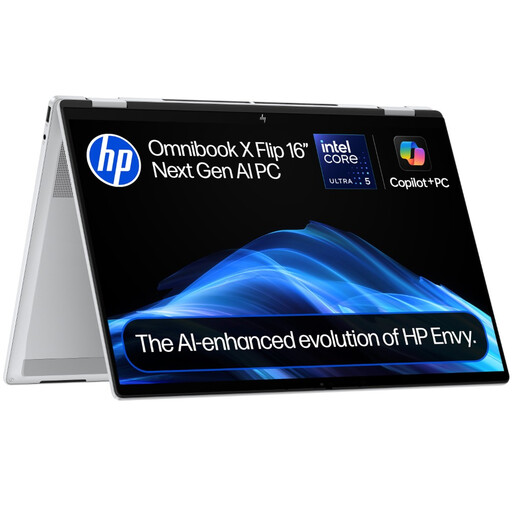
HP OmniBook X Flip 16-as0004na, 16-inch touchscreen, 16GB, 512GB SSD
Consider this computer if you need Windows applications and want to assess a touchscreen as part of your access workflow.
The listed 2-in-1 has Windows 11 Home and an Intel Core Ultra 5 226V processor. Check that your essential tasks work in the mode you intend to use, and confirm any specialist peripheral against the exact computer and software version.
View on Joybuy
 No image available
ASUS Vivobook 14 X1407QA-LY003W, Snapdragon X, 16GB, 512GB SSD
This laptop is an option to assess if your essential apps and preferred input method work on its exact configuration.
The listed Copilot+ PC variant has a Snapdragon X processor, 16GB memory and 512GB SSD. Its display is non-touch, so choose a different input route if touch is essential; check required software and peripherals against the exact model.
View on Joybuy
Frequently asked questions
What should I note before comparing devices?
Write down the tasks that are difficult, a workable input method, the output you need, and your essential apps, websites and existing accessories. Include whether you need to use the device away from a desk or need help setting it up; use the list to guide a practical trial and documentation checks.
How can I check whether an accessory will work?
Compare the current guidance for the exact device and operating-system version with the accessory maker’s compatibility information. Check the connection, any required app or driver, supported-device list and setup steps; Bluetooth or a matching port alone does not confirm the complete workflow.
Does a Windows laptop automatically support eye tracking?
No. Microsoft’s eye-control guidance describes supported eye-tracking devices and says a typical computer or monitor needs a mounted tracker. Check the intended tracker and the laptop or monitor guide, along with the required Windows setup.
When is a trial or needs assessment worth considering?
A trial is useful when several devices, apps or accessories must work together, or the access method is still uncertain. GOV.UK describes a needs assessment as a discussion of care and support needs, usually with a local authority; it does not by itself establish which consumer device will suit a particular workflow.


