Buying priorities
Match the route to the task that is difficult, then check the exact host device, connection method and physical setup before choosing a peripheral.
| Priority |
What to check |
Your needs |
| Reliable input method |
Check the movement, force, accuracy and endurance needed for the input. Compare switch support, trackball control, key layout and physical operation with the intended task. |
I need an input method that I can use reliably instead of a standard keyboard or mouse. A trackball, alternative keyboard or configured switch route should match the movement I can make consistently. |
| Device and software compatibility |
Confirm the operating system, required accessibility feature, Bluetooth or USB connection, available ports and any software needed for key functions. |
The peripheral or built-in feature needs to work with my actual computer, tablet or phone. I should check app support as well as whether it can connect. |
| Visual, audio and voice access |
Check whether screen reading, magnification, text size, contrast, captions or voice controls work with the required apps. For voice control, confirm microphone capability and relevant language requirements. |
I may need information or controls presented through speech, enlarged display settings, captions or screen reading rather than ordinary visual, audio or hand-operated controls. |
| Comfort and workstation fit |
Check hand size, handedness, button reach, desk space, wrist movement and workstation position. For regular workplace display-screen use, consider the whole workstation rather than the peripheral alone. |
The device needs to fit my posture, reach, hand size and work surface without creating another source of fatigue. AbilityNet and the Health and Safety Executive both highlight the importance of setup beyond the mouse or keyboard itself. |
Joybuy product options
These Joybuy options cover hand-operated alternative mouse routes for everyday computer input. Compare their stated connection methods and operating-system requirements with the device already in use, then confirm physical fit before buying.
 No image available
V7 MW500BT Bluetooth Vertical Ergonomic Mouse
A hand-operated pointing option for someone seeking a more upright grip on a compatible Windows or Mac computer.
- Vertical design with thumb rest and six buttons.
- Selectable 800, 1200 or 1600 DPI sensor.
- Bluetooth or 2.4 GHz connection; stated support for Windows 10/11 and macOS 13.6+.
- Check hand fit, button reach and whether the intended host can use the preferred wireless connection.
Joybuy
 No image available
Logitech MX Master 3S Ergonomic Mouse, Black
A configurable hand-operated mouse route for people using supported computers or tablets across more than one device.
- Seven programmable buttons and MagSpeed scroll control.
- Bluetooth or Logi Bolt connectivity with stated multi-device pairing.
- Listed support includes Windows, macOS, Linux, iPadOS and Android.
- Confirm hand fit, preferred hand, Logi Options+ support and whether the receiver is included with the chosen package.
Joybuy
 No image available
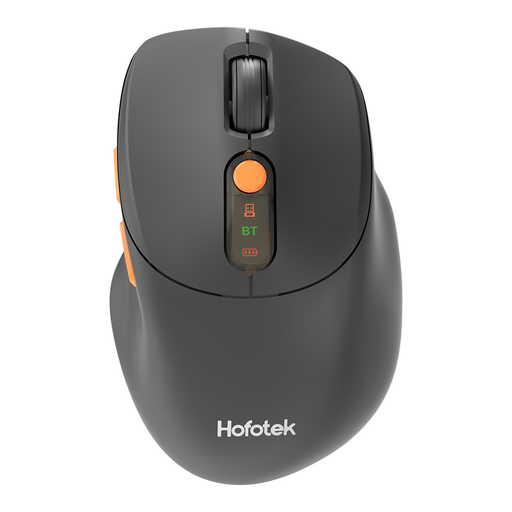
HOFOTEK M311 Silent Office Mouse, Black-Orange
An everyday wireless pointing option for people who switch between compatible computers, tablets or phones.
- Bluetooth 5.1 and 2.4 GHz connection modes with stated three-device switching.
- Silent buttons, selectable 800–4000 DPI and stated 62 g weight.
- Listed compatibility with Windows, macOS and Android.
- Check grip dimensions, button placement and whether advanced functions are available on every intended platform.
Joybuy
 No image available
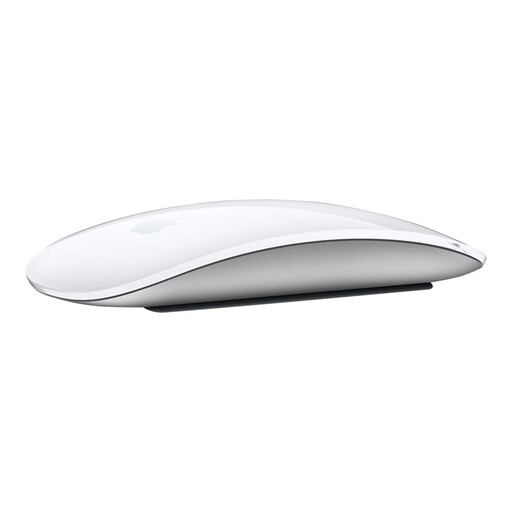
Apple Magic Mouse, White Multi-Touch Surface
A gesture-based wireless pointing route for someone using a compatible Mac or iPad and able to use the required finger gestures reliably.
- Multi-Touch gesture surface and Bluetooth connection.
- Rechargeable battery and USB-C charging cable.
- Stated requirements: macOS X 10.11+ or iPadOS 13.4+.
- Check whether the low-profile shape and gestures are comfortable for the person’s grip, movement and endurance needs.
Joybuy
Frequently asked questions
Should I buy a specialist peripheral before trying built-in accessibility settings?
Usually, check built-in settings first if they could address the barrier. Microsoft lists text-size and contrast adjustment, Magnifier, Narrator, Live Captions and Voice access, while Apple lists built-in VoiceOver and Voice Control; confirm that the required apps, language and task work with the feature.
How can I check whether a keyboard, mouse, trackball or switch will connect to my device?
Start with the exact host device and operating system, then compare Bluetooth, USB cable, USB receiver or another interface. AbilityNet notes that peripherals can use Bluetooth or a USB dongle, while specialist switch products may support only specified operating systems or access features.
Can a Windows voice feature replace both keyboard and mouse input?
Voice access can support commands as well as dictation, whereas voice typing is primarily for entering text. Microsoft states that Voice access requires a Windows PC with microphone capability and has limitations for overlays on non-primary displays in multi-display setups.
Could Access to Work help pay for an accessible peripheral in the UK?
Possibly, but support should not be assumed. GOV.UK states that Access to Work may provide practical support including specialist equipment and assistive software for people getting or staying in work, while reasonable adjustments remain the employer’s responsibility.


