Who needs to plan their setup?
Start with the tasks and access method that matter to the person using the computer, rather than choosing a screen size or device type in isolation.
People using speech, braille or magnification
If reading or navigating the screen depends on spoken output, braille, enlargement or contrast settings, check those features in the websites and applications you need. A larger screen can be useful to assess, but it cannot replace a trial at your usual viewing distance.
People using an alternative keyboard or pointer
A large-key keyboard, joystick, switch interface or voice control may change which computer is practical. Consider where the controls will sit, how they connect and whether they perform the required actions in your software.
Workers and students with a fixed workspace
If a separate monitor and input devices need to stay in a particular arrangement, compare a desktop workspace with a laptop before prioritising portability. Check whether the intended school or workplace computer permits any software or device configuration you require.
What should you check before buying?
Identify your essential tasks first, then check the operating system, display arrangement and input method together. A feature listed for a platform does not establish that it works with every application or accessory.
| Priority | What to check | Your needs |
|---|
| Software and access tools |
Try the screen reader, magnifier, captions, voice control or keyboard navigation you rely on in each essential application. Confirm the operating-system version and any required installation permissions. |
I need to complete my work, study or communication tasks with my chosen access method, not just open the software. |
| Display arrangement |
Test enlargement, contrast, cursor visibility and application layout at your viewing distance. If considering a separate monitor, confirm the computer’s display connection and the monitor’s placement options. |
A screen I can position independently may matter more to me than the size of a built-in laptop display. |
| Physical input |
Check whether the intended keyboard, pointer or switches can be reached and operated as needed. Match Bluetooth, USB, receiver and switch connections to the computer and test the required commands in your applications. |
Standard keys or a trackpad may not suit the way I operate a computer; I need to try the alternative controls in my actual setup. |
| Portability and workspace |
Compare carrying, opening and positioning a laptop with keeping a monitor and input devices arranged at a desk. Include pairing and charging in a trial of wireless accessories. |
If I work in several places, moving the setup matters. If I mainly use one desk, keeping the display and controls in position may matter more. |
| Supported platform |
Check the installed operating-system version and support status, then confirm that your required applications and assistive devices run on it. Microsoft dates the end of Windows 10 support to 14 October 2025. |
I want the computer I buy to run my essential tools on a supported platform, without assuming that a familiar device will work the same way after a system change. |
Platform and accessory references
These references help identify features and connection types to test; a platform feature or manufacturer compatibility statement is not a substitute for trying your complete workflow.
Microsoft
Windows accessibility features are relevant when essential work, education or specialist applications require Windows.
- Microsoft documents tools for vision, hearing and mobility access, including Narrator, Magnifier and Voice Access.
- Check the Windows version, required applications and third-party devices together; built-in tools do not establish accessory compatibility.
Apple
Mac is an option to assess when VoiceOver and macOS accessibility controls fit the applications you need.
- Apple describes VoiceOver output through speech and braille.
- Confirm the exact macOS version, applications and any braille or alternative-input device before choosing a Mac.
Pretorian Technologies
Pretorian Technologies lists alternative-input products with different keyboard, Bluetooth and USB connection approaches.
- Its product information describes large keys on the SimplyWorks Keyboard, Bluetooth connection for the BlueLine Joystick and a USB interface for the Ultimate Switchbox.
- Check the chosen product’s connections and controls with the intended computer and user; a manufacturer compatibility claim does not establish individual fit.
Google
ChromeOS is worth assessing when essential tasks can be completed in the Chromebook environment.
- Google documents ChromeVox as a built-in Chromebook screen reader.
- Test specialist applications, workplace systems and assistive-device setup tools before relying on ChromeOS for them.
Windows laptop options on Joybuy
These four Windows laptops are options for a portable setup using built-in accessibility tools. If you need a fixed arrangement with a separately positioned monitor or specialist input, check each laptop’s connections and your complete access workflow before choosing one.
 No image available
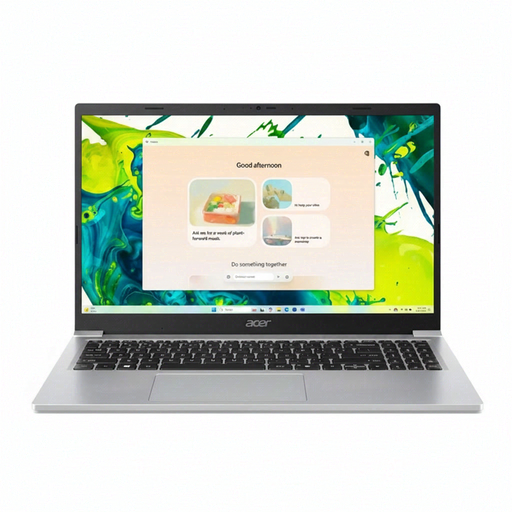
Acer Aspire Lite AL15-36P-C29Z, 15.6-inch Full HD
A Windows 11 Home laptop to assess if you need a portable computer for your access tools. It lists an Intel N150, 8GB DDR4 RAM and a 128GB SSD. Check whether the installed Windows configuration permits your required assistive applications, and test any external display or input device you plan to use.
Joybuy
 No image available
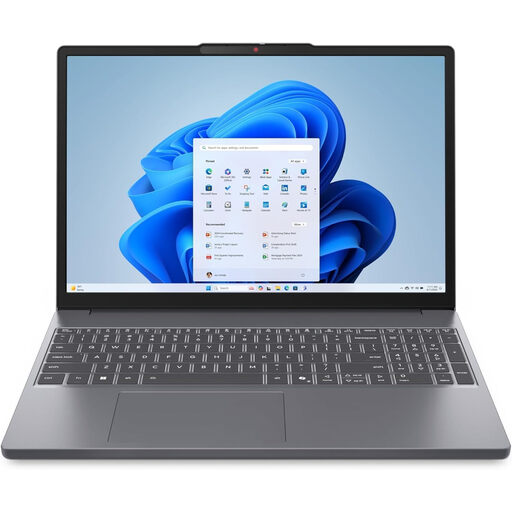
Lenovo IdeaPad Slim 3 83K7009MUK, 15.3-inch WUXGA
Consider this Windows 11 Home laptop if a portable screen is part of your planned setup. It lists an AMD Ryzen 5 7535HS, 24GB DDR5 RAM and a 512GB PCIe SSD. Confirm the connections for any separate monitor or adaptive input device, then try your essential software with the intended access settings.
Joybuy
 No image available
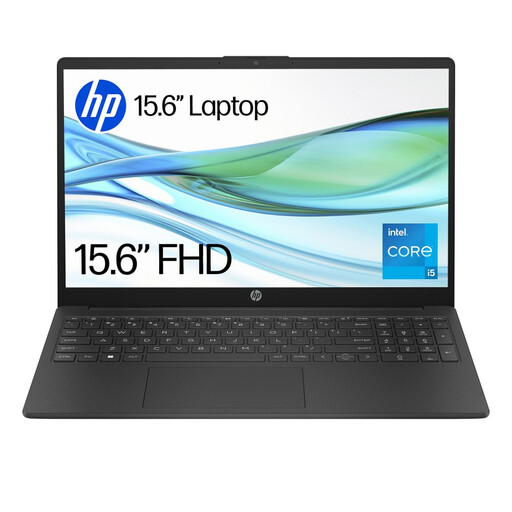
HP 15-fd0064na, 15.6-inch
This Windows 11 Home laptop lists an Intel Core i5-1334U, 8GB RAM and a 256GB SSD. Try the display with your required enlargement or contrast settings, and check whether its Windows configuration allows installation of your essential assistive software. Confirm connections before selecting an external display or input device.
Joybuy
 No image available
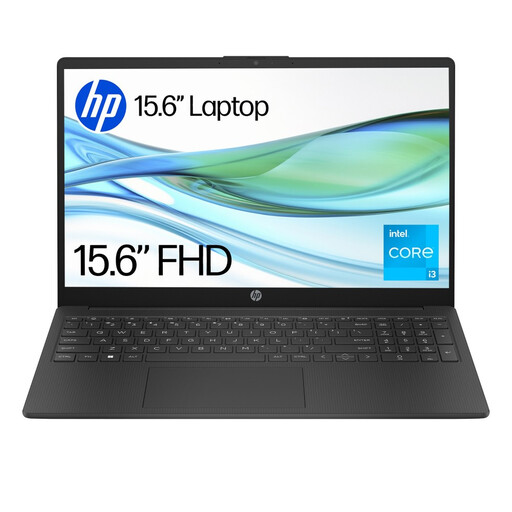
HP 15-fd0060na, Windows 11 Home S
This laptop lists a Core i3-N305, 4GB RAM and 128GB UFS storage. Its Windows 11 Home S designation makes software installation an important check: confirm that every required assistive application can be installed and used in the supplied configuration. Test the intended display and input arrangement as well.
Joybuy
Frequently asked questions
Should I choose a larger laptop screen or a desktop with a separate monitor?
Choose the arrangement that lets you complete your tasks at a workable viewing distance. A separate-monitor desktop is worth considering when screen position and space for input devices are central to the setup; a laptop suits a need to move between locations if you can also use its display, controls and connections. AbilityNet advises choosing around individual access needs rather than assuming one computer type fits everyone.
What should I test with an alternative keyboard, pointer or switch?
Test the device with the intended computer and essential applications, including the actions you need it to perform. Check its Bluetooth or USB connection, any receiver or switch plugs, configuration permissions, control placement and, where relevant, pairing and charging. Connecting successfully is only one part of a usable setup.
Are built-in accessibility features enough?
They may be enough for your tasks, so try them before deciding whether to add hardware or software. Microsoft, Apple and Google document built-in access tools for their respective platforms, while RNIB advises checking features on a computer you already own. Test your actual applications: a built-in screen reader does not establish that you can dispense with a needed braille display or alternative input device.
Should I buy a Windows 10 computer for a new setup?
A Windows 10 computer carries a support issue for a new setup: Microsoft states that Windows 10 reached end of support on 14 October 2025. If choosing a Windows computer, check its installed version and test your required access tools and applications on that version.
Can workers in the UK seek help with specialist equipment?
Eligible workers can explore Access to Work. GOV.UK says the scheme could provide a grant towards practical support such as specialist equipment and assistive software. Check the scheme’s eligibility and application information for your circumstances rather than assuming a particular purchase will be funded.


