Who needs a different setup?
The useful starting point is the action that prevents you completing a regular task, such as reading a message, finding a form control or entering text.
People who struggle to read screens or locate keys
Check whether screen reading, magnification, contrast changes or a more readable keyboard address the difficult step. RNIB describes these as distinct access options; a larger screen alone will not answer every reading or navigation need.
People who find a standard mouse or keyboard difficult to use
Compare the movement needed to type, point, click and scroll. AbilityNet identifies alternatives to standard keyboards and mice for people with physical, sensory or cognitive access barriers; the right option still needs to fit the movements you can use reliably.
Windows or Mac users with a familiar access routine
Before changing computers, try the tools already available in your operating system and check whether any new peripheral supports it. RNIB recommends checking built-in features before buying a replacement; Apple and Microsoft describe accessibility options for their respective systems.
What should you check first?
Try signing in, reading a message, navigating a form and entering an answer on the device you have. Let the step that causes the most difficulty determine what you assess next.
| Concern |
What to check |
Who this matters to |
| Reading and navigation |
Try screen reading, magnification and contrast controls on the intended system. If adding a display or keyboard, check its connections and layout. |
If I cannot read a bill or locate controls in an online form, changing screen access is my first priority. About 36% of consumers would put reading and navigation first. |
| Pointer and keyboard control |
Trial the required hand movements, button positions and scrolling method; confirm the device's connection type. |
When moving a mouse or entering text stops me finishing a task, I need an input method I can operate consistently. Around 29% of consumers would make physical control their primary concern. |
| Familiar software and tools |
Confirm the operating-system version, the accessibility tools you use and compatibility with any new peripheral. |
If my current shortcuts or screen-reading routine work, I want to keep using them rather than relearn an essential service. For about 21% of consumers, preserving that workflow would come first. |
| Reliable setup and support |
Try the complete online task, including sign-in and submission. Consider setup help or an assessment if standard options do not work reliably. |
If several barriers interact, I need a setup I can use from start to finish, not just a device that works for one step. Roughly 14% of consumers would prioritise dependable setup or specialist help. |
Relevant brands to consider
These brands illustrate operating-system tools and peripheral designs to investigate. Match the exact product or software version to your tasks rather than treating a brand name as a compatibility guarantee.
Apple
Mac computers may suit someone who already uses a macOS accessibility workflow.
- Apple Support describes Mac options including VoiceOver, Zoom, spoken commands, keyboard controls and assistive-device support.
- Check the macOS version, your required apps, websites and peripherals; built-in tools do not establish that every task will work.
Microsoft
Windows accessibility tools are relevant when you want to retain or establish a Windows-based setup.
- Microsoft Support describes Narrator as built into Windows 11.
- Check your Windows version and test Narrator with the services and external hardware you intend to use.
Logitech
Its ERGO M575 is one thumb-operated trackball to consider when moving a conventional mouse is the difficult action.
- Logitech describes the ERGO M575 as stationary and lists Bluetooth and USB-receiver connection options.
- Its thumb control and button arrangement still need to suit the person using it; check compatibility with the intended computer.
Kensington
Its trackball range provides designs to compare when desk movement and control layout matter.
- Kensington describes trackballs that stay in place rather than travelling across the desk.
- Ball size, handedness, button placement and connection method need checking on the exact model.
Logickeyboard
Its large-print keyboard range is relevant when locating keys visually is the principal difficulty.
- Logickeyboard lists separate Mac and Windows variants, including models with different connection and lighting options.
- Confirm the exact operating-system compatibility, layout, keyboard size and connection before choosing a variant.
Joybuy laptop selections
These laptops are options when replacing or adding a computer is the appropriate route for your everyday online tasks. Choose by your required operating-system workflow and way of interacting with the device, then test the services you use; a laptop does not replace a needed input accessory or setup support.
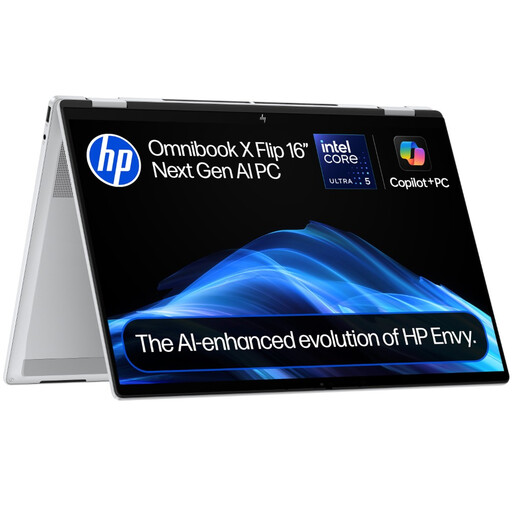 Image unavailable
HP OmniBook X Flip 16-as0004na, 16-inch touchscreen
Consider this model if touch interaction or a convertible laptop format is worth trying for your regular tasks. The product name specifies a 16-inch touchscreen, a 2-in-1 design, Intel Core Ultra 5 226V, 16GB RAM, 512GB SSD and Windows 11 Home. Microsoft Support identifies Narrator as built into Windows 11, but test your required websites and input methods rather than assuming the touchscreen makes them accessible.
View on Joybuy
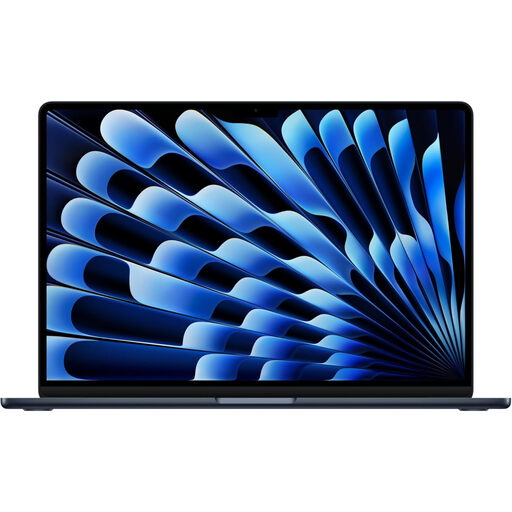 Image unavailable
Apple 13-inch MacBook Air, M5, 24GB, 1TB, Midnight
Consider this model if you want to keep using a Mac-based workflow, after confirming that your required accessibility tools and online services work as needed. Its product name specifies an M5 chip with a 10-core CPU and 10-core GPU, 24GB memory and a 1TB SSD. Apple Support describes Mac accessibility options including VoiceOver and Zoom; check the installed system version and any peripheral you plan to connect.
View on Joybuy
 Image unavailable
ASUS Vivobook 14 X1407QA-LY003W, Snapdragon X, Quiet Blue
Consider this 14-inch laptop if you plan to use a conventional laptop layout and will check the operating system and any external accessories against your access needs. Its product name specifies Snapdragon X, 16GB RAM and a 512GB SSD. The stated display is non-touch, so it is not the choice if touching the screen is essential; confirm the connections and software needed for your regular tasks.
View on Joybuy
Questions about choosing a setup
Should I try accessibility settings before buying a new computer?
Yes, if your current computer otherwise works for you. RNIB recommends checking its built-in accessibility features first; try them while reading messages, navigating forms and entering text so you can identify what remains difficult.
When is a trackball worth trying instead of a mouse?
Try one when moving a conventional mouse across the desk is the main barrier. A trackball stays in place, but check whether its ball position, buttons and scrolling method suit the movements you can use.
Will a large-print keyboard work with any computer?
Not necessarily. Logickeyboard lists distinct Windows and Mac variants; check the exact keyboard's operating-system requirements, layout and connection method against your computer.
When should I seek specialist accessibility support?
Consider it when built-in settings and mainstream peripherals still do not let you complete essential tasks reliably, or when several access barriers make a workable setup difficult to identify. GOV.UK guidance on assistive technology includes information about applying for a formal needs assessment.
Could Access to Work help with equipment needed for a job?
It may help eligible people with specialist equipment or assistive software needed for work. GOV.UK describes the Access to Work scheme; check its eligibility and application guidance for your circumstances rather than treating it as a general route for household purchases.


