People who need easier screen access
If reading text or finding controls is the main barrier, try screen reading, magnification, spoken content and display settings in the apps you need for reading and writing.


Start with the daily task that is hardest to complete, then try the built-in accessibility tools on a computer or tablet you can use. A mainstream device may be enough if it supports that task in your actual apps; consider alternative input or specialist communication equipment when it does not, checking compatibility, setup and the opportunity to try it before committing.
If reading text or finding controls is the main barrier, try screen reading, magnification, spoken content and display settings in the apps you need for reading and writing.
If touch, a standard keyboard or a mouse is difficult to use consistently, identify an action you can repeat comfortably before choosing voice control, a switch, an adapted keyboard or another pointer.
Typed speech, reminders and simpler task routines may call for different setups. Check whether a mainstream device handles the essential task or whether specialist communication equipment needs a trial and training.
Choose an access method by the task it must support, not by the number of accessibility features listed. GOV.UK notes that everyday computers and tablets often include accessibility tools, but the intended apps and input method still need a practical trial.
Consider when: Touch, a keyboard, voice or another supported standard method lets you complete the essential task.
Allow for: Features and app behaviour varying by device and software version.
Consider when: A switch, adapted keyboard or other physical action works more reliably than standard touch or mouse use.
Allow for: Accessory compatibility, positioning and time to configure the controls.
Consider when: Mainstream input methods cannot support an essential communication or control task reliably.
Allow for: Assessment, mounting, calibration, training and a documented trial.
| Concern | What to check | Who this matters to |
|---|---|---|
| Reading and screen access | Try screen reading or magnification with the required content and apps on the exact device. | If I struggle to find or understand on-screen information, I need to finish a real reading task without losing my place. Around 27% of consumers put this screen-access need first. |
| Writing and device control | Confirm the usable input action, operating-system support and any accessory connection or positioning requirements. | When standard touch, keyboard or mouse use interrupts my work, I need another way to enter text and navigate reliably; around 33% of consumers prioritise alternative input. |
| Communication and spoken output | Test how text is entered and spoken in the intended calls, apps or face-to-face setting. | If I rely on typed words being spoken aloud, I need that workflow to work where I communicate. For around 20% of consumers, communication is the primary concern. |
| Reminders and routines | Try the intended calendar or reminder app using the chosen access method; check that notifications are manageable. | For daily appointments and routines, I need a planning interface I can return to and operate consistently. Around 20% of consumers place organisation first. |
A screen reader or voice-control option does not establish that the required app, sign-in step or daily workflow will be usable.
Write down two or three essential tasks and try each one on the intended device and software configuration.
Switches, alternative keyboards and eye-gaze systems can depend on particular connections, software and setup. Tobii Dynavox specifies TD Control for its TD I-Series and PCEye hardware, rather than as a standalone app.
Confirm the device, operating-system version, accessory model, connection and required software together before ordering.
An adapter or mount may also be needed to put an otherwise compatible control within reach.
Eye-gaze access can require positioning and calibration. GOV.UK advises that an assessment and trial with experts may be useful when choosing assistive technology.
Arrange an assessment or documented trial when the setup is needed for essential communication or complex alternative input.
Allow time for fitting, configuration and learning the chosen controls.
For workers with disabilities or health conditions, employer adjustments and, for eligible people in England, Scotland and Wales, Access to Work may be relevant to the required work setup.
Describe the work task and access barrier to the employer, then check the applicable support and assessment steps before ordering specialist equipment.
iPad and Mac are mainstream options to examine for screen access, alternative input and typed speech.
Windows PCs are relevant when desktop apps and built-in screen, keyboard or voice-access tools are part of the intended workflow.
Android tablets and Chromebooks provide built-in access routes worth trying for reading, voice input and device control.
Its specialist equipment is a route to investigate when eye gaze is the intended method of communication or computer control.
These tablets and planners relate to built-in-access and daily-organisation routes. Try the essential task on the exact model before treating any of them as a suitable accessibility setup.
 No image available
Consider this for handwritten notes or a planning workflow, provided its apps and controls work for you. The product name lists voice-to-text and 16-language transcription; check the connection needed for transcription and the available audio-output method before relying on spoken feedback.
 No image available
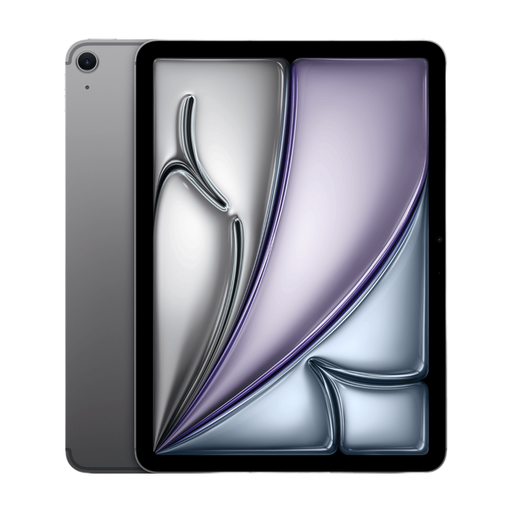
An iPad route for testing reading, writing or alternative-input tasks with the apps you intend to use. Apple documents Switch Control for iPad; confirm the settings and any required peripheral on this model, and check what accessories are included.
 No image available
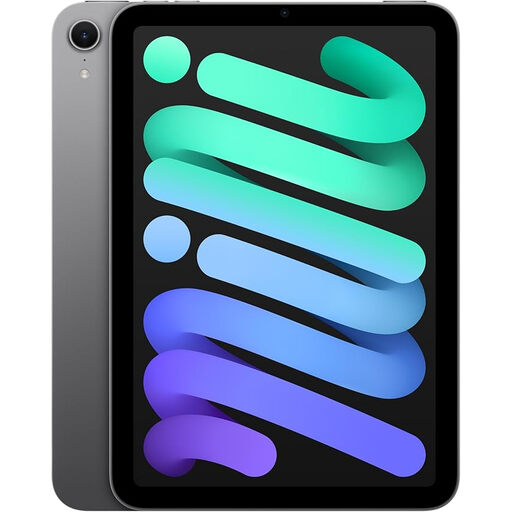
Consider this compact iPad for a tablet-based access setup if your reading and input tasks remain comfortable on its 8.3-inch display. Test the required apps and settings on the model, and check whether a needed stylus is included.
 No image available
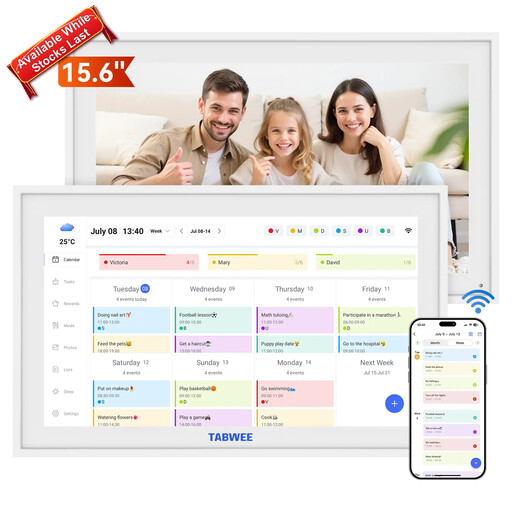
A visual planner to consider for appointments and household routines if its touchscreen is usable for the intended person. Try its interface and confirm compatibility with any calendar service or alternative access method you need.
 No image available
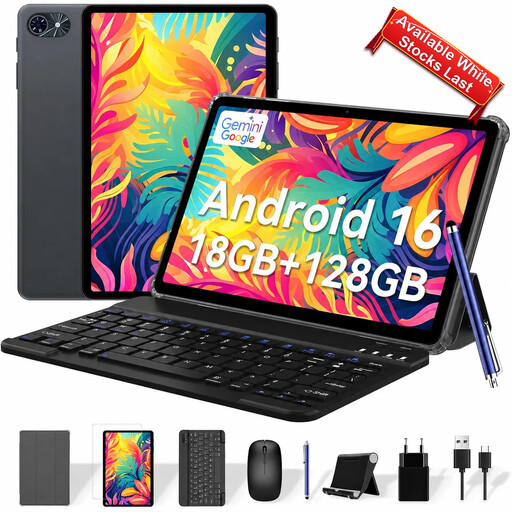
A tablet-and-keyboard setup to consider if keyboard input is part of your preferred way to work. Google documents Android accessibility tools, but test the required tools, keyboard operation and apps on this model; confirm the RAM variant before ordering.
Yes, when a mainstream device could support the task, try its built-in tools with your actual apps first. GOV.UK notes that computers and tablets often include accessibility features; move to specialist hardware if the essential task still cannot be completed reliably.
Seek an assessment or trial before choosing equipment that needs complex input, mounting or calibration, particularly for essential communication. GOV.UK advises that a formal assessment and trial with experts may be useful when selecting assistive technology.
Check the exact computer or tablet, software version, connection, required apps and physical positioning together. Apple documents Switch Control for iPad, while Tobii Dynavox specifies TD Control for particular TD I-Series and PCEye hardware; neither statement establishes that a different combination will work.
Many UK online purchases of goods have a change-of-mind cancellation period ending 14 days after delivery under the Consumer Contracts Regulations 2013, but exceptions can apply, including to personalised or custom-made goods. This is distinct from remedies for faulty goods. Check the seller's terms and confirm any trial arrangement before configuring equipment.
The Department for Work and Pensions guidance cited for Access to Work applies to England, Scotland and Wales. If the setup is for work in Northern Ireland, check the relevant local employment-support arrangements rather than assuming the same scheme applies.