What should you check first?
Test the access method on your current device, then check it in the apps and tasks that matter. If settings alone do not work, consider the necessary peripheral or specialist tool as part of the whole setup.
| Priority | What to check | Your needs |
|---|
| Reading and navigation |
Try screen reading, text size, contrast and magnification in the documents and websites you use. If you use braille, check the display and screen-reader combination; RNIB says braille displays typically need a screen reader for computer output. |
I need to read and move through on-screen content using speech, enlarged content or tactile output, rather than merely make text bigger in a settings menu. |
| Writing and device control |
Test keyboard and pointer adjustments before choosing an alternative input device. For a peripheral or voice tool, check its connection method and operation in your required apps. |
Typing, selecting or navigating with standard controls is difficult, so I need an input method I can use for my actual tasks. |
| Apps and daily workflow |
Confirm required software and services work on the chosen operating system. Try the complete task with the intended accessibility tools, and allow for setup and practice where needed. |
My documents, calls or learning and work systems need to remain usable with the access method I choose. |
| Specialist equipment and support |
Ask to demonstrate specialist hardware with your device and software. For a work-critical setup, discuss the task with your employer and check whether individual assessment or support is appropriate. |
Before committing to a specialist setup, I want to know that its controls, connections and training requirements fit what I do. |
Which platforms offer accessibility tools?
These platform references describe tools to investigate, not a guarantee that a particular app or peripheral will be accessible.
Apple
Mac and iPad are relevant if you want to evaluate Apple’s built-in access tools alongside your essential apps and peripherals.
- Apple describes VoiceOver as providing audible or braille screen information.
- Try your own navigation tasks and check the required third-party apps and peripherals before choosing a device.
Microsoft Windows
Windows computers offer a setting in which to evaluate built-in tools alongside any specialist software or hardware your tasks require.
- Microsoft Support lists resources for Windows screen readers, magnifiers and speech recognition.
- RNIB notes that built-in magnification may lack features needed for some uses; test the required controls and apps.
Google Chromebook
A Chromebook is worth evaluating for browser-centred tasks if its access tools and required services suit your workflow.
- Google documents Chromebook screen reading, Select-to-speak and dictation.
- Check required offline software, institutional systems and specialist peripherals before choosing ChromeOS.
Joybuy computers and tablets to consider
These are mainstream computers and a tablet for trying built-in accessibility tools. Choose among them by checking the operating system, your essential apps and the way you need to control the device; specialist peripherals and software are separate decisions.
 No image available
Acer Chromebook Plus 514 CB514-5H, 14-inch WUXGA
Consider this Chromebook for tasks where ChromeOS and its documented accessibility tools work with the services you use. It has a 14-inch WUXGA (1920 x 1200) display, Intel Core 5 120U, 8GB RAM and a 512GB SSD. Check essential apps and specialist peripherals on ChromeOS before buying.
View on Joybuy
 No image available
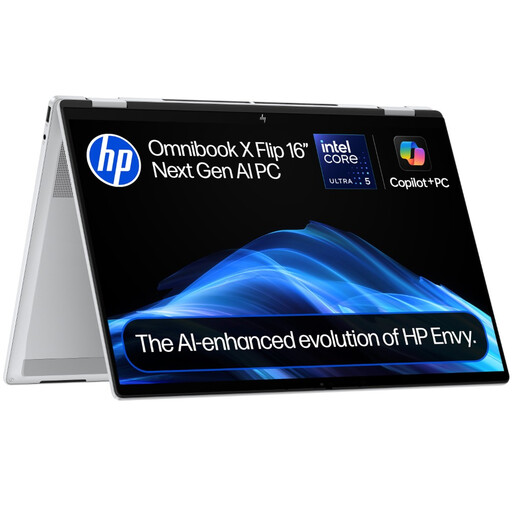
HP OmniBook X Flip 16-as0004na, 16-inch touchscreen
This Windows 11 Home convertible offers touch as an interaction option, though touch suitability depends on your access method. The listed configuration has a 16-inch touchscreen, Intel Core Ultra 5 226V, 16GB RAM and a 512GB SSD. Try your essential apps and accessibility workflow before choosing it.
View on Joybuy
 No image available
ASUS Vivobook 14 X1407QA-LY003W Copilot+ PC
Consider this laptop if its software and peripheral compatibility matches the access method you plan to use. The listed configuration has a Snapdragon X processor, 16GB RAM and a 512GB SSD. Confirm your essential apps and accessibility workflow on the exact setup before buying.
View on Joybuy
 No image available
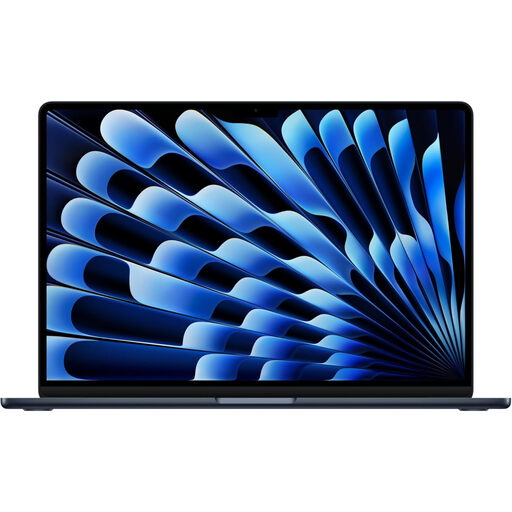
Apple 13-inch MacBook Air (2026), M5, 24GB, 1TB SSD
Apple describes VoiceOver as an option for audible or braille screen information; try it with the apps and peripherals you need rather than assuming they will work together. This MacBook Air has an M5 chip with a 10-core CPU and 10-core GPU, 24GB of memory and a 1TB SSD.
View on Joybuy
 No image available
Apple 11-inch iPad Air (2026, M4), Wi-Fi, 128GB
This tablet is an option for testing Apple’s VoiceOver with your everyday reading and navigation tasks. It is the 11-inch Wi-Fi model with 128GB of storage. Check essential apps and peripherals; if your intended setup needs an Apple Pencil or Magic Keyboard, the listing says they are sold separately.
View on Joybuy
Frequently asked questions
Should I try built-in settings before buying another device?
Yes, if you can use a computer or tablet you already own. RNIB advises checking its built-in accessibility features before buying a new computer; try the relevant screen reading, enlargement or input settings in your actual apps before deciding whether specialist tools are needed.
When might specialist hardware be needed?
Consider it when settings alone do not provide the input or output method your task requires, such as tactile braille access or an alternative to a standard keyboard or mouse. RNIB says a braille display typically works with a screen reader when used with a computer, so demonstrate the combination before buying.
When should I seek an assistive-technology assessment?
Seek individual advice before choosing a costly, specialist or work-critical setup, particularly if several access barriers interact or you cannot establish which tools work together. AbilityNet notes that one-to-one advice and training can help people customise device use to their needs.
Will a wireless keyboard or braille display work with any device?
Do not assume so. Check the exact device, its Bluetooth or USB connection requirements, and whether the peripheral’s functions work with your intended accessibility software; for computer use, RNIB says braille displays typically need a screen reader.


