Choose around the communication tasks and controls the person needs: a smartphone for portable apps and accessibility tools, a tablet when a larger display helps, a simple phone for calls and texts with physical keys, or a computer with alternative input for longer tasks. Before buying, check the exact device, software, accessories and UK communication services together; an accessibility feature name alone does not establish that a particular setup will work.
Who is choosing a device?
People who use text or visual communication
For someone with a hearing or speech difficulty, the deciding task may be a relay call, a captioned conversation, a visible alert or sign-language video. Check the intended service and any hearing-device connection on the exact setup.
Blind and partially sighted users
Choose around the person’s preferred way of reading and navigating: screen-reader speech, braille, magnification, larger text or a combination. RNIB’s phone and tablet guidance focuses on how these devices work for blind and partially sighted users; screen size alone cannot answer that question.
People who find touch controls difficult
Physical keys may suit straightforward calls and texts. For messaging, video calls or longer computer tasks, consider whether voice, switches, a keyboard, a mouse alternative or eye control provides a usable way to navigate.
What should you check first?
Start with the call, message or video task the person must complete, then check the access method and service on the device they would use.
| Priority | What to check | Your needs |
|---|
| Reading and writing |
Try the preferred screen reader, braille input or display, magnification and text settings in the messaging apps that matter. Google notes that Android feature names and navigation can vary by device and market. |
I need to read contacts and messages and compose replies using speech, braille or the amount of vision I can use comfortably. |
| Calls and relay |
Check captions, visual alerts, the intended hearing-device connection and the required calling app. Relay UK lists minimum app versions of iOS 15 and Android 11; confirm the exact device and workflow. |
Calls need a usable text, visual or audio route for me, rather than simply a louder speaker. |
| Physical control |
Try the keypad or the intended voice, switch, keyboard or pointer controls. AbilityNet documents external USB and Bluetooth switches for Android 13, while Microsoft documents voice access and eye control for Windows 11. |
If tapping small targets is difficult, I need a way to select contacts and write messages that I can operate consistently. |
| Interface complexity |
Compare a physical-key phone’s calling and texting workflow with the specific apps needed on a smartphone. Check text settings and menus in person where possible. |
Perhaps calls and texts are enough; if I also need video calling, captions or an app-based service, simpler menus must not come at the expense of that task. |
| Video communication |
Check the video app, camera position, usable controls and internet connection on the intended device. The 999 BSL service says it requires a good internet connection. |
A larger display or stable hands-free position matters to me if I rely on sign-language video, visual contact or captions. |
Which assumptions can cause problems?
-
Assuming all Android phones have identical controls
Google says accessibility navigation and feature names can vary by market and device. A familiar setting on one handset may not appear or work the same way on another.
Check the exact model and software version, then try the screen reader, display controls, voice or switch workflow needed for communication.
-
Taking a hearing-aid label as a streaming guarantee
A hearing-aid-compatible label does not establish how a particular aid or implant will connect to a phone or handle the calls and apps the person uses.
Check the hearing-device maker’s compatibility guidance for the exact phone and test the intended call and video-audio tasks together where possible.
-
Choosing physical buttons before listing the essential tasks
A simple phone may make calls and texts easier to reach, but button size does not establish support for relay apps, captions or video communication.
List the services and apps the person must use, then check them on the proposed phone, tablet or computer before deciding.
-
Buying an input accessory without checking its connection
A keyboard, mouse alternative or switch is only useful if it can connect to the host device and operate the intended controls.
AbilityNet advises checking whether an accessory pairs directly or uses a receiver. Confirm the required port or adapter and try the input settings.
Wireless accessories may also need charging or replacement batteries as part of the daily routine.
Which brands and platforms are relevant?
Apple
iPhone, iPad and Mac are worth considering when communication spans several devices and the person uses built-in access tools.
- Apple lists VoiceOver and Voice Control among its accessibility features.
- Check the exact device, software, communication app and accessory together; a built-in tool does not establish third-party compatibility.
Google / Android
Android offers a choice of handset makers and access methods, including screen reading and display controls.
- Google documents Android accessibility options, including TalkBack and braille-display support.
- Google says feature names and navigation can vary by market and device; check the chosen handset and software version.
Doro
Doro offers simple phones with physical controls as well as simplified Android smartphones for people who still need apps.
- Doro lists a high-contrast physical keypad and hearing-aid compatibility for its Leva E10.
- Check hearing-aid operation with the individual aids, and do not assume a simple-phone model runs the apps needed for communication.
emporia
emporia is a reference point for physical-key phones when calls and texts are the main tasks.
- Physical controls can be considered when a touchscreen is difficult to operate.
- Check the exact model’s controls and required apps rather than assuming feature-phone and smartphone workflows are interchangeable.
Microsoft
Windows is relevant when messages and video calls are mainly handled at a computer with alternative input.
- Microsoft documents live captions, voice access and eye control in Windows 11.
- Check the Windows version, input hardware and communication software required for the intended setup.
Joybuy device options
These options cover physical-key phones for calls and texts, an Android smartphone for app-based communication and a Wi-Fi tablet for a larger display. Check the access tools and services needed on the exact model before choosing.
 No image available
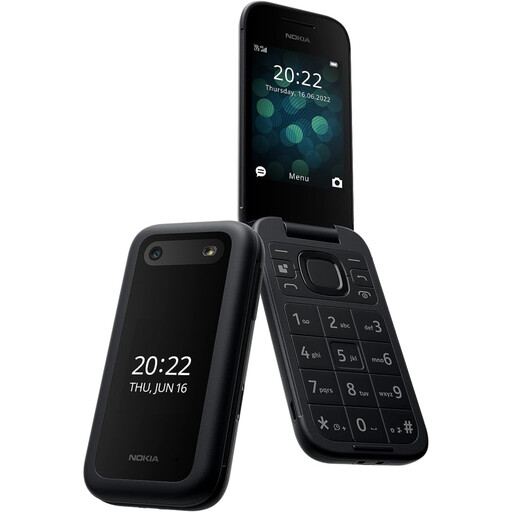
Nokia 2660 TA-1469
Consider this simple-phone option when calls and texts with physical controls are the priority. If hearing-device use or an app-based service matters, check that exact task with the phone before buying.
View on Joybuy
 No image available
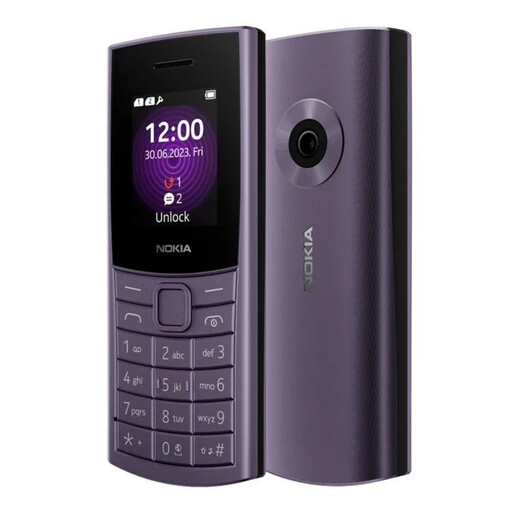
Nokia 110 4G TA-1543 DS Purple
A physical-key option for a calls-and-texts routine. Try its menus and text settings if readability matters, and check any required relay, captioning or video workflow separately.
View on Joybuy
 No image available
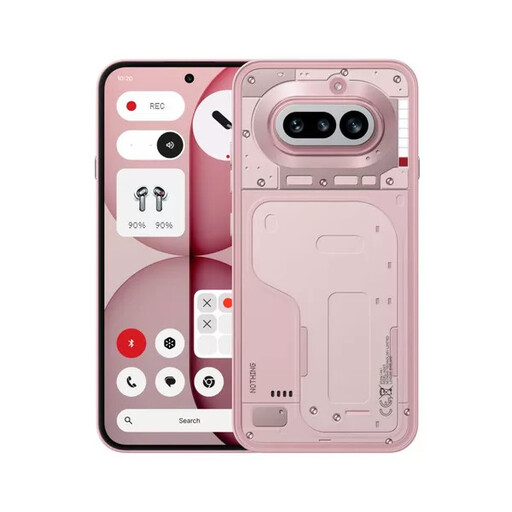
Nothing Phone (4A) 12+256GB Pink
A smartphone option when portable app-based communication is needed. Check the required screen reader, display or input controls, communication apps and hearing-device pairing on this model.
View on Joybuy
 No image available
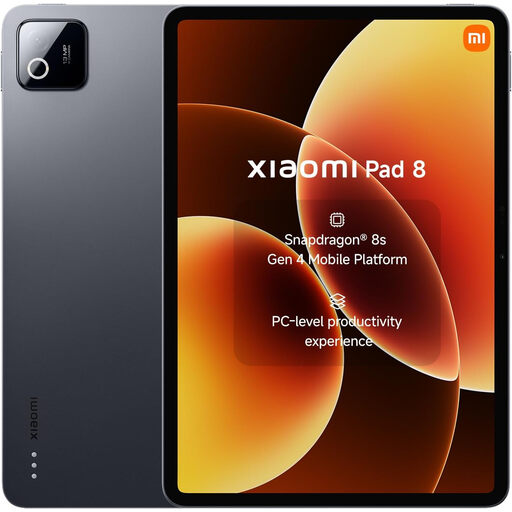
Xiaomi Pad 8 8G RAM 128GB Wi-Fi Gray
A tablet option if a larger display is useful for reading or video communication. Check the preferred access tools and calling apps on this model, and plan for a suitable Wi-Fi connection for online calls.
View on Joybuy
Common questions
Can a tablet or computer be used for Relay UK?
Relay UK provides app options for tablets and computers as well as supported phones. Check its current operating-system requirements and the calling steps for the particular device before relying on it for a regular call.
How do I check a phone against my hearing aids or implant?
Start with the hearing-device maker’s compatibility guidance for the exact phone model, then try the intended calls and audio apps together if possible. A general Bluetooth or hearing-aid-compatible label is not a substitute for checking that pairing.
Can a simple phone replace a smartphone?
It can suit someone whose essential tasks are calls and texts with physical controls. If that person needs captions, video calls or an app-based relay workflow, check those tasks explicitly rather than assuming the simple phone can perform them.
Can a switch or keyboard help with Android communication?
An external input may help when touch is difficult. AbilityNet documents USB and Bluetooth switches for Android 13; check the device connection, software version and the person’s preferred selection method before buying an accessory.


