Choose the device format around the everyday task that is hardest to complete. A phone or tablet may suit communication away from a desk, while a laptop or desktop is worth considering for sustained typing or a desk-based arrangement; in either case, test the required display, audio and input settings with the services you actually use. An external keyboard, pointer or setup support is a separate decision, not something built-in accessibility settings automatically replace.
Who needs to consider accessibility?
The useful starting point is the task and the control method, not an age or disability label. Ofcom has described how unsuitable devices can cause discomfort for some disabled people in the UK; that does not mean everyone needs the same adjustment.
People who need clearer text or spoken feedback
Check whether essential messages, websites and forms work with the display adjustments or spoken navigation you intend to use. Apple documents iPad screen-reading and magnification options, while Microsoft documents Narrator for Windows; the content you rely on still needs testing.
People who need help getting started
If accounts, connectivity or accessibility settings are difficult to configure, plan the first setup as well as everyday use. AbilityNet describes volunteer help with installing devices and adjusting settings for older and disabled people.
Desk users considering another way to type or point
Compare a physical keyboard or separate pointer with the touch controls or mouse you would otherwise use. Google documents physical-keyboard options for Android tablets, and Logitech describes a stationary trackball; connection and personal fit need checking separately.
What should you check before choosing?
Start with the activities you must complete, then try the screen, sound and controls needed for them. A portable device and a desk-based setup can solve different parts of the same problem.
Smartphone
Consider it when: Communication away from home is the priority.
Allow for: Its smaller, touch-first format may be difficult for long forms or sustained typing.
Tablet
Consider it when: You want a larger touch display than a phone for messages, calls or online services.
Allow for: Touch controls may not suit you, and any external keyboard needs its own compatibility check.
Laptop or desktop
Consider it when: Sustained typing, a physical keyboard or a desk-based display arrangement matters most.
Allow for: A laptop offers portability; a desktop is more readily kept in a fixed peripheral arrangement. Check the exact connections you need.
| Concern |
What to check |
Who this matters to |
| Readable or spoken access |
Try screen reading, magnification and display settings with an essential message, website or form. Check sound through the audio output you intend to use. |
If reading a service page or hearing its controls is difficult, usable feedback comes before choosing a screen size. Around 33% of consumers put readable or spoken access first. |
| Setup and continuing help |
Decide who will configure connectivity, accounts and accessibility settings, and what help is available afterwards. |
When getting a device ready to use is the main obstacle, I need a manageable setup and someone to turn to later. Roughly 27% of consumers prioritise setup and support. |
| Controllable input |
Check the exact keyboard or pointer connection and try the keys, reach and control method where possible. |
If touch gestures or moving a mouse makes routine navigation difficult, I need another way to type or point. Around 20% of consumers put input control first. |
| Device format for daily tasks |
Try your recurring calls, messages and online forms; decide whether you mainly carry the device or use it at a desk. |
For services I use regularly, I need a format that fits both the task and where I do it. Approximately 20% of consumers make device format their primary concern. |
Common buying pitfalls
-
Choosing by an age or disability label
People within either group can have very different difficulties with reading, sound, input or setup. A category label cannot tell you which device controls will work for a particular person.
Pick two or three essential tasks and try completing them with the proposed display, audio and input arrangement.
-
Assuming an accessibility menu settles compatibility
A setting does not establish that a required app, website or external accessory will work as needed. Google notes that some of its Android tablet physical-keyboard steps apply only to Android 14 and later.
Check the exact operating-system version, accessory connection and services you need before relying on that setup.
-
Treating a trackball as an automatic alternative
A stationary trackball changes how the pointer is controlled; a thumb-operated model may not suit every grip, reach or movement pattern.
Where possible, try the actual controls and confirm the applicable return terms before deciding.
-
Planning for the device but not the first setup
Accounts, internet access and personalised settings can remain barriers even after a suitable device has been chosen. AbilityNet describes volunteer assistance with installation and accessibility adjustments.
Work out who can complete the setup, whether any accessories are needed and what continuing help is available.
Relevant brands for reference
These examples help identify settings and accessory questions to investigate; a brand name alone does not establish that a particular device will suit your tasks.
Apple
For people considering an iPad and wanting to configure accessibility options during initial setup.
- Apple Support documents iPad options including VoiceOver, Zoom, display and text adjustments, speech and touch settings.
- Try the required apps and websites with those settings; their presence does not establish that every task will be usable.
Microsoft
For people considering a Windows computer and screen-reader navigation.
- Microsoft Support states that Narrator is built into Windows 11 and Windows 10 without a separate download.
- Check the Windows version and how Narrator works with the browser, applications and content you need.
Google / Android
For Android tablet users considering a physical keyboard for typing and navigation.
- Google documents connecting an Android-compatible physical keyboard to a tablet.
- Some documented steps require Android 14 or later. Check the exact tablet and keyboard connection.
Logitech
For desk users exploring a stationary trackball instead of moving a conventional mouse.
- Logitech describes its ERGO M575 as a thumb-operated trackball with Bluetooth Low Energy or an included USB-receiver connection.
- That control method is not automatically suitable for a particular hand or movement need; try it where possible.
Tablet and mouse options on Joybuy
These tablets offer different named screen, storage or keyboard configurations to consider for everyday online tasks; the separate conventional mouse is an input option, not a stationary trackball. Check your essential services and preferred controls on the exact setup you plan to use.
 No image available
Apple 11-inch iPad Air (2026, M4), Wi-Fi, 128GB, Starlight
Consider this tablet if you want to try touch-based communication and online services on an 11-inch display. Check VoiceOver, Zoom and your essential apps on the exact device; if you plan to use a Magic Keyboard, confirm compatibility and obtain it separately.
View on Joybuy
 No image available
Xiaomi Pad 8, 8GB RAM, 128GB, Wi-Fi, grey
Consider this tablet for everyday tasks if its screen and controls work with the services you use. Try the accessibility settings and required apps, and confirm the connection and compatibility of any physical keyboard you need.
View on Joybuy
 No image available
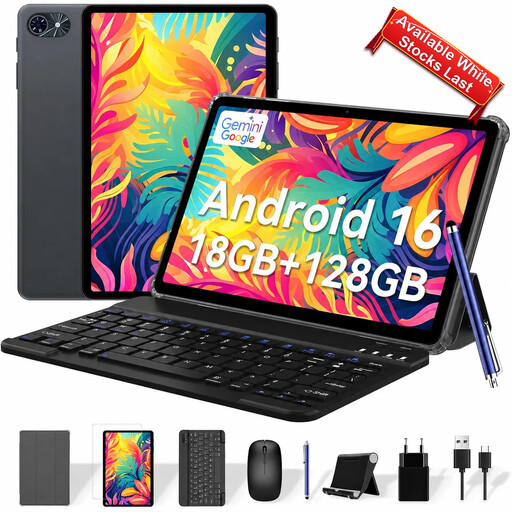
TABWEE T80, 10-inch Android 16 tablet with keyboard, 128GB
Consider the tablet-and-keyboard arrangement if you prefer physical keys for everyday typing. Confirm how the included keyboard connects and works with this tablet, then try the accessibility settings and services you need.
Purchase link unavailable
 No image available
Logitech MX Master 3S mouse, black
Consider this conventional mouse if you want a separate pointer for a compatible device. It is not a stationary trackball: try its shape and controls for your grip and reach, and check that the intended connection works with your setup.
View on Joybuy
Frequently asked questions
Can I turn on accessibility features while setting up an iPad?
Yes. Apple Support documents options including VoiceOver, Zoom and display adjustments during initial iPad setup. Try the settings with the messages, apps and websites the user needs.
Can I use a physical keyboard with an Android tablet?
An Android-compatible physical keyboard can be connected to an Android tablet, according to Google. Some of Google’s documented steps work only on Android 14 and later, so check both the tablet version and the keyboard connection.
Where can someone get help setting up a device in the UK?
AbilityNet says its Tech Volunteers can help older and disabled people with choosing equipment, installation, setup and accessibility adjustments by phone, online or at home. Confirm what help is currently available and whether it covers the particular task.
Do I need a specialist device for accessibility settings?
Not necessarily: standard devices can offer adjustable settings. Apple documents iPad setup options and Microsoft documents the built-in Narrator screen reader in Windows 11 and Windows 10; whether either meets your needs depends on the exact tasks, content and controls you test.


