What should you check first?
Begin with one essential task, then test its output, input method and full workflow. If ordinary device settings and peripherals do not provide workable access, consider an assessment rather than choosing specialist equipment from a feature list.
Built-in device tools
Consider when: The person can complete the essential task using configured screen, audio, caption or voice-input tools on the intended device.
Check carefully: Microsoft, Apple and Google document these tools, but availability and behaviour can vary by device, language and application.
Adapted input peripheral
Consider when: The device and software are usable, but its usual keyboard, mouse or touch controls are not workable for the task.
Check carefully: An alternative control still needs to fit the person's movement, positioning and connection requirements; it is not a substitute for every specialist access method.
Specialist assessment
Consider when: Access may depend on switches, head movement, sip-and-puff control, eye gaze or a communication aid used to form messages.
Check carefully: The Lincolnshire Electronic Assistive Technology Service describes assessed computer-access and communication routes; service criteria and the appropriate setup depend on individual circumstances.
| Priority | What to check | Your needs |
|---|
| Screen access |
Try screen reading or spoken feedback in the intended apps and websites. Test magnification and display settings at the required reading distance; confirm compatibility before choosing a braille display. |
I need to read or navigate messages, documents and controls in a form I can use. |
| Control and typing |
Identify the action that is difficult, then trial the proposed input method. For a peripheral, check operating-system support, Bluetooth pairing or USB connection, positioning and power requirements. |
Typing or moving a pointer needs to remain workable throughout my study, work or communication task. |
| Captions and audio |
Test captions with the actual audio source and language. Check caption appearance and any needed audio settings on the intended device. |
I rely on text for spoken content, or need audio controls that suit how I listen. |
| Complete workflow |
Run through the real task, including sign-in, documents and any required apps. Establish who will configure the setup and help the person learn to use it. |
A feature matters only if I can finish the communication, study or work task it is meant to support. |
| Assessment and support |
For complex access or communication methods, ask about the relevant assessment route. If a purchase depends on study or work support, check the current process with the appropriate authority or employer first. |
I may need an assessed setup, or need to understand the support route before ordering equipment. |
Platform accessibility references
These platform references describe features to investigate, not a judgement that every model or application will meet an individual access need.
Apple
A reference for people considering screen access on an iPhone, iPad or Mac.
- Apple documents spoken and braille output through VoiceOver and navigation with compatible refreshable braille displays.
- Apple says some features, apps and services vary by region or language; confirm the intended device, display and workflow.
Microsoft
A reference for people considering built-in access tools on a Windows 11 computer.
- Microsoft documents Narrator, Magnifier, live captions, voice access and eye control in Windows 11.
- Some functions depend on suitable hardware; check the intended microphone, camera, peripheral and application rather than assuming compatibility from the operating system alone.
Google Android
A reference for people comparing screen, caption and alternative-control tools on Android phones or tablets.
- Google documents TalkBack, magnification, display controls, braille-display support, captions and accessibility-menu controls.
- Google notes that navigation and feature names can vary by market and device; test the particular model and its apps.
Joybuy device options
These phones, tablets and laptop are options to consider when starting with built-in device accessibility tools. Test the access method and essential apps on the intended model; this selection does not represent adapted peripherals or specialist assessed systems.
 No image available
ASUS Vivobook 14 X1407QA-LY003W, Snapdragon X, 16GB RAM, 512GB SSD, Quiet Blue
For someone considering a Windows laptop for study or work: the listing specifies Windows 11, for which Microsoft documents Narrator, Magnifier, captions and voice access. Test the required apps and peripherals on the configured laptop before relying on those tools for an essential task.
View on Joybuy
 No image available
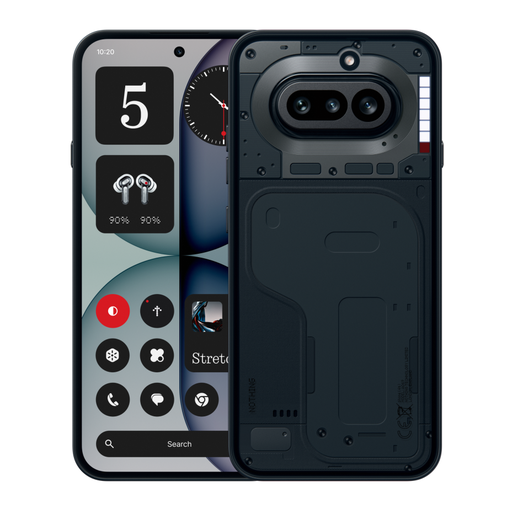
Nothing Phone (4a) 12+256GB Black
For everyday phone tasks using Android accessibility tools: the listing identifies Nothing OS built on Android 16, while Google documents Android screen-reading, magnification and display controls. Check how the needed features work on this model, in the intended language and apps.
View on Joybuy
 No image available
Apple 11-inch iPad Air (2026, M4), Wi-Fi 128GB, Starlight
For someone considering a tablet for reading, communication or study: Apple documents VoiceOver and support for compatible braille displays on its devices. Confirm the required language, apps and braille-display connection on this iPad before choosing it for that workflow.
View on Joybuy
 No image available
Xiaomi Pad 8, 8GB RAM, 128GB Wi-Fi, Gray
For tablet-based study or everyday tasks: the listing specifies Android 16, and Google documents Android tools including TalkBack, magnification and display controls. Verify the needed settings and their behaviour in the intended apps and language on this model.
View on Joybuy
Frequently asked questions
When might built-in accessibility features be enough?
They may be enough when the person can complete their essential task on the exact device after configuration. Try the real apps, websites, language, sign-in steps and documents before deciding that screen reading, magnification, captions or voice input meets the need.
When should I seek an assistive-technology assessment?
Seek an assessment before buying for complex access through switches, head movement, sip-and-puff or eye gaze, or when a communication aid may be the main way to form messages. The Lincolnshire Electronic Assistive Technology Service describes assessed routes for these needs; check the applicable service's referral criteria.
What matters when choosing an adapted keyboard or mouse?
Start with the action that is difficult, such as typing, pointing or reaching. Then trial the layout and positioning for the expected duration of use, and check operating-system compatibility, Bluetooth or USB connection, any receiver and power requirements.
Could work support help with accessible equipment?
GOV.UK says Access to Work in Great Britain can help with specialist equipment and assistive software according to individual needs, but does not pay for reasonable adjustments an employer is required to make. Discuss the work task and adjustments with the employer and check the current scheme; nidirect describes a separate Access to Work (NI) route for Northern Ireland.
Should I buy study equipment before a Disabled Students' Allowance assessment?
For the England Disabled Students' Allowance route, GOV.UK says not to buy equipment before assessment if reimbursement is expected. Study-support processes differ across the UK, so check the current requirements with the authority responsible for your funding before ordering.


